Upload Your BYOK Tenant Secret for FLE, Files, or Event Data
For FLE, Files and Attachments, or for Event Change Data, you upload a tenant secret to
Salesforce. The Shield Key Management Service (KMS) uses your tenant secret to derive your
org-specific data encryption key. The tenant secret you upload for one of these features is used
only for that feature. For example, the tenant secret for Event Change Data is only used to secure
event data.
Required Editions
Available in both Salesforce Classic (not available in all orgs) and Lightning
Experience.
Available in: Enterprise, Performance, and Unlimited
Editions with the Salesforce Shield or Shield Platform Encryption licenses.
Available for free in Developer Edition.
User
Permissions Needed
To generate, destroy, export, import, upload, and configure key
material:
Manage Encryption Keys
To view and edit Setup:
View Setup and Configuration
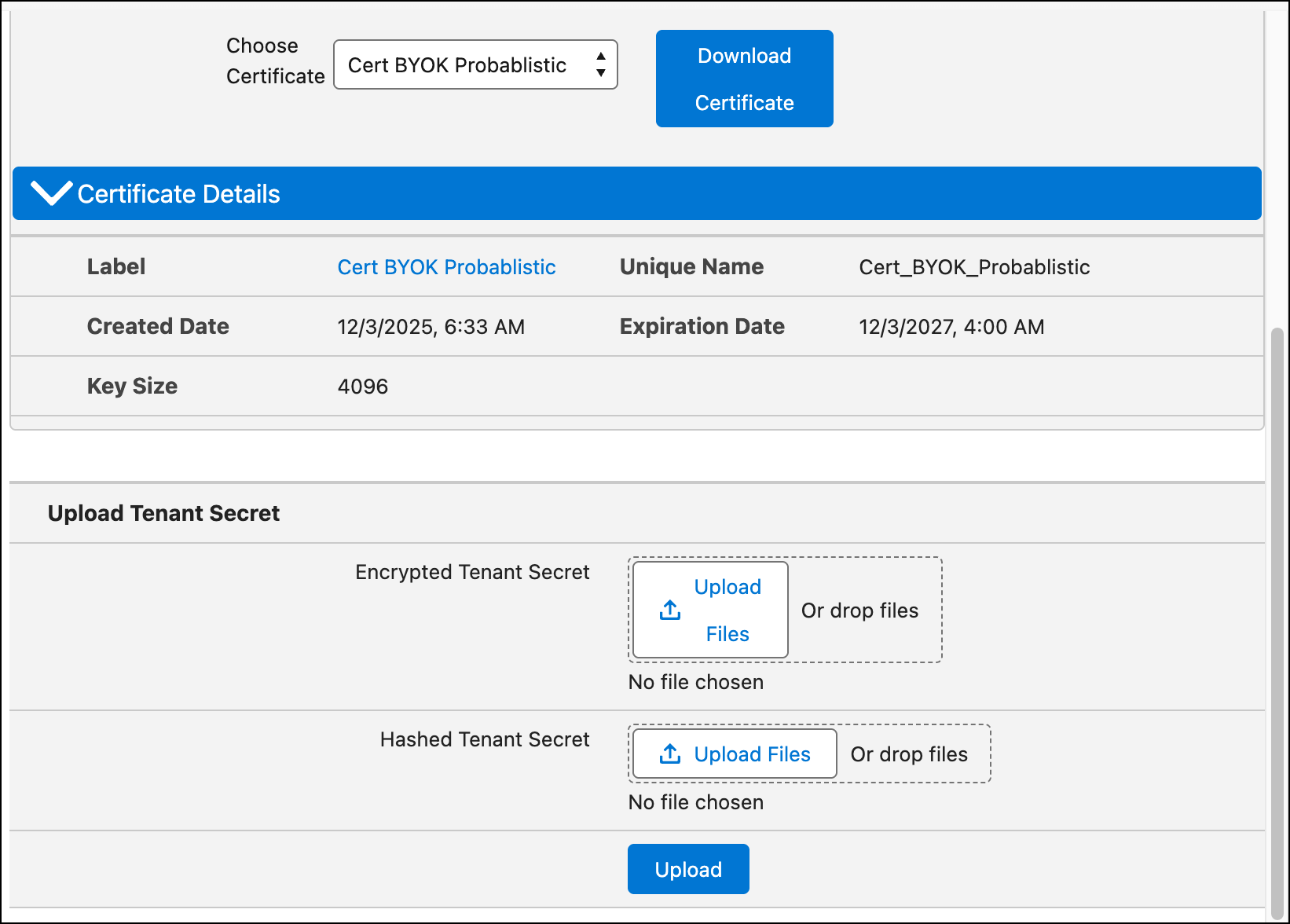
The upload for FLE, Files and Attachments, and Event Change Data requires two files: the
encrypted key material and the hashed plaintext key material.
From Setup, in the Quick Find box, enter Platform Encryption,
and then select Key Management.
In the Key Management Table, select a key type: Fields and Files (Probabilistic),
Fields (Deterministic), or Event Bus.
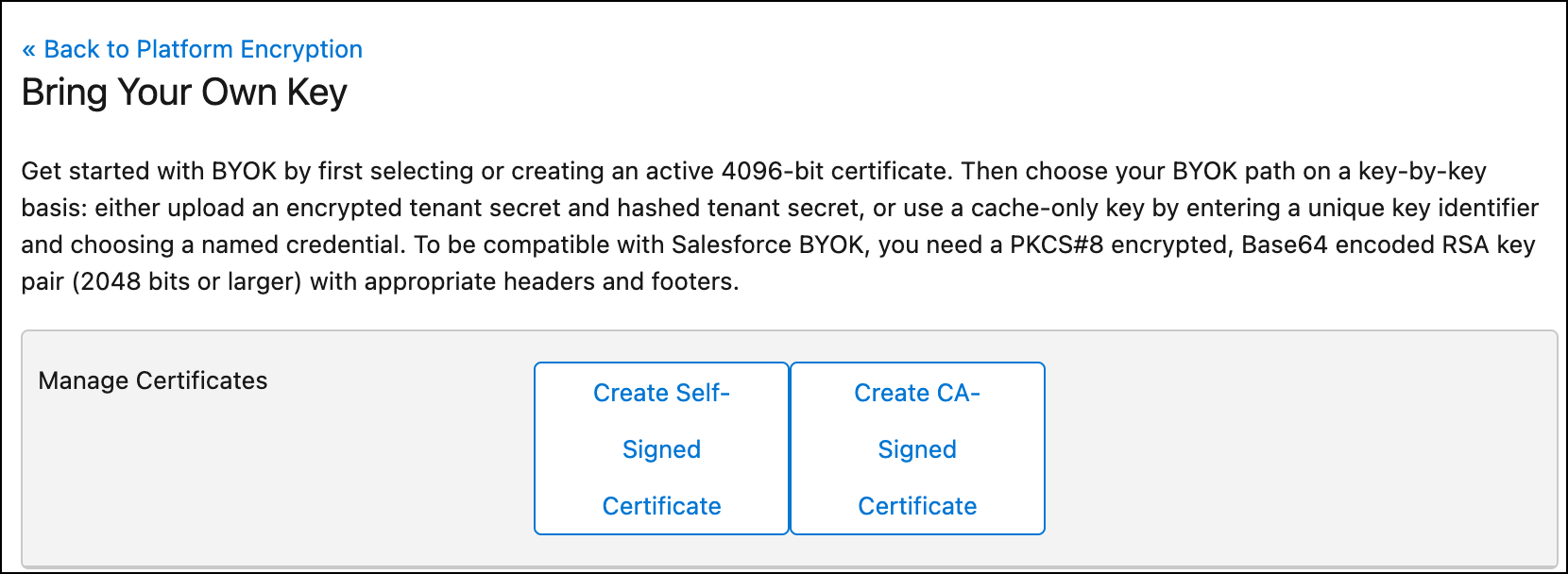
Click Bring Your Own Key.
If you’re prompted to generate a certificate, choose either Self-Signed or CA
Signed. If you have already created certificates you can either select one of those or create
a new one.
Note This certificate is used only to secure the upload of your key
material.
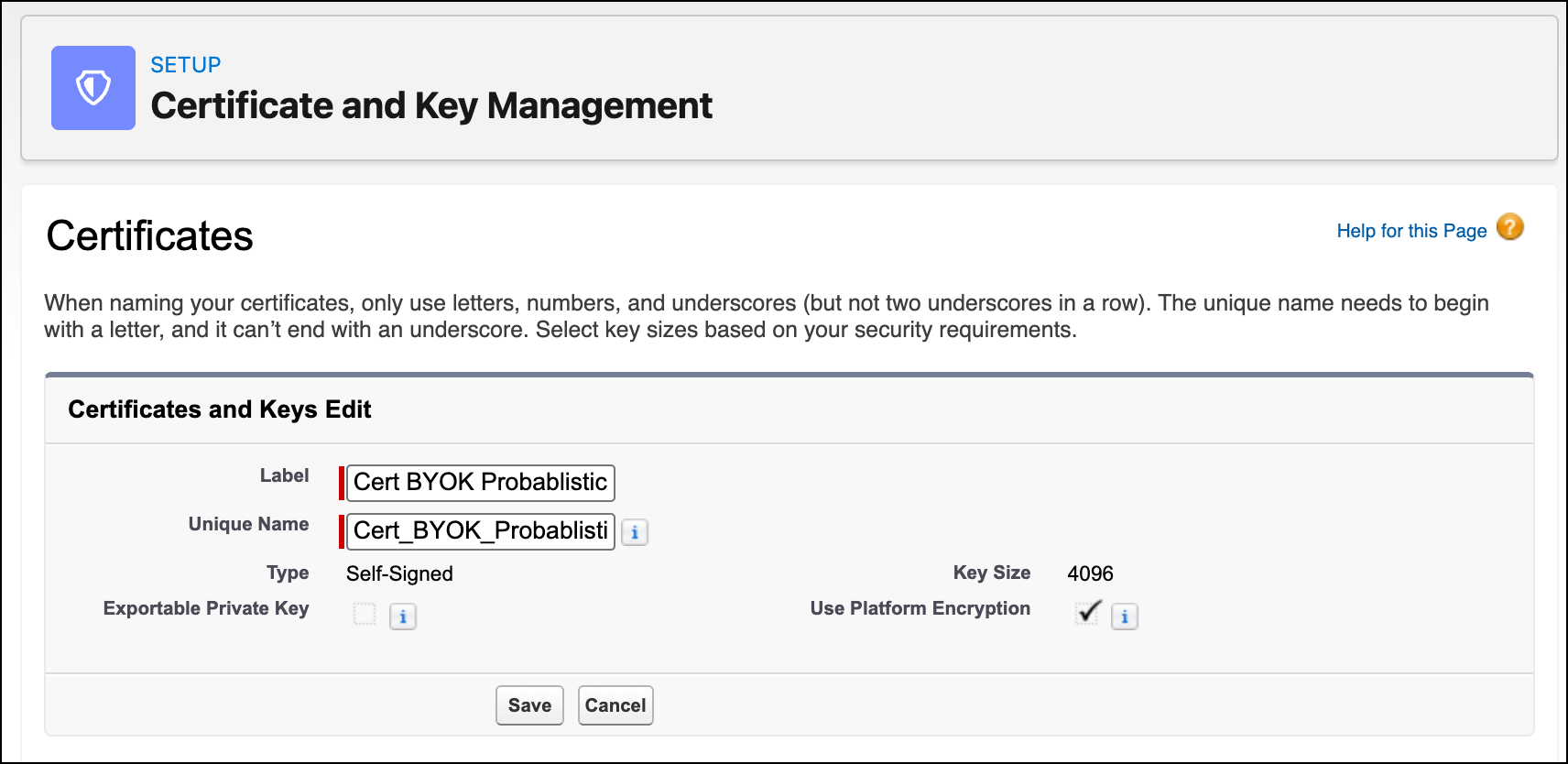
After you choose your certificate type, the Certificate and Key Management page
appears.
In the provided space, type a label, and then select Save.
After you have wrapped your key material, in the Upload Tenant Secret section, attach both
the encrypted key material and the hashed plaintext key material. Click
Upload.
This tenant secret automatically becomes the active tenant secret.
Your tenant secret is now ready to be used for key derivation. From here on, the Shield KMS
uses your tenant secret to derive an org-specific data encryption key. The app server then
uses this key to encrypt and decrypt your users’ data.
If you don’t want Salesforce to derive a data encryption key for you, you can opt out of key
derivation and upload your own final data encryption key. For more information, see Opt Out of Key Derivation with BYOK.
Export your tenant secret, and back it up as prescribed in your organization’s
security policy.
To restore a destroyed tenant secret, re-import it. The exported tenant secret is
different from the tenant secret you uploaded. It’s encrypted with a different key and has
additional metadata embedded in it. See Back Up Your Tenant Secret in Salesforce Help.
You should store both the encrypted key material and the hashed plaintext key material in a
safe place.
Did this article solve your issue?
Let us know so we can improve!
Loading
Salesforce Help | Article
Cookie Consent Manager
General Information
Required Cookies
Functional Cookies
Advertising Cookies
General Information
We use three kinds of cookies on our websites: required, functional, and advertising. You can choose whether functional and advertising cookies apply. Click on the different cookie categories to find out more about each category and to change the default settings.
Privacy Statement
Required Cookies
Always Active
Required cookies are necessary for basic website functionality. Some examples include: session cookies needed to transmit the website, authentication cookies, and security cookies.
Functional Cookies
Functional cookies enhance functions, performance, and services on the website. Some examples include: cookies used to analyze site traffic, cookies used for market research, and cookies used to display advertising that is not directed to a particular individual.
Advertising Cookies
Advertising cookies track activity across websites in order to understand a viewer’s interests, and direct them specific marketing. Some examples include: cookies used for remarketing, or interest-based advertising.