
Upload Your BYOK DEK for Search Index Encryption
For Seach Index Encryption you upload a data ecryption key (DEK) as your BYOK key material. The Shield Key Management Service (KMS) uses your DEK for encrypting and decrypting your data. BYOK DEKs encrypt only search indexes.
Required Editions
| Available in both Salesforce Classic (not available in all orgs) and Lightning Experience. |
| Available in: Enterprise, Performance, and Unlimited Editions with the Salesforce Shield or Shield Platform Encryption licenses. |
| Available for free in Developer Edition. |
| User Permissions Needed | |
|---|---|
| To generate, destroy, export, import, upload, and configure key material: | Manage Encryption Keys |
| To view and edit Setup: | View Setup and Configuration |
Before you can create a search index DEK, you must have an active Salesforce root key. The root key secures the DEK during routine encryption and decryption operations. When you first enable Search Index encryption, Salesforce automatically generates a root key and DEK.
The upload for Search Index Encryption requires two files: the encrypted key material and the session token file associated with your certificate.
-
From Setup, in the Quick Find box, enter Platform Encryption,
and then select Key Management.
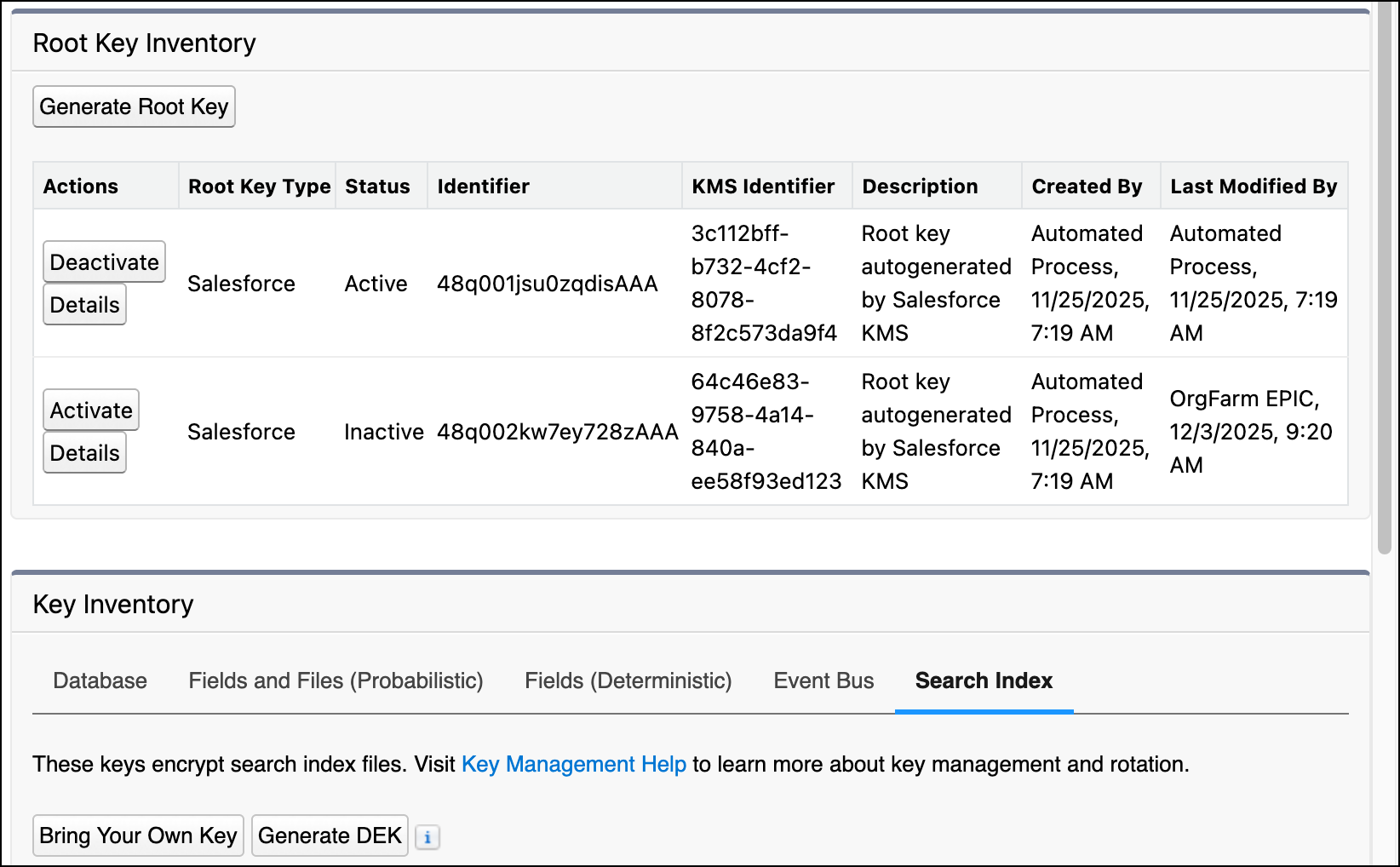
The Key Inventory and Management page loads.
-
In the Root Key Inventory table, check that a root key exists. If a root key exists,
go to step 3. If you don’t have a root key, generate one.
-
Click Generate Root Key.
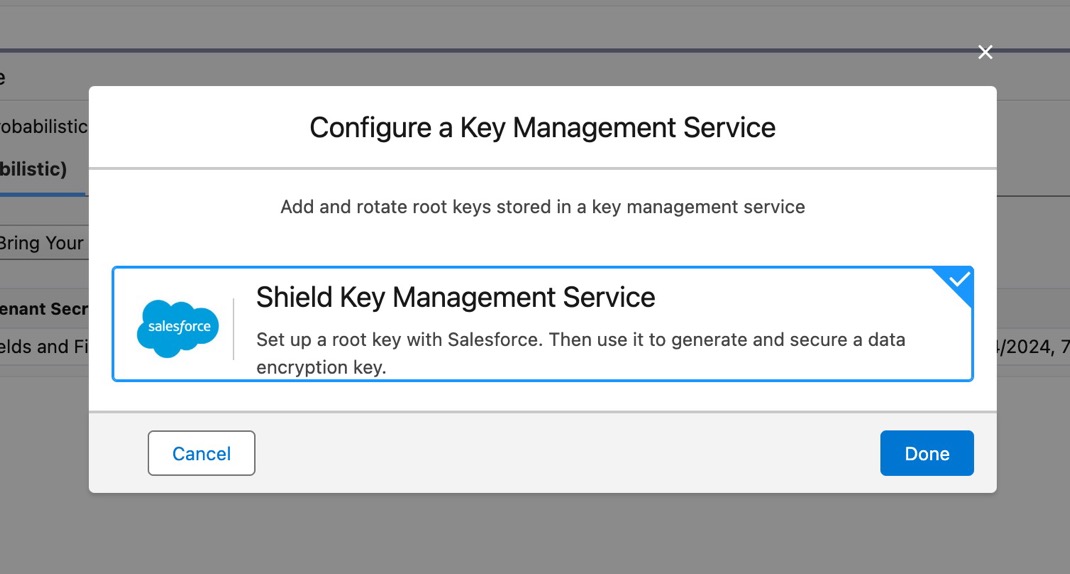
The Configure a Key Management Service window appears.
-
Click Shield Key Management Service and then click
Done.
Salesforce begins generating your root key, which can take a while. When the root key is ready, you’re notified by email. You can then continue this process.
-
Click Generate Root Key.
- In the Key Management Table, select Search Index.
-
Click Bring Your Own Key.
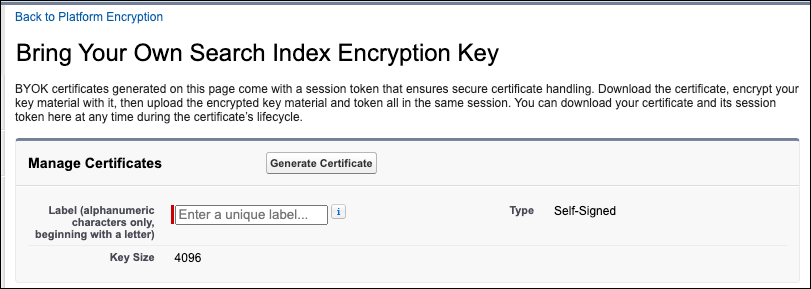
If you’re prompted to generate a certificate, enter a label, and then select Generate Certificate.If successful, you can click Download Certificate and Token to download the files you need to prepare your DEK.
- Use the certificate to prepare your key material for upload.
-
In the Upload Data Encryption Key section, attach both the encrypted key material and
the session_token.txt file associated with your certificate. Click
Upload.
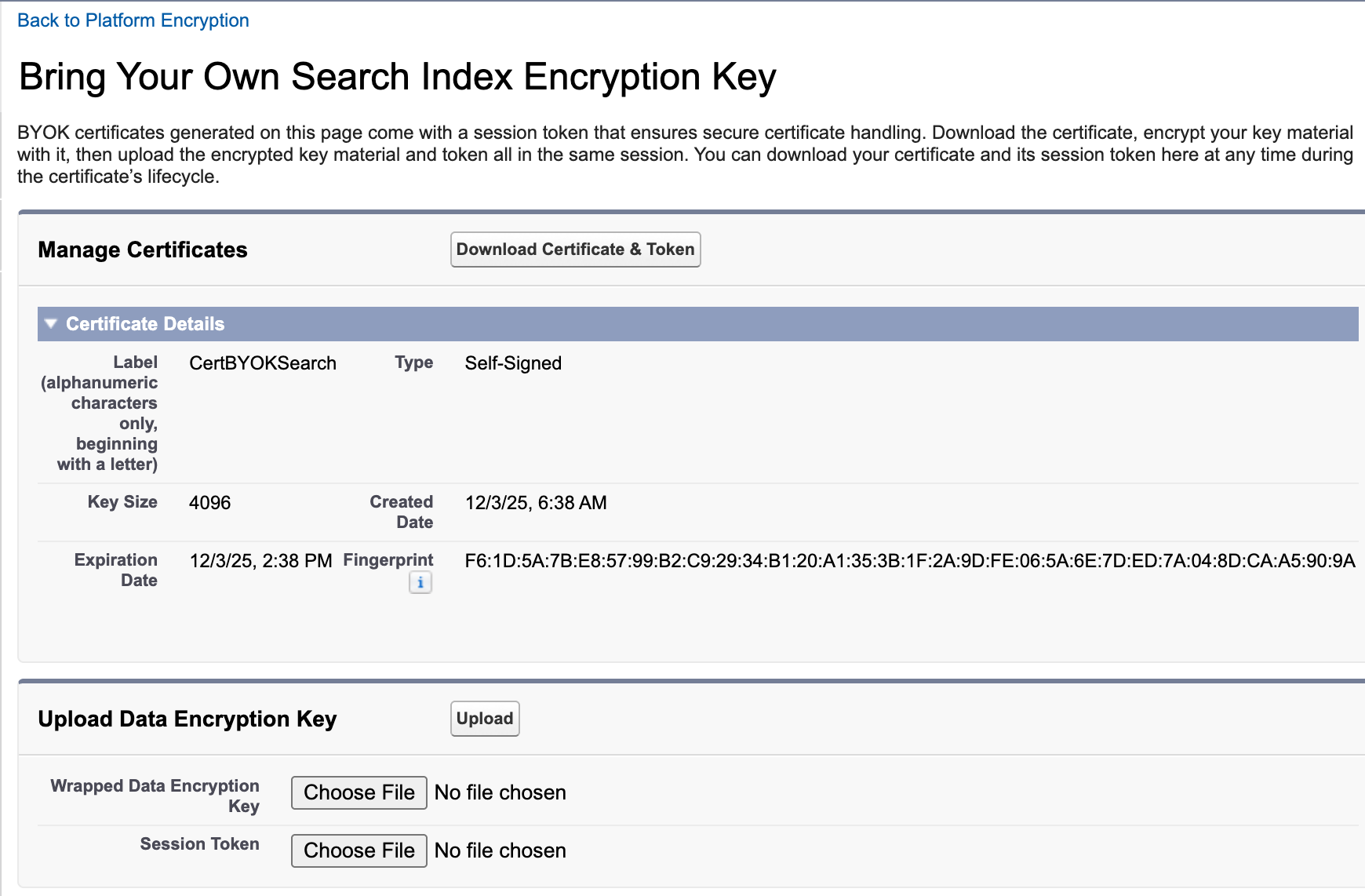
This DEK automatically becomes the active search index data encryption key.
From here on, the Shield KMS uses your DEK to encrypt and decrypt your users’ search data.
