Apply Encryption to Fields Used in Matching Rules
Matching rules used in duplicate management help you maintain clean and accurate data. To make fields encrypted with Shield Platform Encryption compatible with standard and custom matching rules, use the deterministic encryption scheme.
Required Editions
| Available in both Salesforce Classic (not available in all orgs) and Lightning Experience. |
| Available in: Enterprise, Performance, and Unlimited Editions with the Salesforce Shield or Shield Platform Encryption licenses. |
| Available for free in Developer Edition. |
| User Permissions Needed | |
|---|---|
| To view setup: | View Setup and Configuration |
| To enable encryption key (tenant secret) management: | Manage Profiles and Permission Sets |

Before you start, turn on Deterministic Encryption from the Encryption Settings page. If you don’t have a Fields (Deterministic) type tenant secret, create one from the Key Management page.

Follow these steps to add encrypted fields to existing custom matching rules.
- From Setup, in the Quick Find box, enter Matching Rules, and then select Matching Rules.
- Deactivate the matching rule that reference fields that you want to encrypt. If your matching rule is associated with an active duplicate rule, first deactivate the duplicate rule from the Duplicate Rules page. Then return to the Matching Rules page and deactivate the matching rule.
- From Setup, in the Quick Find box, enter Encryption Settings, and then select Encryption Settings.
- In the Advanced Encryption Settings section, click Select Fields.
- Click Edit.
- Select the fields that you want to encrypt, and select Deterministic
from the Encryption Scheme list.
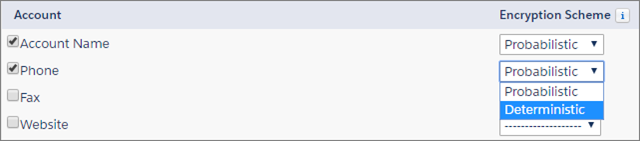
- Save your work.
 Tip Standard matching rules are automatically deactivated when encryption is added to a field referenced by that rule. To encrypt fields referenced in standard matching rules, follow steps 3–8.
 - After you get the email verifying encryption’s been enabled on your fields, reactivate your
matching rule and associated duplicate management rule. Matching rules used in duplicate management now return exact and fuzzy matches on encrypted data.

Let’s say that you encrypted the Billing Address on your Contacts, and you want to add this field to a custom matching rule. First, deactivate the rule or rules that you want to add this field to. Make sure that the Billing Address field is encrypted with the deterministic encryption scheme. Then add Billing Address to your custom matching rule, just like how you add any other field. Finally, reactivate your rule.
When you rotate your key material, you must update custom matching rules that reference encrypted fields. After you rotate your key material, deactivate and then reactivate the affected matching rules. Then contact Salesforce to request the background encryption process. When the background encryption process finishes, your matching rules can access all data encrypted with your active key material.
