You are here:
Send Email for Users with Unverified Domains
Enable Salesforce to send email for users with email domains that you can't verify, such as site users, consultants, and users with public email addresses like yahoo.com or icloud.com. With these options, the user's display name and reply-to address remain unchanged, but the From address uses an organization-wide email address or site-specific sender address of your choice.
These features have no impact on email addresses that end in @gmail.com, @hotmail.com, or @outlook.com, nor on email sent with Salesforce Free Suite or in trial orgs with the salesforce-free-mailsend.com domain. For more information, see Requirements to Send Email from Salesforce.
Specify an Org-Wide From Address for Email Sent for Users with Unverified Domains
On the Deliverability page in Setup, choose whether to send email for users with unverified email domains. Then select the organization-wide email address to use as the From address in the email header. These settings apply across your org.
Required Editions
| User Permissions Needed | |
|---|---|
| To configure email deliverability: | Customize Application |
This feature also applies to system-generated emails and emails sent via shared email accounts, such as organization-wide email addresses, with an unverified domain.
- From Setup, use the Quick Find box to find and select Deliverability.
-
Select Use a substitute email address for unverified domains
(1), and then save your changes.
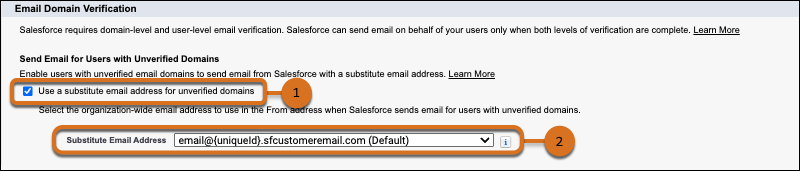
”Use a substitute email address for unverified domains” is enabled by default.
 Important If you disable this feature, Salesforce no longer sends email from unverified domains. In some cases, users get no message and can believe that the email was sent when it was dropped.
 -
For Substitute Email Address (2), select the organization-wide email address to use
as the From address.
Only organization-wide email addresses that meet all of these conditions appear in the list.
- The email domain—the part after the at (@) symbol—is verified
- The email address is verified
- “Allow All Profiles to Use this From Address” is enabled on the organization-wide email address
When users with an unverified email domain send email from Salesforce, the From field can show either their Salesforce email address or the substitution email address.
 Tip To reduce the risk of impersonation fraud, configure and select an organization-wide email address for this specific purpose. For example, if your domain is example.com, use unverified.email@example.com or email@unverified.example.com. See Considerations for Using Organization-Wide Email Addresses.
If no organization-wide email address is selected, Salesforce sends the email from email@UniqueId.sfcustomeremail.com, where UniqueId is your org ID or Experience Cloud site ID.
Send Experience Cloud Site Users with Unverified Domains with the Site Sender Email Address
Required Editions
| User Permissions Needed | |
|---|---|
| To customize or publish an Experience Cloud site: |
|
For each Experience Cloud site, specify whether to use the Sender Email Address to send email for users with unverified email domains. The site-specific setting overrides the Deliverability settings in Setup and applies even when “Use a substitute email address for unverified domains” is disabled.
No equivalent option is available for Salesforce Sites.
- From Setup, in the Quick Find box, enter All Sites, and then select All Sites.
- Next to your site name, click Workspaces.
- Go to Administration, and then select Emails.
-
Select Enable Email Domain Substitution (1), and then save
your changes.
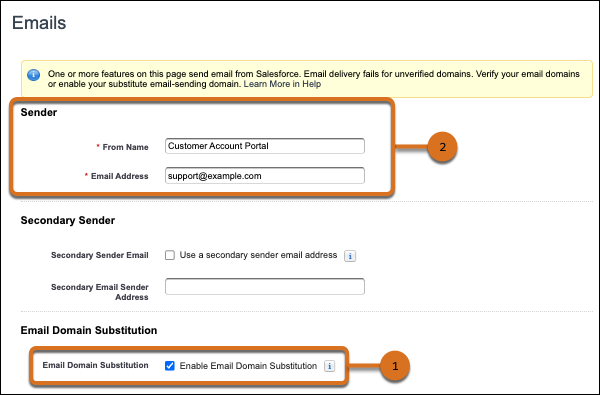
When a user logs in to that site and sends email, Salesforce uses the name and address in your site's Sender Email Address field (2).
If Enable Email Domain Substitution is disabled, or if the Sender Email Address for the site isn’t verified or uses an unverified domain, then the Deliverability page settings apply instead. See Customize Email Sent from Experience Cloud Sites for Email Verification.

In our example org, the “Substitute unverified email-sending domains” Deliverability option is enabled. An active DomainKeys Identified Mail (DKIM) key exists for example.com. However, mail.example.com has no active DKIM key and no verified entry on the Authorized Email Domain list in Setup. The organization-wide email address for the Support profile is support@mail.example.com with a display name of Example Support, and an admin verified that email address.
Enable Domain Substitution is enabled for the “store” Experience Cloud site with Sender Email Address web.customer@example.com. However, Enable Domain Substitution is disabled for the “jobs” Experience Cloud site.
When no Substitute Email Address is selected on the Deliverability page, here are the email header values for email sent from Salesforce. All users verified their email address.
- User 1: An internal user, Vera Lee, with email address
vLee@mail.example.com.
- From:
"Vera Lee" email@orgId.sfcustomeremail.com - Reply-to:
"Vera Lee" vLee@mail.example.com
- From:
- User 2: An internal user with the “Support” profile selects the
support@mail.example.comemail address as the From address when sending an email.- From:
"Example Support" email@orgId.sfcustomeremail.com - Reply-to:
"Example Support" support@mail.example.com
- From:
- User 3: An Experience Cloud site user, Oscar Jackson, with email address
Oscar.Jackson_54@yahoo.com, who logs in to the “store” Experience Cloud site.
- From:
"Oscar Jackson" web.customer@example.com - Reply-to:
"Oscar Jackson" Oscar.Jackson_54@yahoo.com
- From:
- User 4: Oscar Jackson, who logs into the “jobs” Experience Cloud site.
- From:
"Oscar Jackson" email@siteId.sfcustomeremail.com - Reply-to:
"Oscar Jackson" Oscar.Jackson_54@yahoo.com
- From:
An admin then selects the verified organization-wide email address email@example.com, with a display name of Example Company, as the Substitute Email Address on the Deliverability page. Here are the updated email header values for email sent from Salesforce for the same users.
- User 1: An internal user, Vera Lee, with email address vLee@mail.example.com.
- From:
"Vera Lee" email@example.com - Reply-to:
"Vera Lee" vLee@mail.example.com
- From:
- User 2: An internal user with the “Support” profile selects the
support@mail.example.comemail address as the From address when sending an email.- From:
"Example Company" email@example.com - Reply-to:
"Example Support" support@mail.example.com
- From:
- User 3: An Experience Cloud site user, Oscar Jackson, with email address
Oscar.Jackson_54@yahoo.com, who logs in to the “store” Experience Cloud site.
- From:
"Oscar Jackson" web.customer@example.com - Reply-to:
"Oscar Jackson" Oscar.Jackson_54@yahoo.com
- From:
- User 4: Oscar Jackson, who logs into the “jobs” Experience Cloud site.
- From:
"Oscar Jackson" email@example.com - Reply-to:
"Oscar Jackson" Oscar.Jackson_54@yahoo.com
- From:
