Discover and Set Up Features with Salesforce Go
Save time and effort exploring and setting up features with Salesforce Go. With rich filtering, find the exact features and feature sets you want to set up. Access helpful content resources and links to learn about features and get configuration assistance. Discover more features and products that are available based on your Salesforce edition, and quickly purchase add-on licenses for new products.
Required Editions
| Available in: Pro Suite, Professional, Performance, Enterprise, Unlimited, and Developer Editions. |
| User Permissions Needed | |
|---|---|
| To turn on features in Salesforce Go: | Customize Application |
| To view Salesforce Go: | View Setup and Configuration |

 Welcome to Salesforce Go (English Only)
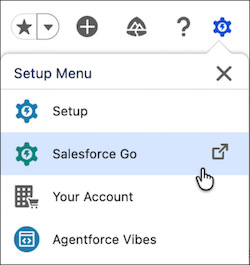
How to Find Salesforce Go
Select Salesforce Go from the gear menu.
Sandbox Support
Salesforce Go is available in all sandbox types.
Search
The search feature in Salesforce Go suggests feature names that are similar to the search term you enter. Searches are based on feature names and feature descriptions.
Filtering
Filtering is available on the Initial Setup, Feature Sets and Features tabs. On the Features tab, you can use one or more filters. Filter by cloud, subvertical, features that are or aren’t available in your Salesforce org, configuration in progress, or features that use generative AI.
Feature Sets, Features, and Related Resources
Salesforce Go shows feature sets and features that are available for the Salesforce edition, cloud, and add-on licenses that your company has purchased. Feature sets are a group of cloud-specific features related to a common business goal, such as automating sales, monitoring service operations, or onboarding financial clients.

Turning On Features
You can turn on one feature at a time. Select features on the Features tab, or on a feature set page.
Each feature’s definition of “on” can vary depending on the complexity of the feature’s requirements. In general, turning on a feature makes its setup page, objects, metadata, configuration steps, or other data available in Salesforce. Turning on a feature also prompts you to accept the feature’s terms and conditions, if applicable.
Some features are in multiple feature sets. If a feature is on, it’s in the Fully Configured status on the Features tab, and in the On status on its feature page.
Features with Prerequisites
When you turn on a feature, its prerequisite features are automatically enabled. Some features have prerequisites or conditions to resolve before you can continue turning on the feature in Salesforce Go. Some examples of prerequisites include:
- A feature has a dependency on another feature or setting for you to turn on manually first.
- You need to add a feature through the Your Account app.
- You need an additional user permission before you can turn on a feature.
The criteria for resolving prerequisites show on the feature page. You see automated prerequisite features. When a prerequisite for multiple features is on, it shows as On for all the features that require it.
Configuration Steps
After you turn on a feature, continue to the setup section. Review the steps for fully configuring the feature so that it’s ready to use.
You can assign permission sets or permission set groups to users for most features within Salesforce Go. To do so, find the Manage User Access step on the Feature Detail page and click Manage. A window appears, showing the permission sets and permission set groups associated with the feature and a list of your users. You assign access to the feature without leaving Salesforce Go.
Most features with components, fields, or actions that you can add to Lightning record pages, email panes, or home pages include a configuration step. Click Manage, and then the component, field, or action you want to the related Lightning pages. It also has a link directly to the Lightning page in App Builder where you can make the update.
Initial Setup
Initial setups are purpose built to simplify setup so you can quickly test features and run pilot programs. They’re preconfigured to include everything that's needed to fast-track cloud or feature implementation.
Some initial setups provide the option to include sample setup data and business records. If you install with sample data, automated validations verify whether the org's configuration is compatible with the sample data.
Salesforce Go notifies you when updates to initial setups are available. Before installation, customize the deployment with your inputs and preview potential metadata conflicts. Your selections and inputs are saved so you can pause and resume the update.
Salesforce recommends starting in a sandbox to verify that the installed configuration meets your needs before rolling it to production. To deploy to a production org, your Apex code must have at least 75% code coverage. If the installation isn't successful, use the error logs available on the Solution Deployment Monitoring page in Setup to understand the cause.
Monitoring Permission Set Licenses
Monitor total, assigned, and active permission set licenses on feature detail pages. Assigned licenses are the number of permission set licenses assigned to users. Active licenses are the number of users with an assigned permission set license who have logged in within the last 30 days.
Counts for active and assigned permission set licenses can differ because active counts update weekly while we track assigned license counts in real time. For example, a user has an assigned permission set license, and then that license is unassigned in the same week. If the active count hasn’t been run yet, the active count still includes the unassigned user.
When you unassign a permission set, the permission set license-assigned count doesn’t change. To update the assigned count, manually remove the permission set license from the user.
Purchasing Features and Products
If you set up the Your Account app and have the appropriate permission to access the app, we show you purchase options for some features. When you select Buy Now, we take you to the Product Catalog tab where you can purchase more licenses.
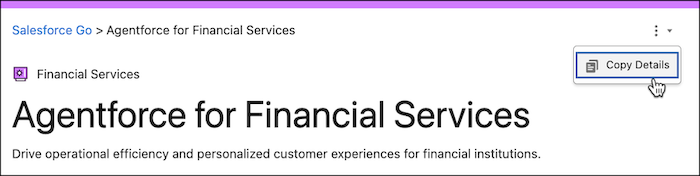
Sharing Feature Resources
To share information about a feature with other stakeholders, copy the feature’s description and resources, including links to the tour, video, and help topics. On the details page for a feature set, select Copy Details from the menu in the header of a feature detail page.
Turning Off Features
You can turn off some features in Salesforce Go, but you turn off many features from the features' setup page.
