You are here:
Step 3: Share Your SAML SSO Configuration with Your Identity Provider
After setting up your org or Experience Cloud site as a SAML single sign-on (SSO) service provider, share configuration details, including SAML endpoints, with your identity provider.
Required Editions
| Available in: both Salesforce Classic and Lightning Experience |
Federated Authentication is available in: All Editions Delegated Authentication is available in: Professional, Enterprise, Performance, Unlimited, Developer, and Database.com Editions Authentication Providers are available in: Professional, Enterprise, Performance, Unlimited, and Developer Editions |
| User Permissions Needed | |
|---|---|
| To view the settings: | View Setup and Configuration |
| To edit the settings: | Customize Application AND Modify All Data |

When you save a SAML SSO setting, Salesforce generates SAML endpoints that your identity provider uses to connect to Salesforce. Salesforce generates these two endpoints for both orgs and Experience Cloud sites.
- Login URL—During the SSO flow, your identity provider sends SAML assertions to this endpoint.
- Logout URL—When a user logs out of the identity provider, the identity provider sends logout requests to this endpoint.
For orgs using SAML 2.0, but not Experience Cloud sites, Salesforce also generates an OAuth 2.0 token endpoint. If you configure OAuth authorization flows with your identity provider, it can send access token requests to this endpoint.
Your identity provider also requires information about your SAML SSO setting. Salesforce provides an XML file of your SAML configuration that you can share.
-
To see your SAML endpoints, go to your SSO setting. From Setup, use the Quick Find box to find and select
Single Sign-On Settings. Select the setting that you created.
The SAML endpoints are listed at the bottom of the page under Endpoints.
-
Depending on your use case, find the appropriate endpoints and share them with your
identity provider.
- To set up SSO for internal org users, also known as employees, see the endpoints listed under Your Organization (1).
- To set up SSO for external Experience Cloud users, also known as customers and partners, expand For Communities (2). Salesforce provides URLs for all the Experience Cloud sites configured in your org. Find the site that you want to configure SSO for.
The Experience Cloud endpoints use your site’s primary URL. If you have multiple custom URLs for a single site, only the primary URL works for SSO.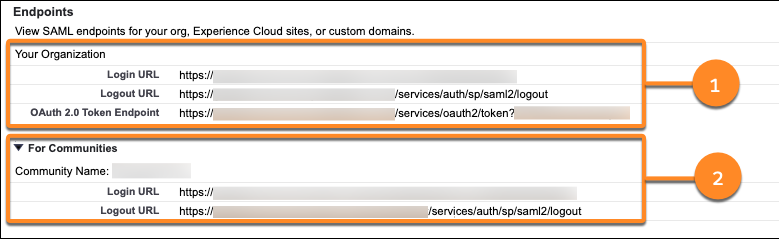
- To get the XML file with your SAML configuration settings, click Download Metadata and share it with your identity provider. Your identity provider can then upload these configuration settings to more easily connect to your org or Experience Cloud site.
To complete your configuration, Step 4: Add Single Sign-On Providers to the Login Page and Test the SSO Connection.
