
You are here:
Consent Management
Before you send promotional emails, make sure that you’re in compliance with regulations such as CAN-SPAM. After you update consent data, allow time for your data to sync before you send messages.
Required Editions
| Available in: Lightning Experience |
| Available in: Free, Starter and Pro Suite Editions. |
Glossary
- Communication Subscription
- The kind of marketing content someone signs up to receive, such as product updates. Subscriptions can store consent for a marketing channel, such as email. You have access to an editable default marketing communication subscription called Marketing Email. When you import leads and contacts with consent data, their consent status is updated only for the default communication subscription. In Starter and Pro Suite, you can create additional communication subscriptions as needed and import consent data from the Consent tab in the Marketing app.
- Consent Check
- A requirement to select a communication subscription when you send a message. It makes sure that each recipient is opted in, since consent is required when you send a promotional email. For transactional emails, consent checks are disabled by default.
- Consent Status
- Whether someone is opted in to receive email marketing. The corresponding field is called Privacy Consent Status, and accepted values are OptIn and OptOut.
- Contact Point
- A piece of contact information for someone, such as an email address. A unified individual can have multiple contact points.
- Email Preference Page
- Where subscribers can manage their own communication preferences when they click the Preference Center link in an email. After they click the link, they can select which communication subscriptions they want to receive emails for. For example, someone can opt in to product update emails and also opt in to your weekly newsletter.
- Unified Individual
- A consolidated record of multiple leads and contacts associated with the same person. These records are matched based on contact point email address and used to create segments.
Consent Imports and Edits
Import new leads and contacts via the Import button on lead and contact tabs. If you include consent data in this initial import, the consent status value for these customers is updated for the default Marketing Email communication subscription only. Use the same date format based on your Salesforce locale settings for the consent date column, and use OptIn or OptOut for the consent value column.

Import data from the Consent tab in the Marketing app to bulk update consent data for leads or contacts. Importing data from the Consent tab can mass update consent data for contact points, such as an email address, but it can’t create leads or contacts.

You can also edit the consent status for an individual lead or contact. To change this status, find the consent component on the record, and then click Update Consent. Select the new value, and save.
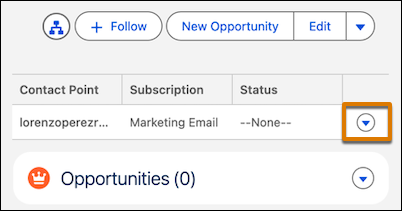
Because of the background processes that sync lead and contact data, editing a consent status for a contact point can create cascading changes across records with the same contact point value. A consent status can change when one of these actions occurs.
- A lead or contact edits their subscription on a preference center form.
- A record is created with the same contact point value and a different consent status.
- A user edits a contact point on a lead or contact record.

Consent and Segmentation
You can create segments in Segment Builder. If you edit consent statuses and then create a segment, allow time for the sync to update the related contact points. As you create segments, keep in mind that background syncing can take some time. To see the most accurate segment population values, trigger a manual sync by performing one of these tasks.
- Open the Campaigns page.
- Open the Segments page.
- Activate a campaign.
Immediately before queuing emails for send, all of your latest data is synced. If you have time to wait before your email is scheduled, you don’t need to trigger a sync manually.
