
You are here:
Collaborate in Real-Time by Connecting Teammates Across Salesforce and Slack
Salesforce Channels bring the collaborative power of Slack into Salesforce Suites.
Required Editions
| Available in: Lightning Experience |
| Available in: Starter and Pro Suite Editions. |
Connect with your teams directly within a Salesforce record, like Accounts or Opportunities, and work together in real-time to manage complex deals, solve problems, and strategize around customers. Plus, you can access conversations in Salesforce or Slack, ensuring a single source of truth and seamless communication for your team, regardless of where they work.
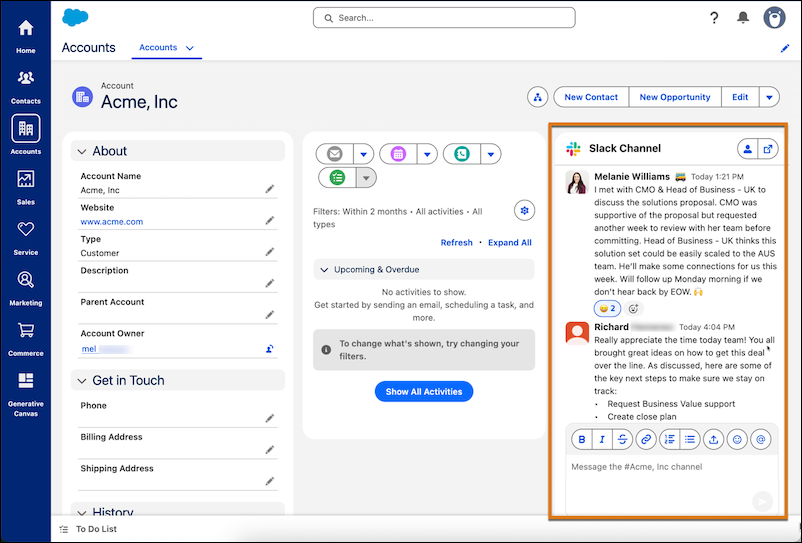
Slack is turned on and configured for you in Starter and Pro Suite. When you create your org, a Slack workspace is automatically set up and connected to it. The Slack component is directly embedded in the Accounts, Opportunities, Leads, and Cases record pages. When your team accesses one of the record pages, a Slack account is automatically created for them if they don't have one.
- To configure Salesforce Channels for additional objects, such as Quotes or custom objects, see Set Up Salesforce Channels in Your Org.
- To completely remove your Slack integration with Salesforce:
- Remove the Slack component from the Salesforce record page. See ‘Disconnect Salesforce and Slack’ in Manage Your Salesforce Connection
- Remove the channel configuration row on the Slack channels for records page.
See ‘Remove Salesforce Channels from an Object’ in Set Up Salesforce Channels in Your
Org.
 Note If you only remove the Slack component from the record page using Lightning App Builder, the channel is still available in Slack. If you only remove the channel configuration on the Slack Channels for Records page, the Slack component displays on the record page but with an error.
- If you're already using Slack, you can connect your Salesforce org to an existing Slack workspace instead. Disconnect from the delivered workspace and connect to your workspace. See Manage Your Salesforce Connection.
