
You are here:
User Management in Salesforce Suites
Assign and manage user access easily with a simple user management window and standard permission set groups. Review how permission set group recalculation statuses can help you make sure that users have the latest permissions.
Required Editions
| Available in: Lightning Experience |
| Available in: Starter and Pro Suite Editions. |
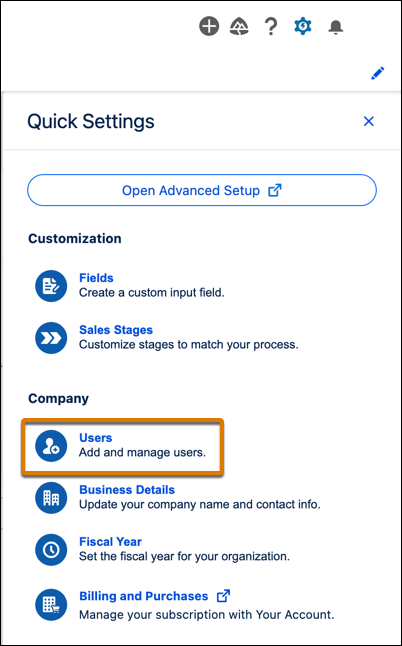
To quickly add users and grant them permissions, access the user management window by selecting Users from the Quick Settings menu. Only admin users can perform this task.
In Free and Starter Suites, you can add new users, send invites, and deactivate users from the Quick Settings menu. In Pro Suite, you can add new users, send invites, deactivate users, and assign permission set groups from the Quick Settings menu. You can also clone users to quickly give new users access to similar permissions. As your list of users grows, filter or quick search to find the information you need.

Permission Set Groups
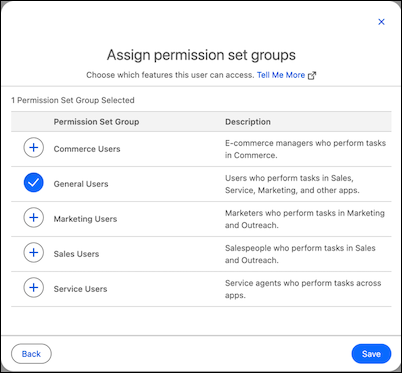
Starter and Pro Suite come with standard permission set groups to simplify user management. Permission set groups are bundles of permission sets that grant users access to features based on the tasks they must perform.
In Starter, new users that you add are automatically granted the standard General Users permission set group. This permission set group allows them to perform sales, service, marketing, and commerce tasks. A user with the System Administrator profile can manage this permission assignment in Advanced Setup. In Pro Suite, you can customize access with additional standard permission set groups for Sales Users, Service Users, Marketing Users, and Commerce Users.
Permission Set Groups Status and Recalculation
A permission set group calculates the combined permissions from its included permission sets, which give users access to certain features and tasks. Permission set groups automatically calculate when Salesforce or you make changes to their included permission sets. Users assigned to a permission set group keep the combined permissions of that group as of the last completed calculation.
The permission set group status indicates whether the calculation and resulting permissions in the group are up-to-date and available for the assigned users.
If user permission errors appear in the user management window or a permission set group has a status of Failed, you can manually recalculate a permission set group in Advanced Setup. Search for the permission set group in the Quick Find box. On the permission set group’s detail page, click Recalculate.
Review these guidelines if your permission set recalculation has a status of Failed.
- Determine whether a recent change to the permissions, access settings, or components enabled in one of the permission sets is causing the failure.
- If your permission set group references a managed package component, and the managed package gets into an inactive state, the permission set group recalculation fails. If you use managed packages, verify that they aren’t expired.
- While a permission set group is in a failed state, changes aren’t propagated to the combined permission page. Users assigned to the group don’t have updated permissions.
If errors persist after you attempt to manually recalculate, contact Salesforce Customer Support.
