Add Products and Licenses with the Your Account App
Purchase new products and licenses for your Salesforce org using the Your Account app. Products are pieces of Salesforce functionality, such as Sales Cloud, Sales Dialer, or extra file storage.
Required Editions
| Available in: Salesforce Classic and Lightning Experience |
| Available in: Starter, Pro Suite, Professional, Enterprise, Performance, and Unlimited Editions |
| User Permissions Needed | |
|---|---|
| To use the Your Account app: | Manage Billing or the Manage Subscriptions in Your Account: Identity User permission set |
To purchase new products or buy additional licenses and consumption-based resources:
- Launch the Your Account app.
- Click Browse & Buy.
- In the Product Catalog, select a contract.If users with a custom profile have the Product Catalog tab settings set to hidden or off, users can’t access the feature. See View and Edit Tab Settings in Permission Sets.
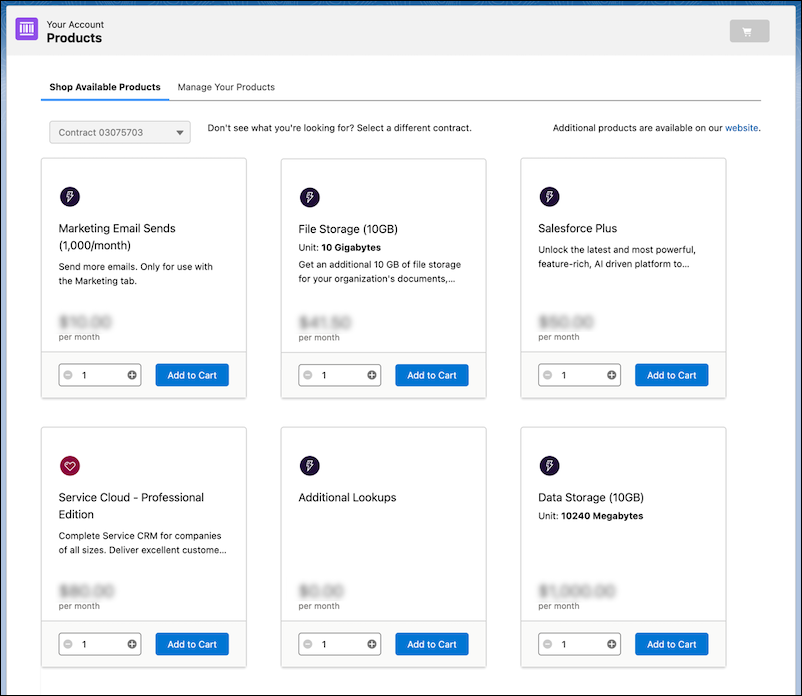
- To buy new products, select the Shop Available Products tab and find
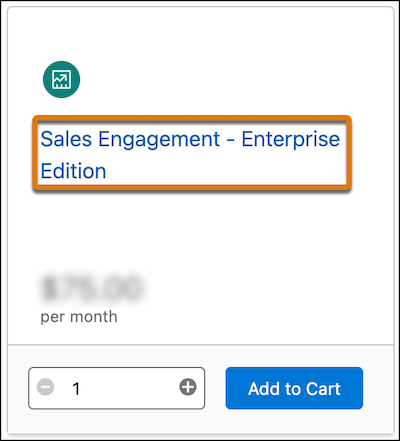
the product you want to buy. Some products have an information page with a product tour. The
names of the products with information pages are links.
- To buy additional licenses and consumption-based resources, select the Manage
Your Products tab and find the product that you want to add.
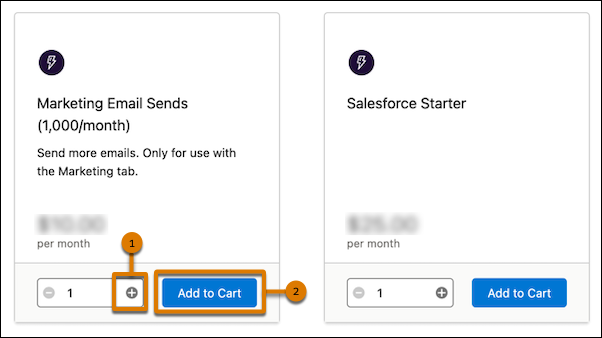
- To specify the products that you want, select the quantity (1) and add to your cart
(2).
 For Marketing Cloud Engagement product subscriptions you own, you select the quantity in a popup. See the example that follows.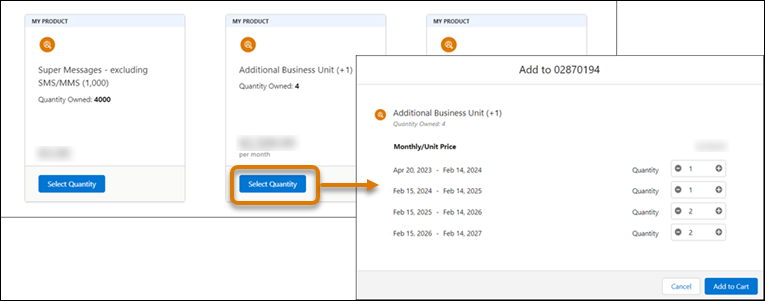
- Open your cart.
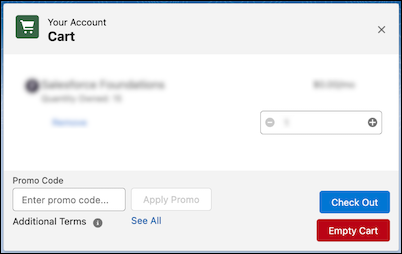
- Review your order and enter promo codes if availble. Then click Check Out.
- Review your payment and signature details:
- If you pay by credit card, review your order total (before tax) and agree to the Subscription Agreement.
- If you pay with a method other than a credit card, such as check, wire transfer, or direct debit, you don’t have payment information to review. You also don’t agree to a subscription agreement in this step.
 Note If you’re preparing a purchase that requires a different signer, you must use a payment method other than a credit card. You can assign an approver to complete the process in Docusign.
 - Use either of these steps to proceed:
- If you pay by credit card, click Place Order.
- If you pay with a method other than a credit card, click Order & Sign. To sign for your order immediately, click Sign Now to open Docusign in a new window. To sign later, click Sign Later and complete the steps in the email sent by Docusign or reassign to a different approver.
- Your licenses are typically available within 45 minutes of purchase. To view your
license:
- From Setup, in the Quick Find box, enter Company Information, and then select Company Information.
- See the User Licenses related list.
- If you don’t see your license after 45 minutes, contact Support.
- To assign licenses to users:
- From Setup, in the Quick Find box, enter Users, and then select Users.
- Click Edit on the user’s record, or click New User.
- Select the license from the User License list.
- Find Your New Products and Licenses Purchased with the Your Account App
After you buy products or licenses in the Your Account app, locate them quickly so you can put them to work.
Did this article solve your issue?
Let us know so we can improve!
