
You are here:
View and Work with Salesforce for Outlook (Retiring) Records from Microsoft® Outlook®
Use Salesforce for Outlook to get insight into Salesforce contacts and leads related to your important Outlook emails—directly in Outlook. The Salesforce Side Panel displays Salesforce records to which you can add Outlook emails, events, and tasks. View and Work with Salesforce Records from Microsoft® Outlook®.
Required Editions
| Available in: Salesforce Classic |
| Available in: Lightning Experience, if Salesforce Classic is available in your org. |
| Available with the purchase of Sales Cloud or Government Cloud in: Personal, Contact Manager, Professional, Enterprise, Performance, Unlimited, and Developer Editions |

When you select an email from Inbox or an event from the Calendar in Outlook, the Salesforce Side Panel displays related Salesforce contact and lead details directly in Outlook. After your administrator enables the side panel in your Outlook configuration, the side panel displays up to 10 contacts and leads from your email's or event's From, To, and Cc fields.
In addition, the Salesforce Side Panel:
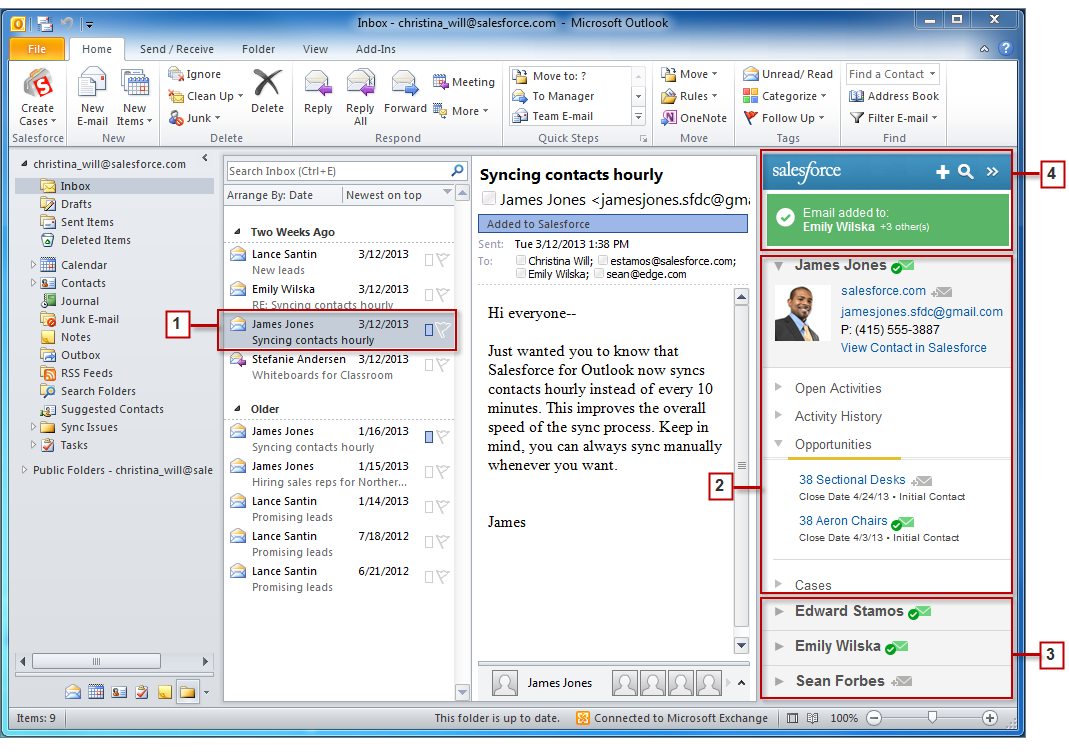
- Displays as many as four activities, opportunities, and cases related to the contacts and leads that appear in the side panel.
- Lets you add Outlook emails and their attachments to multiple Salesforce records.
- Lets you add Outlook events and tasks to multiple contacts and to one other record with which you can relate tasks, such as an account, a case, or even a custom object record.
- Discovers duplicate contacts or leads. You choose the most appropriate ones to display in the side panel.
- Includes a Search feature to find additional Salesforce records.
- Includes links to view full record details directly in Salesforce.
- Select an email or event in Outlook.
-
Review the Salesforce content that appears in the side panel, which displays contacts
and leads based on the order they appear in your email’s or event’s
From, To, and Cc fields.
For each contact and lead, it’s easy to view related activities, opportunities, and cases.
If you want to view full record details, click a record’s link to open it directly in
Salesforce.
To add your email or event to the Salesforce records of your choice, click
 or
or  next to those records. Email attachments are included automatically
when you add an email to Salesforce, unless your organization has enabled the feature
that allows you to select specific email attachments. In that case, you see
next to those records. Email attachments are included automatically
when you add an email to Salesforce, unless your organization has enabled the feature
that allows you to select specific email attachments. In that case, you see  next to the individual attachments in your side panel. Click the icon to add those
attachments to Salesforce.
next to the individual attachments in your side panel. Click the icon to add those
attachments to Salesforce.If you have the Social Accounts and Contacts feature enabled in Salesforce, the side panel displays either Facebook® or Twitter™ profile photos—whichever ones you chose to show in Salesforce for those contacts and leads.
- Select the other contacts and leads related to your email to view their details, along with related activities, cases, and opportunities.
-
Quickly see the Salesforce records to which you’ve added emails or events. If you don’t
see records you’re looking for, click
 to find other records, and then add emails, events, or tasks from the
Outlook tasks list to them. There’s even a collapse feature (
to find other records, and then add emails, events, or tasks from the
Outlook tasks list to them. There’s even a collapse feature (  ) to hide the side panel.
- Add Microsoft® Outlook® Emails to Salesforce Records
Keep track of important Outlook emails related to Salesforce records from the Salesforce Side Panel. - Remove Microsoft® Outlook® Emails from Salesforce for Outlook (Retiring) Records
You can remove Microsoft Outlook emails from your Salesforce records with the Side Panel for Salesforce for Outlook. - Add Microsoft® Outlook® Events to Salesforce for Outlook (Retiring) Records
Add Outlook events to Salesforce records by using the Salesforce Side Panel. The event is added to the Salesforce record as an activity, which you can see on the record’s Activity History or Open Activities related lists. - Add Microsoft® Outlook® Tasks to Salesforce for Outlook (Retiring) Records
You can add Outlook tasks to multiple Salesforce contacts and to one other record that accepts tasks, like an account, a lead, or an opportunity. The task is added to the Salesforce record as an activity, which you can see on the record’s Activity History or Open Activities related lists. - Create Records Directly from the Salesforce Side Panel in Salesforce for Outlook (Retiring)
Before the Salesforce for Outlook side panel action menu was retired in Summer ’21, reps could create different kinds of records directly from the side panel in Microsoft® Outlook®. To continue creating records from Outlook, migrate to the Outlook integration. - Search for Salesforce Records in Microsoft® Outlook®
When you view details that appear in the Salesforce Side Panel, you can also search for additional Salesforce records. Search results display contacts and any other records with which you can associate tasks, such as a campaign, a case, or an opportunity. - Get Familiar with Salesforce for Outlook (Retiring)
Save time switching between Salesforce and Microsoft® Outlook® when you integrate your Salesforce work with Outlook. Take advantage of these resources to start syncing contacts, events, and tasks between the two systems, and using the Salesforce Side Panel to work with your Salesforce records directly in Outlook.
