Loading

Customer Success Score: FAQs

Veröffentlichungsdatum: Feb 23, 2026
Beschreibung
Customer Success Score: FAQs
 
Available for: Signature Success Plan Designated Contacts or Help and Training Admins for select products in the Help Portal. Premier Success Plan customers have access to their Customer Success Score through a Success Request with a Success Guide.
   •   What's New
   •   Access FAQs
   •   Score FAQs
   •   Additional Features FAQs

Visit the Customer Success Score: Overview article for more information about the Customer Success Score and how to use it. Visit the Customer Success Score: Signals article for more information about the individual signals.
 
What’s New?

Customer Success Score February 2026 Updates

Product Adoption:

  • Consumption signals

    • No new signals

  • Signal Additions:

    • Service Sales Cloud, Sales & Service cloud 

      • 5 scored signals

      • 5 informational / preview signals (not scored)

  • New Feature Signals added for the following products:

    • None


Customer Expertise:
  • Better tracking of Ranger and Trailhead Badge completions
  • Virtual Instructor-Led Training has been renamed to Courses
  • Virtual Interactive Workshops has been renamed to Workshops

Technical Health:

New subcategories and 23 new signals, making Technical Health score available for more customers. Note that the existing Proactive Monitoring based signals, if configured, will still be within the Customer Success Score, but as informational only and they will not have any consideration for the Technical Health category score.

Technical Health for Core


New Signals: 

  • Subcategory - Security - 25% Weight of the Security Health Score
    • Capability - Org Security - 50% Weight of the Customization Subcategory score. Password Question Requirement, Password Lockout Period, Obscure Secret Answer for Password, Enable Set Password in API, Password Assistance Message, Password Assistance URL, API Only User Page URL, Maximum Invalid Login Attempts, Minimum Password Lifetime Requirement, Password History Restriction, Minimum Password Length, Password Expiration, Password Complexity Requirement, SSO Enabled, Core MFA Enabled.

    • Capability - Session Security - 50% Weight of the Customization Subcategory score. Lock sessions to the domain in which they were first used, Enable clickjack protection for Setup pages, Enable clickjack protection for non-Setup Salesforce pages, Enable clickjack protection for customer VisualForce pages with standard headers, Enable clickjack protection for customer VisualForce pages with headers disabled, Enable CSRF protection on GET requests on non-setup pages, Enable CSRF protection on POST requests on non-setup pages, Require HttpOnly attribute, Allow access to External Client App consumer secrets via Metadata API, Enforce login IP ranges on every request.

  • Subcategory - Efficiency - 34% Weight of the Technical Health Score

    • Capability - User Experience Efficiency - 22% Weight of the Efficiency Subcategory score
      Concurrent UI Errors, EPT Page Load Time, Average Page Load Time

    • Capability - Integration Efficiency - 11% Weight of the Efficiency Subcategory score
      Concurrent API Errors, Using High Availability, Exchange Asset Approaching Limit, Cloudhub vCore Approaching Limit

    • Capability - Transaction Efficiency - 40% Weight of the Efficiency Subcategory score
      Connection Pool Errors, Concurrent Apex Errors, Apex CPU Time Out Errors, Rowlock Error Rates, Throughput Efficiency

    • Capability - Data Efficinency - 27% Weight of the Efficinency Subcategory score
      Apex Heap Size Errors, Business Group Approaching Limit, Users Approaching Limit

  • Subcategory - Customization - 10% Weight of the Technical Health Score

    • Capability - Code Complexity- 100%* Weight of the Customization Subcategory score
      Number of objects with >10M records, Custom Profiles, Sharing Rules


  • Subcategory - Operational Excellence - 26% Weight of the Technical Health Score

    • Capability - Technical Debt - 82% Weight of the Operational Excellence Subcategory score
      Process Builder Workflows, Workflow Rules, Number of APIs Without Policy, Applications on EOL Version, Runtime Agent on EOL Version

    • Capability - Best Practices  - 18% Weight of the Operational Excellence Subcategory score
      Core Deployed on Hyperforce

  • Subcategory - Observability - 5% Weight of the Technical Health Score

    • Capability - Monitoring - 50% Weight of the Observability Subcategory score
      ProM Enabled

    • Capability - Diagnostics - 50% Weight of the Observability Subcategory score
      Scale Center Adoption, ApexGuru Adoption

Technical Health for Mulesoft

  • Subcategory - Efficiency - 33.3% Weight of the Technical Health Score

    • Capability - Integration Efficiency - 50% Weight of the Efficiency Subcategory score
      Using High Availability, Exchange Asset Approaching Limit, Cloudhub vCore Approaching Limit

    • Capability - Data Efficinency - 50% Weight of the Efficinency Subcategory score
      Business Group Approaching Limit, Users Approaching Limit

  • Subcategory - Security - 33.3% Weight of the Security Health Score

    • Capability - Org Security - 10%
      Mulesoft MFA Enabled.

  • Subcategory - Operational Excellence - 33.3% Weight of the Technical Health Score

    • Capability - Technical Debt - 50% Weight of the Operational Excellence Subcategory score
      Number of APIs Without Policy, Applications on EOL Version, Runtime Agent on EOL Version

    • Capability - Best Practices  - 50% Weight of the Operational Excellence Subcategory score
      Using Roles to Manage Security

Technical Health for MCE

  • Subcategory - Efficiency - 100% Weight of the Technical Health Score

    • Capability - Integration Efficiency - 50% Weight of the Efficiency Subcategory score
      API Latency, API Throttles

    • Capability - Data Efficinency - 50% Weight of the Efficinency Subcategory score
      Automation Failures, Query Activity Performance

Technical Health- Scoring

  • Every signal in Technical Health has a weight associated, that is optimized to indicate the likelihood of an org experiencing a negative outcome like a Sev1 case. All Mulesoft and Agentforce signals will not display historical trends at this time, as they are newly defined signals. Similarly, Core signals in the following categories: Customization (Org security), Operational Excellence (Best Practices), Observability (Monitoring & Diagnostics) will also not display historical trends.


Technical Health for MCE

  • Subcategory - Efficiency - 100% Weight of the Technical Health Score

    • Capability - Integration Efficiency - 50% Weight of the Efficiency Subcategory score
      API Latency, API Throttles

    • Capability - Data Efficinency - 50% Weight of the Efficinency Subcategory score
      Automation Failures, Query Activity Performance

Technical Health- Scoring

  • Every signal in Technical Health has a weight associated, that is optimized to indicate the likelihood of an org experiencing a negative outcome like a Sev1 case. All Mulesoft and Agentforce signals will not display historical trends at this time, as they are newly defined signals. Similarly, Core signals in the following categories: Customization (configuration metrics), Operational Excellence (Best Practices), Observability (Monitoring & Diagnostics), Security (Org security) will also not display historical trends.


Access FAQs

Why don't I have access to the Customer Success Score in the Help Portal?

Review how to access the Customer Success Score and eligibility requirements.

Not a Designated Contact?
Ask a Primary Designated Contact for your org to set you up with Designated Contact permissions on Salesforce Help. Please refer to the Create and Manage Designated Contacts article for additional steps. Contact your Account Executive or Customer Success Manager if you need help troubleshooting.

Don't have an eligible Success Plan?
Contact your Account Executive to learn how to upgrade your Success Plan.


Why don't I have access even though I'm a Designated Contact and have an org with the Signature Success Plan?

Make sure that your org displays a Support Level of either SigCore, SigUSCore, Marketing Cloud Signature, Commerce Cloud Signature, MuleSoft Signature, or Tableau Signature. Orgs with a Signature Success Plan that have a service contract beginning before February 2021 do not have access to the Customer Success Score at this time. If you have multiple orgs, it is also possible that you may not be a Designated Contact in all orgs connected to your Trailblazer.me account. Talk to a Primary Designated Contact at your company or contact your Account Executive or Customer Success Manager for setup assistance. 


Why can't I access the feature if I was just added as a Designated Contact and it is a Signature Success Plan Org?

Typically, you should be able to access the Customer Success Score as soon as you've been granted Designated Contact permissions, however, the process may take up to an hour to complete. If you were granted permissions but still do not have access after 2 hours, please contact your Account Executive or Customer Success Manager.


How do I add more Designated Contacts so that they can view the Customer Success Score?

To edit a Designated Contact’s (DC) permissions, you must be a Primary Designated Contact.

To change DC permissions:
  1. Log in to Salesforce Help.
  2. Navigate to the Manage All Orgs page.
  3. From the list of orgs, click Get Support for your desired org. If Get Support is not available, click Log In.
  4. Select Org Setting.
  5. Beneath your contact information a message will be displayed indicating if you're a Primary DC. Click View Permissions, then click › to the left of your contact name to view your permissions.
  6. Assign permissions:
    • Adding a contact as a DC - Click Add New and enter email or first name / last name to search.
      • Note: Only active Salesforce licensed users who have previously accessed the Help Portal are returned in DC search results. Ask users who haven't logged into the Help Portal to Navigate to the Help Portal from within Salesforce so they can be set up as a DC afterward.
    • Make a contact a Primary DC - Click › to the left of the contact name and check Manage Designated Contacts (this enables the DC to manage others and assign administration access).
    • Make a contact an admin contact who can View All Cases and Access Reports - Click › to the left of the contact name and check View all Cases and Access Reports (this enables a DC to view all cases and reports for their account).

Note: Once assigned as a DC, Primary DC (Manage Designated Contacts), or admin (View All Cases and Access Reports), these permissions cannot be unassigned within Salesforce Help. To address this, please create a case with Salesforce Support to unassign these privileges.


What if I have connectivity issues with components or services on the Customer Success Score?

We recommend allowing the following URLs on your network for these components:

My Recommendations: https://orch-nginx-prod.herokuapp.com/

My Account Team: https://pds.help.salesforce.com/

My Products: https://pds.help.salesforce.com/

ProActive Monitoring (ProM) Metrics (Performance Status Tab): overview.help.salesforce.com

My Score (Dashboard): https://help-legacy.salesforce.com/


Score FAQs

Where should I focus on the Customer Success Score to make an impact?

If you are a Premier Success Plan customer, work with the Success Guide or Onboarding Specialist as part of your Success Review. If you are a Signature Success Plan customer, work with your Account Executive or Customer Success Manager to determine which signals to prioritize for the biggest impact.


How often are scores updated?

Scores are refreshed around the fifteenth of every month and will show the last 13 complete months. In some cases, if the signal is new, it will not have a full trend line.


Why have my signals under Customer Expertise not changed even though I completed recommended activities?

There could be two potential reasons for this:
 
  1. It is possible you have completed activities after the monthly refresh of your Customer Success Score. Any activities completed after the most recent month's end may not be reflected in your Customer Success Score until the following month-end refresh (typically around the fifteenth of each month).
  2. You may have completed these activities while using your personal email instead of your company email.

Can I view multiple orgs at once in the Customer Success Score?

At this time the Customer Success Score is by org and does not offer a rolled-up version across orgs. It is something that is under consideration for future releases.

If you have access to multiple orgs, or other clouds such as Commerce Cloud, MuleSoft or Tableau, use the org picker to select the correct one. For Commerce Cloud, select the realm. If you have Marketing Cloud, the Customer Success Score will be visible in your Help portal through your Marketing Cloud login. 


When should I Complete or Archive a recommendation?

Mark as Complete when a recommendation is fully implemented, regardless of whether it was done before or after the recommendation was delivered. Select Archive if the recommendation is not relevant to you or if you choose not to implement it. If you select Archive, you can provide the reason for not implementing.


Do Expertise signals track activities done by my personal email address?

At this time, we are unable to track activity completed by personal email addresses. Expertise signals only track email addresses that are associated with the org. To combine your personal and work email addresses, try merging your Trailblazer accounts.

How can I provide feedback on the Customer Success Score when viewing it from within the Help Portal?

Let us know what you think about the Customer Success Score experience on Salesforce Help. Select Share Your Thoughts under My Account Team to provide your thoughts and tell us what features you'd like to see in the future.


Additional Features FAQs

What is Scale Center?

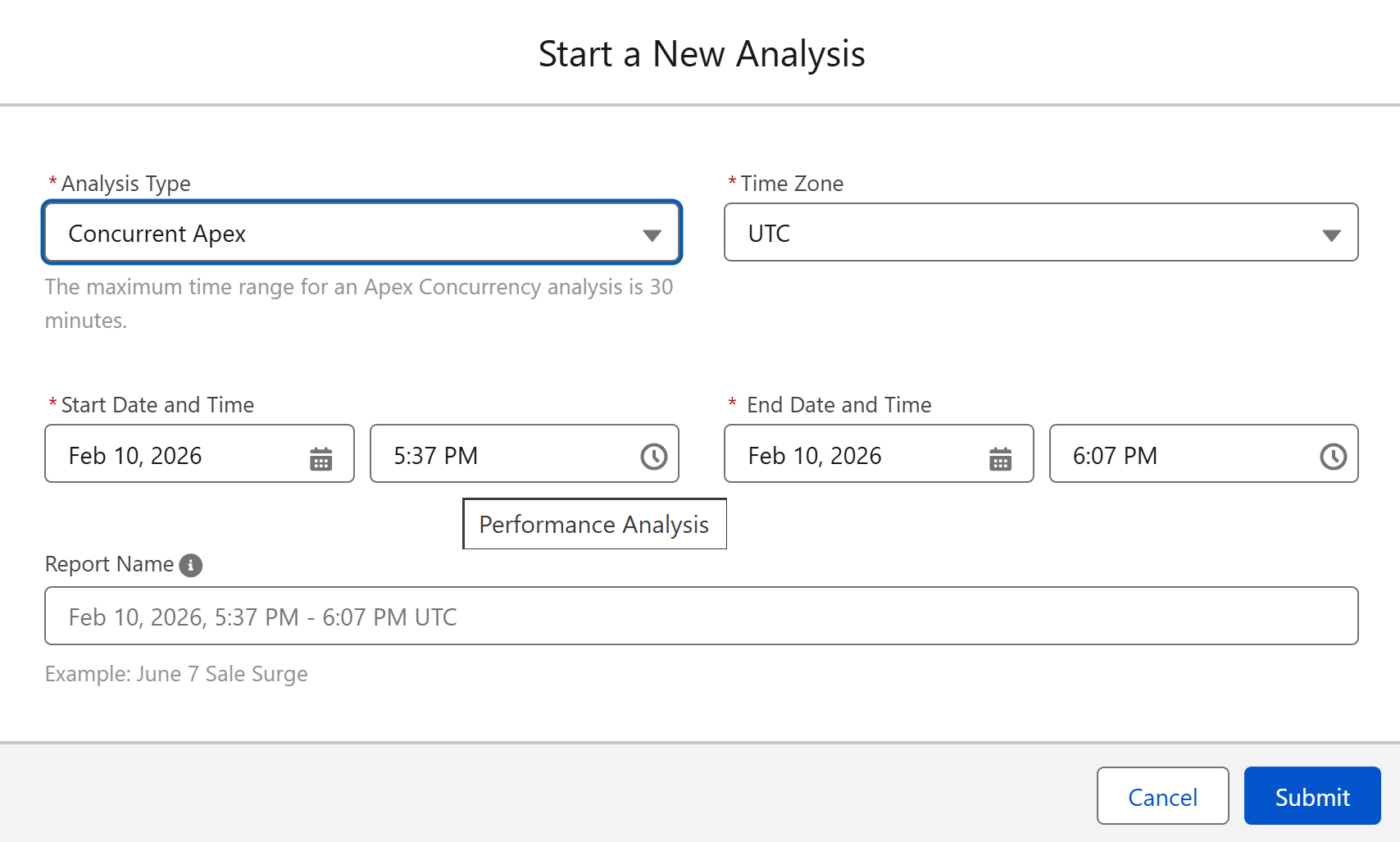
Scale Center is a Salesforce org feature providing self-serve, near real-time access to critical performance metrics. It offers visibility into org performance, detailed root cause analysis (RCA), remediation guidance, and AI-driven insights to optimize platform areas like Apex, Reports, Database, Lightning Performance, and Search. It is available for all major Salesforce Editions and Signature orgs in Production and Full Copy Sandbox Orgs.


How is Scale Center integrated with Customer Success Score?

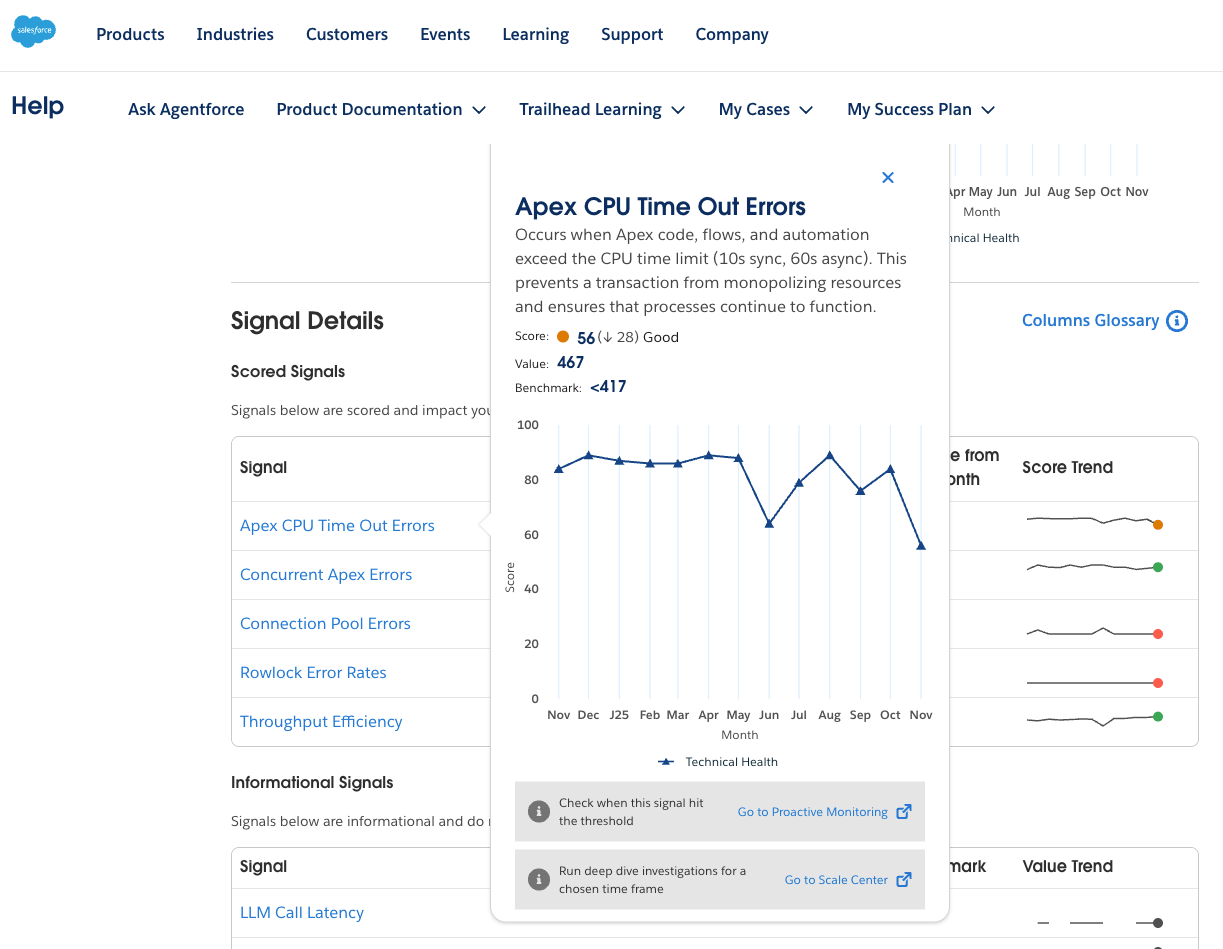
Scale Center is now deeply integrated with the Customer Success Score (CSS) Technical Health Score (THS) at the Signal Level. You can use Scale Center for root cause analysis (RCA) in areas where your score is low, directly helping to improve the overall Technical Health Score. This integration connects your daily performance metrics specifically to the broader health and stability goals of your Salesforce implementation.


Why am I receiving persistent "Something went wrong" errors for Proactive Monitoring (ProM) Smart Alert charts?

There are a few reasons for this. This error state may appear when a Smart Alert's monitoring has not been activated by your Customer Success Manager. Contact your Customer Success Manager to enable and configure this Smart Alert. If you've received alerts in the past for a Smart Alert or have been able to view data but are now receiving a persistent error, wait a few minutes and try to refresh the page. If the error remains, contact your Customer Success Manager so they can investigate any possible tools issues. 


What is Security Center?

Security Center is a native add-on product for Salesforce, designed to simplify security management and data governance across a customer's entire Salesforce rollout by making sure they have a solid understanding of their security posture. It gathers detailed metrics on configurations, authentication, user permissions, and activity, compiled in intuitive dashboards within Salesforce to help customers drive insights for improvement where necessary. Security Center enables proactive alerts for security posture changes and supports the creation of security policies for consistent deployment across connected Salesforce orgs.


What is Event Monitoring?

Event Monitoring, part of the Shield suite of add-on products, gives key visibility into detailed security, performance, and usage data across Salesforce apps. Event Monitoring helps you build customized, flexible security policies to proactively find and mitigate threats, protecting your sensitive data in real time. With Event Monitoring, you can also analyze user behavior to enhance training and adoption of Salesforce, driving a strong ROI for your Salesforce investment. Event Monitoring's data provides a deep understanding of application performance, helping you troubleshoot and improve user experience.


Nummer des Knowledge-Artikels

000396262

 
Laden
Salesforce Help | Article