Välj en organisation
Trailhead Academy Discounts for Premier and Signature Customers
Salesforce Success Plans are designed to help customers get the most out of their Salesforce investment through expert guidance, training, and support. As part of this offering, customers with a Premier or Signature Success Plan receive exclusive training and certification exam benefits, including discounts on virtual Instructor-Led Courses, Workshops, and Certification Exam Vouchers.
Read below to learn more about these training benefits including discount eligibility, registration, and more.
Table of Contents
Success Plan Training Offering Overview
Applying Success Plan Certification Exam Discounts
Registering for Virtual Courses and Workshops with your Success Plan Training Discount
If You're a Commerce Cloud User
Success Plan Training Offering Overview
Premier and Signature Success Plan customers are entitled to training benefits including discounts on virtual courses and certification exam vouchers, and exclusive access to workshops. See eligibility by product below.
| Trailhead Academy Offerings | Signature Customer Discount | Premier Customer Discount |
| Workshops | 100%* | 100%* |
| Public Virtual Instructor-Led Courses | 100%* | 25% |
| Certification Exam Vouchers | 35% | 25% |
*Please note, Signature and Premier Success Plan training discounts are only available to licensed users of Salesforce products with an active Signature Success Plan, and apply exclusively to virtual courses marked Delivered by Salesforce.
Eligibility Requirements:
- You must hold a valid Salesforce license in a production org associated with the Signature Success Plan (e.g., CRM, Commerce Cloud, Marketing Cloud).
- The work email on your Trailblazer Account must match the email associated with your Salesforce license and active Success Plan entitlement. This is used to verify your eligibility for training discounts.
Applying Success Plan Certification Exam Discounts
This section shares the process for purchasing bulk certification vouchers. For information on registering for virtual Instructor-Led Courses and Workshop, please refer to the section Register with your Success Plan Training Discount below.
Premier (25% discount) and Signature (35% discount) customers are entitled to discounted voucher purchases. This process allows you to purchase one or multiple vouchers (bulk) and manage them. To receive and apply your discount code in the Pearson VUE Salesforce Exam Voucher Store:
-
Create a Salesforce Help case with the email address registered on your entitlement and request a voucher purchase discount code.
-
Once you receive the code, select the desired certification exam voucher(s) in the Pearson VUE Salesforce Exam Voucher Store.
-
Enter your discount code at checkout to apply the discount to your order.
For more information on how to request bulk vouchers, please reference Certification Exam Voucher Purchases.
For more information on how to request certification exam vouchers, please reference Certification Exam Voucher Purchases.
Registering for Virtual Courses and Workshops with your Success Plan Training Discount
The steps below detail the process for registering for virtual Instructor-Led Courses and Workshops. For information on Bulk Certification Vouchers, please refer to the section Applying Success Plan Bulk Certification Discount above.
- To ensure your Success Plan discount is applied correctly:
- Sign in using the work email associated with your active Salesforce license and Success Plan entitlement.
- If you have multiple Trailblazer Accounts, use the account linked to your licensed Salesforce product.
- Follow the steps below to register for a course:
- Navigate to the Trailhead Academy catalog.
- Select Get Started and sign in to your Trailblazer Account. If you do not have an account, sign up for your Trailblazer Account here.
- If you have multiple Trailblazer Accounts, sign in using the work email associated with your active Salesforce, Tableau, or MuleSoft license.
- Salesforce license holders: Sign in using the Salesforce login option.
- Tableau or MuleSoft license holders: Sign in using the Email login option and enter the email address associated with your license.
- New to Instructor-Led Training? Review the Trailhead Experience Guide to learn what to expect before your course begins.
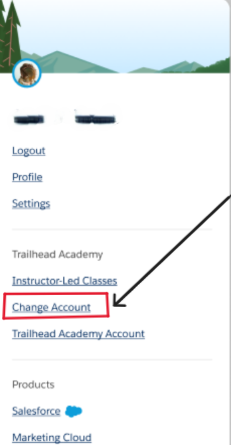
- Need to Switch Accounts?
- Select your profile icon in the upper-right corner.
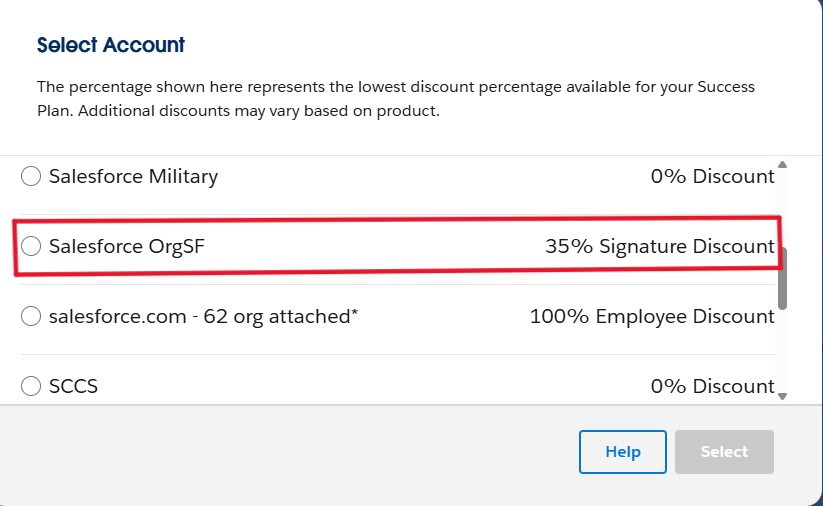
- Select Change Account.
- Choose the account associated with your active Salesforce license and Success Plan benefits in the account picker pop-up.
4. Search for and select the course you want to attend and proceed to checkout.
-
- Premier customers: Your eligible 25% discount will be applied automatically to Public Virtual Instructor Led-Training.
- Signature customers: Your eligible 100% discount will be applied automatically to Public Virtual Instructor Led-Training and Workshops.
5. Review your registration and continue through payment and billing.
-
- Verify your Trailblazer Information and select Continue to Payment.
- Enter your Payment Information (if applicable). Eligible discounts are applied automatically.
- Enter your Billing Information (if applicable) and select Review Order
6. If Your Discount Does Not Appear
-
- At checkout, select Are you eligible for company discounts?
- Select Get Verification Code.
- Complete the verification process to confirm your eligibility.
- Return to checkout and verify that the discount has been applied.
- If the discount still does not appear after verification, log a case for assistance.
7. Select Place Order to complete registration.
8. Once your registration is complete, you will receive a confirmation email with your course details.
If You're a Commerce Cloud User
If you're a Commerce Cloud user and your Success Plan discount is not available during checkout, contact your internal Account Manager Administrator. If you're unsure who that is, contact your Customer Success Manager (CSM) or log a case for assistance.
Your Account Manager Administrator should:
- Confirm the user exists in Account Manager.
- If the user does not exist, Create a User Account in B2C Commerce and assign the user to an organization with an associated realm.
- If the user exists, verify that the user's organization includes at least one realm with an active Signature Success Plan contract.
If no eligible realm is associated with the organization, the administrator can either:
- Add the user to an organization that has a qualifying realm. See Edit a User Account in B2C Commerce.
- Add a qualifying realm to the organization:
- Log in to Account Manager.
- Open the Organization tab and select the organization.
- Go to Assigned Realms and add the appropriate realm.
- Select Save.
If the user is assigned to an organization with eligible realms and the discount still does not appear, log a case for assistance. Include the number of organizations associated with your Account Manager account.
Need help? Please submit a case via Agentforce with Salesforce Help.
Löste denna artikel ditt problem?
Berätta för oss vad vi kan förbättra!
