Organisation auswählen
Prepare for Phishing-Resistant MFA Enforcement for Privileged Users including Admins
Veröffentlichungsdatum: Jul 24, 2026
Beschreibung
This article describes phishing-resistant MFA requirements for Privileged Users, including Admins. For users without the permissions articulated below, see Prepare for MFA Enforcement for All Employee Users.
For more info on the roadmap of upcoming targeted Security changes for the Salesforce Platform, see: Security-Related Product Updates to the Salesforce Platform.
|
July 23 Update: The R1 enforcement window has shifted to July 27–28. All other release groups remain on their original schedules. July 6 Update: To provide more transparency on the rollout, we have published a detailed enforcement schedule organized by Release Groups and target instances. Refer to the Release Group Enforcement Schedule to determine the specific timeline for your org. |
Watch: Video Resource
To get an overview of the Phishing-Resistant MFA requirement, watch this video below or click the link to open the video a new tab: Phishing-Resistant MFA for Admins.
What’s Changing
Salesforce is enforcing phishing-resistant Multi-Factor Authentication (MFA) for all users with the System Administrator profile, Modify All Data, View All Data, Customize Application, or Author Apex permissions). This applies to direct UI logins and Single-Sign-On (SSO) logins, across both production and sandbox orgs.
Salesforce’s phishing-resistant MFA verification methods leverage WebAuthn-based Security Keys and Built-in Authenticators. We also refer to these methods as Passkeys. Salesforce recommends adopting passwordless login via passkeys for faster logins.
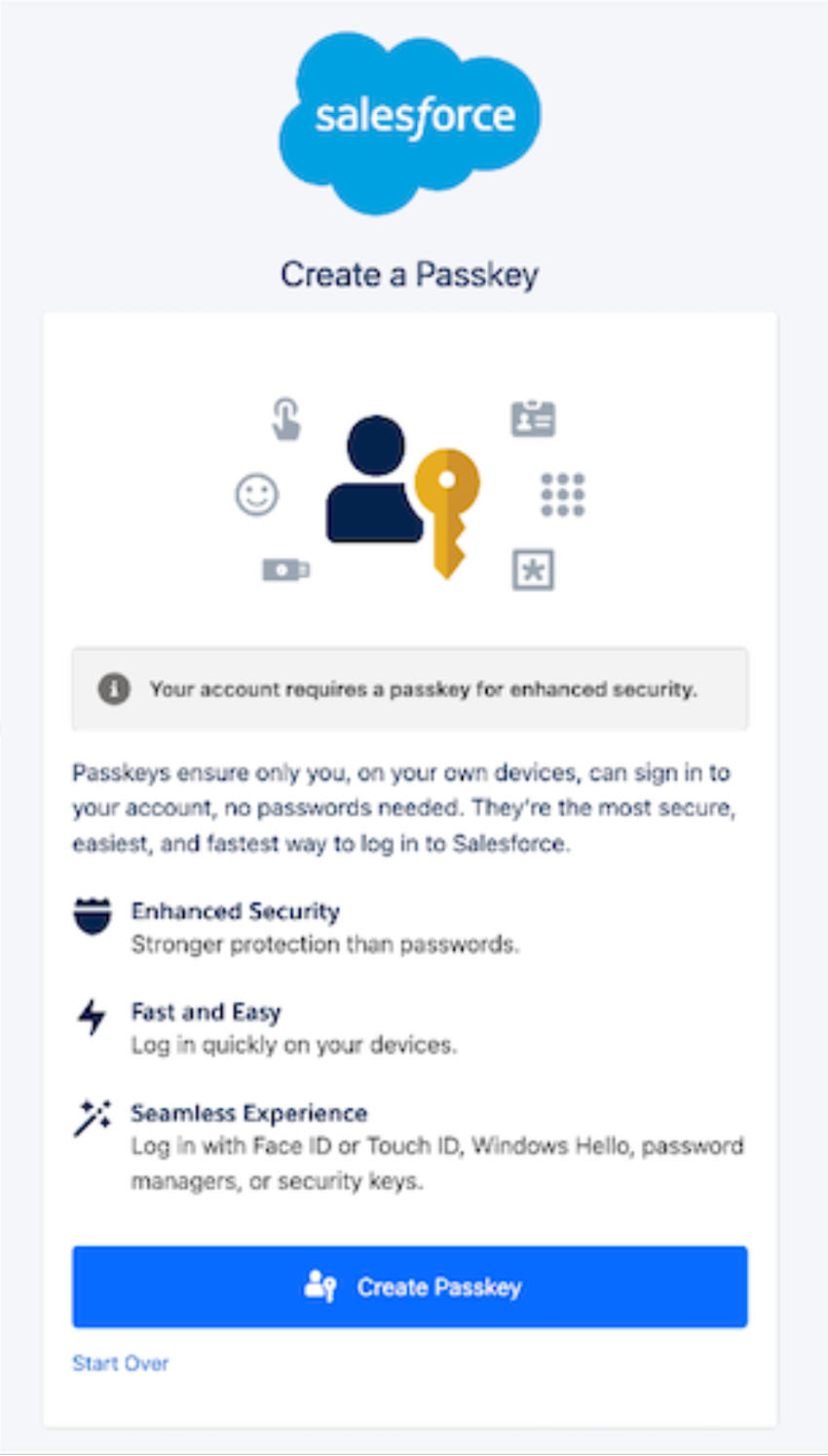
Privileged Users will begin seeing this prompt to Create a Passkey when the MFA enforcement changes happen. See Release Note for details (note: the UI labels for the passkey-first MFA registration flow are only available in English. Other supported languages are scheduled for a later patch release).
Why Is Salesforce Making This Change
To better protect your org’s most privileged accounts, Salesforce is adopting phishing-resistant standards that provide a stronger defense against sophisticated identity-based threats. This update aligns your org with industry best practices to ensure that privileged access remains exclusive to authorized users.
When This Change Takes Effect
Sandboxes: starting July 10, 2026.
Production: starting July 20, 2026.
Release Group Enforcement Schedule
To determine the specific start and end dates for your org, take these steps.
-
Identify your Salesforce instance. See View Instance Information for Your Salesforce Organization.
-
In the Release Group Instance Mapping table located in the Additional Resource section of this article, find the release group for your instance.
-
Find the enforcement dates for your release group in the Release Group Enforcement Schedule below.
Note: The release timing for Non-Preview Sandbox orgs is different from Preview Sandbox orgs. Check the Release Groups by target instances for your org's to confirm the release timing.
|
Release Group |
Start Date |
End Date |
|
Sandboxes [Preview] |
July 10, 2026 |
July 10, 2026 |
|
R0 |
July 20, 2026 |
July 20, 2026 |
|
R1 |
July 27, 2026 |
July 28, 2026 |
|
R2a |
July 29, 2026 |
July 30, 2026 |
|
R2b |
August 3, 2026 |
August 3, 2026 |
|
Japan & Korea |
September 1, 2026 |
September 1, 2026 |
|
All others not listed |
September 3, 2026 |
September 3, 2026 |
Who’s Affected
This change affects all users logging into Salesforce (direct UI or SSO logins) in production or sandbox orgs who meet any of the following conditions:
-
Users assigned with the System Administrator profile,
-
Users assigned with any one of these privileged permissions: Modify All Data, View All Data, Customize Application, or Author Apex
Note:
-
-
This requirement applies to internal users (that is, anyone with a standard user license) who log in to your company's Employee Community or other Experience Cloud sites.
-
Chatter Plus users are considered internal users and are subject to this requirement.
-
Who’s Not Affected
Users who meet these criteria are already compliant or exempt, and will experience no change:
-
Users who are not assigned the System Administrator profile, or do not have any of these permissions: Modify All Data, View All Data, Customize Application, or Author Apex.
-
Experience Cloud or Experience Site Logins are not forced to use MFA, and continue to be an optional setting configurable by org Admins. This exclusion applies to external users with Experience Cloud User Licenses.
-
Chatter External and Chatter Free users are excluded from MFA.
-
Direct UI logins where users have a registered phishing-resistant MFA verifier already and either the user is assigned the "Multi-Factor Authentication for User Interface Logins" permission or where the org-wide MFA setting “Require multi-factor authentication (MFA) for all direct UI logins to your Salesforce org” is active.
-
SSO logins where users whose SSO IdP already successfully passes a phishing-resistant MFA signal (AMR/ACR) to Salesforce.
Note for SSO logins, we rely on the customer’s Identity Provider (IdP) sending industry standard signals: ACR (Authentication Context Class Reference) and AMR (Authentication Methods Reference, RFC 8176).
What to Expect
Administrative & Policy Changes
-
Impact to MFA Exemptions: The "Waive Multi-Factor Authentication for Exempt Users" permission will no longer automatically exempt users from MFA. After this change, users with this permission will be prompted to enroll and use an MFA verifier at login. To restore this exemption for valid use cases (e.g., automated testing tools), you must contact Salesforce Support for approval.
-
Note: The PermissionsBypassMFAForUiLogins API field name for the "Waive Multi-Factor Authentication for Exempt Users" user permission is removed from the PermissionSet and Profile object schema, unless you have reached out to Salesforce Support for an extension to continue using it for valid exempt reasons. When removed, referencing this field by API name will cause compilation errors that block package installs or upgrades. Customers and partners must audit their code and metadata and remove all references to this field.
-
-
Trial Org Transition: Trial Orgs converted to a subscription will no longer be given a 30 day grace period for the MFA requirement.
User Login & Registration Experience
-
Direct UI Logins: Upon login, privileged users including Admins will be blocked from logging in to the org until they register a compliant phishing-resistant MFA method (Security Key or Built-in Authenticator), and for all subsequent logins complete the MFA challenge to login.
-
In-app Banner reminders will be shown to all users logging in with SSO, and in all orgs where:
-
Single-Sign-On (SSO) is configured or
-
“Require multi-factor authentication (MFA) for all direct UI logins to your Salesforce org” setting is disabled, or
-
“Waive Multi-Factor Authentication for Exempt Users" permission is assigned, or
-
Security Keys and Built-in Authenticators verifiers are not made available to users.
-
Single Sign-On (SSO) & Integration Requirements
-
SSO Requirements: for privileged users including Admins logging in via Single Sign-On (SSO), Salesforce will now require specific signals to verify that a phishing-resistant MFA method was used at the Identity Provider (IdP) level, or the user will be prompted to enroll a compliant phishing-resistant MFA method in the Salesforce UI.
-
OAuth Web Server & Hybrid Token Flows: Connected Apps or External Client Apps using these flows require users to log in to the Salesforce UI to complete OAuth authorization, this login is subject to MFA enforcement. Apps using JWT Bearer or Client Credentials flows are unaffected, as no UI login is required.
Determining Authentication Strength & The Evaluation Logic
Authentication Strength Tiers
Salesforce evaluates every login based on its strength. Whether you log in directly to Salesforce or use a Single Sign-On (SSO) provider, your authentication is categorized into one of three tiers: Phishing-Resistant MFA, Standard MFA, or Weak MFA / No MFA, based on the login method and what are the specific verifiers or signals present. The classification depends on whether you log in directly (Salesforce as IdP) or via SSO.
|
Tier |
Direct Salesforce Login (Salesforce MFA verifiers) |
SSO Authentication Method Reference (AMR) Signals |
SSO Authentication Context Class Reference (ACR) Signals |
Result |
|
Phishing- |
Security Keys (WebAuthn), Built-in Authenticators (Touch ID, Windows Hello), Admin-Generated Temporary Verification Codes | cert, face, fido, fido2, fpt, hwk, iris, passkey, phr, pki, pop, pwlesspasskey, retina, sc, smartcard, smartcardpki, softwarepki, swk, tlsclient, x509 |
fido, fido2, fpt, hwk, passkey, phr, pki, pwlesspasskey, retina, smartcard, smartcardpki, softwarepki, swk, tlsclient, x509 |
Successful login. |
|
Standard MFA |
Salesforce Authenticator, TOTP Apps (Google/Microsoft Auth) |
mfa, mobiletwofactorcontract, okta_verify, pin, pgp, publickey, rsa, timesynctoken, user, vbm |
mfa, mobiletwofactorcontract, okta_verify, pgp, publickey, rsa, timesynctoken, vbm |
Login blocked until enrollment and use of phishing-resistant MFA verifiers. |
|
Weak / No MFA |
No MFA |
pwd, sms, tel, email |
Login blocked until enrollment and use of phishing-resistant MFA verifiers. | |
These values are subject to change.
How Salesforce evaluates AMR and ACR signals from an SSO IdP to determine if Standard MFA or Phishing-Resistant MFA requirements are met
Salesforce evaluates signals from your SSO Identity Provider (IdP) differently depending on whether you use OIDC or SAML, and whether the signal is an AMR or ACR value. AMR and ACR have separate accepted signal values (refer to list of values in the table above). To satisfy the requirement, the SSO IdP must send at least one value that matches an entry in the appropriate AMR or ACR column for the required tier. Any value in the Phishing-Resistant list automatically satisfies the Standard MFA check as well.
Additional evaluation criteria:
SAML AMR
-
Salesforce parses and evaluates any IdP attribute value whose attribute name contains amr or authnmethodsreferences as an AMR signal
-
Attribute values in a semicolon-separated string (e.g., hwk;face;mfa) will be parsed and evaluated, comma-separated values are not evaluated
-
URN/URL values are split on : or / so urn:custom:auth:hwk and https://example.com/auth/hwk both resolve to hwk
OIDC AMR
-
OIDC AMR is an array (e.g., [hwk, mfa]) matched with exact value comparison
ACR (both OIDC and SAML)
-
Uses a contains() check on the lowercased string, so short tokens like mfa match full URNs like urn:oasis:names:tc:SAML:2.0:ac:classes:mfa
Lösung
Before Enforcement: How to Prepare
-
Audit Users Impacted by the Change:
-
Identify all users who are assigned the System Administrator profile or any of the following permissions: Modify All Data, View All Data, Customize Application, or Author Apex. You can use Salesforce Reports, User List Views, SOQL, or the User Access and Permissions Assistant.
-
Identify all users assigned the "Waive Multi-Factor Authentication for Exempt Users" permission. Because the effect of this permission will be disabled when the change is enforced, you must contact Salesforce Support to retain the exemption for valid use cases (e.g., automated testing tools).
-
-
Set Up Org Verification Options - ensure Security Keys and/or Built-In Authenticators are enabled in your Org. Once you enable these methods in Setup, they will be available for all org users. There is no ability to restrict their use to only Admins or other privileged users.
-
[Recommended] Activate Passkey login: For faster logins, allow passwordless login with passkeys. Users can satisfy the phishing-resistant MFA requirement by logging in with just their username and their passkey (built-in authenticator or security key). In your Identity Verification settings, toggle on "Allow passwordless login with passkeys." See Passwordless login using Passkeys.
-
-
Configure SSO for MFA Compliance: You have two primary paths for SSO: either update your Identity Provider (IdP) to require phishing-resistant MFA authentication and transmit the necessary AMR/ACR signals, or you may enable Salesforce MFA for your SSO logins. If leveraging your IdP’s MFA service, confirm that the ID token (for OpenID Connect) or the SAML response includes the required AMR/ACR signals.
-
Check via the Authentication Method Reference (AMR) field and Authentication Context Class Reference (ACR) field in LoginHistory.
-
Use the Salesforce SAML Validator tool, or a third-party SAML tracer to inspect responses.
-
-
Test your Phishing-Resistant MFA implementation: In your test environment, enable MFA to ensure you can successfully enroll and use phishing-resistant MFA to login. See Test your MFA implementation.
-
Pre-Register Users: Proactively communicate the timeline to all privileged users and encourage them to register their phishing-resistant MFA methods before the enforcement date to avoid login disruptions. See Register an identity verification method.
After Enforcement: Resolve Errors
-
SSO Signal Issues: If your SSO provider is using phishing-resistant MFA, but doesn't send corresponding signals, users will be required to enroll in Salesforce MFA. To prevent prompts within Salesforce, coordinate with your SSO provider to ensure the ACR or AMR signals are correctly transmitted.
-
Privileged User Lockouts: If a privileged user is completely locked out and cannot provide a phishing-resistant MFA factor, another org Admin can generate a temporary identity verification code, disconnect old verification methods, and assist with re-registration. See Resolve MFA Access Issues for Your Users (Salesforce Orgs). If there are no other admins, they can contact Salesforce Support for assistance.
Zusätzliche Ressourcen
Common Questions
What forms of phishing-resistant MFA does Salesforce support?
Salesforce supports the following phishing-resistant MFA methods:
FIDO2/WebAuthn Authenticators
-
Built-in Authenticators: Device-bound passkeys that use the device's secure hardware protected by a PIN or biometric. Examples include:
-
Windows Hello for Business: Uses the device's Trusted Platform Module (TPM) chip with a PIN or biometric; keys are tied to the device and cannot be exported.
-
Apple Passkeys (Touch ID / Face ID): Built into the Apple ecosystem (iPhone, Mac, iPad); keys can be kept device-bound or synced via iCloud Keychain.
-
Android/Google Passkeys: Uses the device's secure enclave and biometrics
-
-
Security Keys: External FIDO2/WebAuthn security keys (e.g., YubiKey), including those that connect via USB, NFC, or Bluetooth.
-
Cloud-Synced Passkeys: Passkeys managed through a password manager or cloud keychain (e.g., 1Password, Bitwarden, iCloud Keychain). While not device-bound, they are FIDO2-compliant and meet the phishing-resistant MFA requirement, provided the password manager is FIDO2/WebAuthn-compliant.
Certificate-Based Authentication (CBA)
Certificate-Based Authentication uses x.509 client certificates to verify a user's identity. A corporate certificate is installed on the user's device, and mutual TLS (mTLS) is used to authenticate with Salesforce. The certificate's private key is protected in secure hardware such as a TPM (Trusted Platform Module) or secure enclave, making it resistant to phishing and credential theft. See Certificate-Based Authentication for configuration details.
How are API logins affected?
This change targets UI-based employee logins only
How are logins via the Salesforce mobile app on Salesforce Mobile SDK logins affected?
- “Login for Admins” button: In Mobile SDK version 13.2.0 and earlier, the default Mobile SDK authentication mode (WebView) cannot support phishing-resistant MFA. Admin users on this version will be blocked from logging in unless their organization pre-configures advanced authentication in the My Domain settings and uses the my domain as their login server. If advanced authentication is not configured, admins can use a new “Login for Admin” menu item that will be added in May 2026 with the release of Mobile SDK 13.2.1. This button forces advanced, browser-based authentication, which enables phishing-resistant MFA automatically. This applies to all the Salesforce internal and third party apps using Mobile SDK. Additionally, Salesforce Mobile App admins can use the "Login with Email" option.
- Login UX Change for all users: Accompanying the phishing-resistant MFA requirement, Salesforce is changing the login flow so that it displays the username field first, then the password or passkey field after the user clicks Log In. This change works with existing Mobile SDK apps, which means it does not require code changes. However, the two-step flow requires updates to existing automated tests that are configured to handle the previous flow.
How do I check if the change has taken effect for my org or instance?
Privileged users using Salesforce MFA will only be permitted to use security keys and built-in authenticators. They will no longer be allowed to use the Salesforce Authenticator or Third Party Authenticator Apps (TOTP) to complete required MFA.
If using SSO to login, privileged users will see prompts to enroll and use Salesforce MFA if their SSO provider does not pass the required AMR or ACR signals that confirm phishing-resistant MFA was used.
Who is considered a "privileged user" for the phishing-resistant MFA requirement?
A privileged user is any user with the System Administrator profile or any user granted one of the following permissions (including via permission sets): Modify All Data, View All Data, Customize Application, or Author Apex.
Can privileged users use TOTP apps as a valid MFA method?
No. Mobile TOTP applications, including Salesforce Authenticator, do not meet the new phishing-resistant MFA requirement for privileged users including Admins. While these tools are classified as standard MFA, they remain susceptible to phishing. Privileged users facing technical or organizational barriers to adopting phishing-resistant hardware or biometrics should contact Salesforce Support or their account representative for guidance.
Does the phishing-resistant MFA requirement apply to privileged user SSO logins too, or only direct username/password logins?
It applies to both. Privileged users logging in via SSO must have their IdP send a recognized phishing-resistant MFA ACR/AMR signal. If no such signal is received, privileged users will be prompted to enroll in Salesforce phishing-resistant MFA. Prior to enforcement, users will see an in-app prompt to complete enrollment.
Does enabling phishing-resistant MFA change the enrollment process for all users or just privileged users?
Upon enforcement of this change, any user prompted to set up a new MFA method will be directed to enroll a Passkey, such as a Security Key or Built-in Authenticator, to ensure phishing-resistant protection. For individuals who are not mandated to use a phishing-resistant MFA option, the option to select a third-party authenticator app will remain available.
Which phishing-resistant MFA signal values are recognized by Salesforce from an SSO provider?
For the list of accepted values, see the table in the above section titled: Authentication Strength Tiers
If phishing-resistant MFA signals are detected, the user gains access immediately with no additional authentication requirements.
However, if standard MFA, or Weak MFA / No MFA signals are received then the user will then be prompted via the Salesforce UI to select a verification method and link it to their Salesforce account.
Can we still use the "Waive Multi-Factor Authentication for Exempt Users" permission?
After the enforcement date, this permission will no longer automatically waive MFA requirements. Users with this permission will be prompted to enroll and use MFA in the Salesforce UI. To restore the exemption for valid use cases (e.g., automated testing tools), you must contact Salesforce Support for approval.
What if the only Admin for an org gets locked out?
If an Admin is completely locked out and cannot provide a phishing-resistant MFA factor, another org Admin can generate a temporary identity verification code, disconnect old verification methods, and assist with re-registration. See Resolve MFA Access Issues for Your Users (Salesforce Orgs). If there are no other admins, they can contact Salesforce Support for assistance.
Does passwordless login with passkeys count as phishing-resistant MFA?
Yes. Even without a password, passkeys (built-in authenticators and security keys) inherently use multiple factors for authentication.
After a sandbox refresh, how do admins regain access when SSO is disabled and MFA verifiers are lost?
When a Salesforce sandbox is refreshed from production, SAML SSO settings are partially carried over but automatically disabled in the sandbox because the Recipient URL is updated to match the new sandbox URL. As a result, users cannot log in via SSO immediately after a refresh, SAML settings must be reconfigured before SSO access is restored. For full details on what SSO settings are copied and what changes, see SSO (Single Sign-On) SAML Settings Behavior During Sandbox Refresh — What Is Copied and What Changes.
Additionally, MFA verifiers do not carry over after a sandbox refresh since verifiers are org-specific. Admins must log in directly to Salesforce and register a new phishing-resistant MFA verifier before they can reconfigure SSO.
Recommended steps after a sandbox refresh:
-
Log in directly to Salesforce with the account username and password, and enroll your Phishing-resistant MFA verifiers (security key or built-in authenticator)
-
Reconfigure and re-enable SAML SSO settings for the refreshed sandbox, including updating the Recipient URL
Note: Plan ahead before initiating a sandbox refresh by ensuring at least one admin has a compatible phishing-resistant verifier (e.g., a hardware security key) available for direct login, since SSO will be unavailable until SAML settings are reconfigured.
Does the Phishing-Resistant MFA requirement apply to Developer Edition, trial, scratch, or other non-paid orgs?
No. The Phishing-Resistant MFA requirement is scoped to paid Production and Sandbox orgs only. Developer Edition orgs, trial orgs, scratch orgs, and other non-paid org types are not subject to enforcement.
Is there a SOQL query for auditing users with the "Waive Multi-Factor Authentication for Exempt Users" user permission?
Option 1: Query via PermissionSetAssignment (finds users with the permission through permission sets)
SELECT AssigneeId, Assignee.Name, Assignee.Email, Assignee.Username,
Assignee.IsActive, PermissionSet.Name
FROM PermissionSetAssignment
WHERE PermissionSet.PermissionsBypassMFAForUILogins = true
Option 2: Query via Profile (finds profiles that have the permission enabled)
SELECT Id, Name, PermissionsBypassMFAForUILogins
FROM Profile
WHERE PermissionsBypassMFAForUILogins = true
Note: The PermissionsBypassMFAForUiLogins API field name for the "Waive Multi-Factor Authentication for Exempt Users" user permission is removed from the PermissionSet and Profile object schema, unless you have reached out to Salesforce Support for an extension to continue using it for valid exempt reasons. When removed, referencing this field by API name will cause compilation errors that block package installs or upgrades. Customers and partners must audit their code and metadata and remove all references to this field.
Is there a SOQL query for auditing users with Admin or privileged permissions for determining scope of user impact for PR-MFA?
Query for Users with the Standard System Administrator Profile
SELECT Id, Name, Email, Profile.Name, IsActive
FROM User
WHERE Profile.Name = 'System Administrator'
Query for Users with the privileged User Permissions
Core "Privileged User" Permissions for Phishing-Resistant MFA Enforcement:
- PermissionsModifyAllData — Modify All Data
- PermissionsViewAllData — View All Data
- PermissionsCustomizeApplication — Customize Application
- PermissionsAuthorApex — Author Apex
Query for users with any of these permissions - Via Permission Sets
SELECT AssigneeId, Assignee.Name, Assignee.Email, Assignee.Username,
Assignee.IsActive, PermissionSet.Name
FROM PermissionSetAssignment
WHERE PermissionSet.PermissionsModifyAllData = true
OR PermissionSet.PermissionsViewAllData = true
OR PermissionSet.PermissionsCustomizeApplication = true
OR PermissionSet.PermissionsAuthorApex = true
Query for users with any of these permissions - via Profiles
SELECT Id, Name, Email, Profile.Name, IsActive
FROM User
WHERE Profile.PermissionsModifyAllData = true
OR Profile.PermissionsViewAllData = true
OR Profile.PermissionsCustomizeApplication = true
OR Profile.PermissionsAuthorApex = true
How does the phishing-resistant MFA mandate affect Partner Admin shared logins, and what are my compliance options?
Partner Admin Shared Logins must use phishing-resistant MFA, a requirement you can satisfy by using a FIDO2/WebAuthn-compliant password manager (like 1Password or Bitwarden) to store and share Passkeys. If your current tools do not support these standards, you may either upgrade to a password management tool that does support Passkeys or, where feasible, switch to individual user licenses so each administrator can register their own personal Passkeys or hardware security keys.
I have a temporary extension applied for my org. Why are my users still being prompted for MFA and seeing the "Create a Passkey" screen on login?
Having a temporary extension granted does not automatically stop the MFA "Create a Passkey" prompts. The MFA For All Employees Extension extension gives your org admin the ability to disable platform-enforced MFA, but the following must be true to suppress MFA prompts:
- The appropriate extension(s) are active:
- MFA For All Employees Extension, for non-privileged users. Privileged users are still required to use PRMFA.
- MFA For All Employees Extension and Phishing Resistant MFA (Passkeys) Extension, for all users
- The org admin has disabled the "Require multi-factor authentication (MFA) for all direct UI logins to your Salesforce org" setting in Setup → Identity Verification
If users are still being challenged after completing both steps above, check whether the Multi-Factor Authentication for User Interface Logins user permission is assigned. Remove it from the profile or permission set assignment to stop the MFA prompts.
If the above conditions are not met, users may continue to be prompted for MFA to "Create a Passkey" regardless of the extension. For a full breakdown of all extension combinations and their expected behavior, see: MFA and PRMFA Post-Enforcement: Passkey Prompts & Extension Behavior
Can we use the SAML Assertion Validator to check whether our SSO signals meet phishing-resistant MFA requirements?
Yes. the SAML Assertion Validator now classifies each AMR/ACR signal as phishing-resistant, standard, or weak — replacing the previous two-tier model (strong/weak). You can use it to directly confirm whether your IdP's signals satisfy the MFA requirement for standard users or the stricter phishing-resistant MFA requirement for privileged users.
For full details, see the Summer '26 release note: View Phishing-Resistant, Standard, and Weak MFA Methods in the SAML Assertion Validator
Can I see the authentication method and context my SSO identity provider is sending to Salesforce?
Yes. Salesforce provides two fields in Login History to help you understand how your SSO identity provider is authenticating users:
-
Authentication Method Reference (AMR) — available since Spring '21, this shows the authentication methods used during login (for example, password, MFA, hardware key). See the Spring '21 Release Note for details.
-
Authentication Context Class Reference (ACR) — new in Summer '26, this shows the authentication context class sent by your identity provider, indicating the overall strength of the authentication method used. See the Summer '26 Release Note for details.
Together, these fields help you determine whether your identity provider is sending strong or weak authentication signals — which is critical for understanding whether your SSO logins will satisfy MFA enforcement requirements. To view them, go to Login History in Setup and add the relevant columns to your view. Both values are also available in Event Monitoring via the LoginEvent and LoginEventStream objects.
Will users need to verify their identity before adding a new MFA method?
Yes. When MFA is enforced in your org, users who already have at least one MFA method registered must verify their identity before they can add a new one. Salesforce will prompt them to confirm using their most secure existing method (passkey, Salesforce Authenticator, or a TOTP app). Users with no MFA method on file will receive a one-time code via SMS or email instead. Note that this does not affect users registering an MFA method for the very first time.
For full details, see the Summer ‘26 release note: Identity Verification Is Required to Register New MFA Verification Methods
Change Log
|
Date |
Change |
|
July 24, 2026 |
|
|
July 23, 2026 |
|
|
July 20, 2026 |
|
|
July 16, 2026 |
|
|
July 14, 2026 |
|
|
July 10, 2026 |
|
|
July 8, 2026 |
|
|
July 6, 2026 |
Published Release Group Enforcement Schedule and Release Group Instance Mapping |
|
July 2, 2026 |
Salesforce determined the plan to resume the enforcement changes, and detailed the new schedule.
|
|
July 1, 2026 |
|
|
June 30, 2026 |
|
|
June 22, 2026 |
|
|
June 16, 2026 |
|
|
June 5, 2026 | Updates & Additions
New FAQs Added
|
|
May 5, 2026 |
Initial publication |
Release Group Instance Mapping
Note: Release Group mapping is subject to change.
To learn how to identify your instance, see View Instance Information for Your Salesforce Organization.
Once you have determined the release group for your instance, find your detailed rollout timeline in the Release Group Enforcement Schedule mentioned above.
|
Release Group |
Instance |
|
Sandbox [Preview] |
cs340, stg3s, usa4s, usa6s, usa14s, usa16s, usa18s, usa12, usa10s, usa24s, usa196s, usa198s, usa222s, usa246s, usa794, usa796, usa998s, usa1096s, usa1106, air6s, iso9006, stg9006s, stg9406s, usa9906s, bra2s, bra6s, bra54s, can2s, can6s, can70s, can86s, che2s, che26s, deu2s, deu6s, deu12s, deu14s, deu16s, deu20s, deu48s, deu62s, deu114s, deu150s, fra2s, fra6s, fra12s, fra24s, fra96s, gbr2s, gbr42s, gbr44s, gbr90s, gbr92s, gbr106s, gbr108s, gbr110s, isr4s, ita2s, ita22s, ita52s, swe2s, swe6s, swe30s, swe60s, swe88s, swe90s, swe92s, swe94s, swe96s, usa3s, usa8s, usa20s, usa28s, usa30s, usa32s, usa80s, usa224s, usa240s, usa244s, usa250s, usa252s, usa254s, usa256s, usa258s, usa260s, usa262s, usa268s, usa270s, usa448s, usa534s, usa540s, usa542s, usa654s, usa656s, usa658s, usa660s, usa662s, usa664s, usa666s, usa668s, usa670s, usa672s, usa710s, usa752s, usa754s, usa756s, usa758s, usa760s, usa762s, usa764s, usa766s, usa768s, usa770s, usa772s, usa774s, usa870s, usa872s, usa932s, usa934s, usa936s, usa938s, usa940s, usa942s, usa944s, usa946s, usa954s, usa996s, usa1036s, usa1070s, usa1076s, usa1088s, usa1100s, usa1104, usa1136s, usa1148s, usa1154s, usa1156s, usa1178s, cs236, cs237, cs239, cs240, cs242, cs247, cs248, cs250, cs253, cs256, cs257, cs258, cs259, cs260, cs261, cs262, cs263, cs265, cs266, cs267, cs268, cs269, cs270, cs271, cs272, cs273, cs274, cs276, cs277, cs278, cs279, cs280, cs281, cs282, cs331, cs333, cs334, cs335, cs336, cs337, cs338, cs341, cs342, cs343, cs345, stg9002, stg9402, usa9006s, usa9012s, usa9018s, usa9024s, usa9028s, usa9406s, usa9904s, are2s, aus2s, aus14s, aus18s, aus20s, aus22s, aus24s, aus26s, aus36s, aus38s, idn2s, ind3s, ind4s, ind6s, ind8s, ind10s, ind12s, ind20s, ind22s, ind24s, ind142s, ind146s, jpn2s, jpn6s, jpn10s, jpn12s, jpn18s, jpn20s, jpn22s, jpn28s, jpn152s, jpn174s, jpn178s, jpn180s, kor2s, sgp2s, sgp6s, cs294, cs314, cs316, cs317, cs318, cs321 |
|
R0 |
bra30, ind54s, usa26, usa220, usa322, usa354, usa568, usa926, usa1000, usa1184, na241, usa1282s, usa1286, usa1338 |
|
R1 |
bra24, bra38, bra50, can34, can38, can40, can42, che16, deu38, deu54, deu72, deu78, deu94, deu100, deu118, deu122, deu128, deu130, fra34, fra48, fra56, fra80, fra90, gbr34, gbr50, gbr54, gbr70, gbr72, gbr86, gbr88, gbr98, gbr100, gbr102, gbr140, ita8, ita28, ita30, swe8, swe10, swe26, swe46, swe56, swe58, swe64, swe82, swe84, swe100, swe124, swe126, usa234, usa236, usa238, usa274, usa276, usa278, usa280, usa282, usa314, usa316, usa318, usa320, usa358, usa360, usa384, usa408, usa410, usa442, usa444, usa452, usa454, usa456, usa494, usa556, usa558, usa608, usa610, usa612, usa614, usa616, usa618, usa620, usa622, usa624, usa626, usa628, usa630, usa632, usa634, usa636, usa638, usa640, usa642, usa744, usa746, usa748, usa830, usa862, usa876, usa918, usa920, usa922, usa1016, usa1024, usa1034, usa1052, usa1098s, usa1102, usa1122, usa1142, usa1158, eu50, eu51, na226, na231, na232, na235, na238, na245, na250, na253 |
|
R2a |
bra4s, bra8s, bra14, bra16, bra18, bra28, bra32, bra34, bra36, bra44, bra48, can4s, can8s, can20s, can26, can28, can36, can44, can46, can48, can50, can52, can54, can56, can80, can96, can98, che4s, che6, che12, che18, che28, che30, chn1, chn3s, chn5s, deu4s, deu8s, deu10s, deu36, deu46, deu50s, deu52, deu56, deu58, deu60, deu66, deu68, deu70, deu74, deu76, deu84, deu86, deu90, deu92, deu96, deu102, deu104s, deu106, deu108, deu110, deu112, deu116s, deu120, deu124, deu126, deu132, deu146s, deu152, fra4s, fra8s, fra32, fra36, fra42, fra44, fra46, fra50, fra52, fra54, fra62, fra64, fra66, fra70, fra74, fra76, fra78, fra84, fra86, fra88, fra98s, fra100, fra104, gbr4s, gbr36, gbr38, gbr40s, gbr46, gbr48, gbr52, gbr56, gbr58, gbr60s, gbr62s, gbr64, gbr66, gbr68, gbr74, gbr76, gbr78, gbr80, gbr82, gbr84, gbr94, gbr96, gbr112, gbr116, gbr118, gbr120, gbr122, gbr124, gbr136s, gbr138s, gbr142, ind2s, ind14s, ind26s, ind60, ind62, ind64, ind70, ind74, ind88, ind92, ind94, ind96, ind98, ind102, ind104, ind108, ind110, ind112, ind116, ind118, ind120, ind122, isr2s, isr6, isr10, isr12, ita4s, ita6, ita10, ita12, ita14, ita16, ita18, ita24, ita26, ita32s, ita34, ita36, ita38, ita42, ita54, stg2, stg4s, stg6s, swe4s, swe12, swe14, swe16, swe18, swe20, swe22, swe24, swe28s, swe32, swe34, swe36, swe38, swe40, swe42, swe44s, swe48, swe50, swe52, swe54, swe62, swe66, swe68, swe70, swe72, swe74, swe76, swe78, swe80, swe98, swe106, swe108, swe112, swe114, swe118, swe120s, swe122, swe128s, swe130s, swe132s, usa1, usa2s, usa22s, usa34, usa36, usa60s, usa62s, usa202s, usa226, usa228, usa230, usa232, usa242s, usa248s, usa272, usa286, usa288, usa290, usa292, usa294, usa296, usa300, usa302, usa304, usa312, usa324, usa326, usa328, usa330, usa332, usa334, usa336, usa338, usa340, usa342, usa344, usa346, usa348, usa350, usa352, usa356, usa364, usa366s, usa372, usa374, usa376, usa412, usa414, usa416, usa418, usa420, usa422, usa424, usa426, usa428, usa430, usa432s, usa434s, usa436, usa438, usa440, usa446s, usa450, usa460, usa462, usa464, usa466, usa468, usa470, usa472, usa474, usa476, usa478, usa480, usa488s, usa490s, usa496, usa538, usa544, usa546, usa548, usa550, usa552, usa554, usa560, usa562, usa564, usa566, usa570, usa572, usa574, usa576, usa578, usa580, usa582, usa584, usa586, usa588, usa590, usa592, usa594, usa596, usa598, usa600, usa602, usa604, usa606, usa644, usa646, usa648, usa650, usa652, usa674, usa676, usa678, usa680, usa682, usa684, usa686, usa688, usa690, usa692, usa694, usa696, usa698, usa700, usa702, usa704, usa706, usa708, usa712s, usa714, usa716, usa718, usa720, usa722, usa724, usa726, usa728, usa730, usa732, usa734, usa736, usa738, usa740, usa742, usa750s, usa776, usa778, usa780, usa786s, usa788, usa790, usa792s, usa804s, usa810, usa836s, usa838, usa840, usa842, usa844, usa846, usa848, usa850, usa852, usa854, usa856, usa858, usa860, usa864, usa866, usa868, usa874s, usa878, usa880s, usa882s, usa884s, usa886s, usa888s, usa890s, usa892s, usa894s, usa896s, usa898s, usa900s, usa902s, usa916s, usa924, usa948s, usa950s, usa952s, usa960, usa994, usa1012, usa1018, usa1022, usa1026, usa1028, usa1030, usa1032, usa1038, usa1040, usa1042, usa1044, usa1046, usa1048, usa1050, usa1054, usa1056, usa1062, usa1068s, usa1072, usa1074s, usa1078, usa1082, usa1092, usa1108, usa1110, usa1112, usa1124, usa1126, usa1134s, usa1138, usa1140, usa1150s, usa1152s, usa1160, usa1164, usa1172, usa1176, cs328, cs329, cs330, cs339, eu49, eu52, eu53, eu54, eu55, eu56, na223, na224, na225, na233, na234, na236, na237, na239, na240, na242, na243, na244, na246, na247, na248, na249, na251, na252, na254, air2, air4s, iso9005, stg9902, stg9918s |
|
R2b |
are4s, are6, are12, aus4s, aus6s, aus16s, aus28s, aus58, aus60, aus62, aus64, aus66, aus68, aus70, aus72, aus74, aus76, aus78, aus80s, aus82, aus84, aus86, aus88, aus90, aus92, aus94, aus102, idn4s, idn6, idn8, ind16s, ind18s, ind28s, ind56, ind58, ind66, ind68, ind72, ind76, ind78, ind80, ind82, ind84, ind86, ind90, ind100, ind114, ind124, ind126, ind128, ind132, ind134, ind136, ind138, ind140s, ind144, ind148s, ind150, ind152, ind154, ind160, ind164, ind168, ind170, ind172, jpn4s, jpn8s, jpn24s, jpn154s, jpn172s, jpn182s, jpn184s, kor4s, sgp4s, sgp8s, sgp10, sgp14, ap43, ap44, ap45, ap46, ap47, ap48, ap49, ap50, ap51, ap55, ap56, ap57ap59, ap61, cs238, cs241, cs243, cs244, cs245, cs246, cs249, cs251, cs252, cs254, cs255, cs264, cs275, cs283, cs310, cs315, cs319, cs320, cs344, usa9002, usa9004s, usa9008, usa9010s, usa9014, usa9016s, usa9020, usa9022s, usa9026, usa9402, usa9404s, usa9902, usa9914, usa9916s, usa9918s |
|
Japan & Korea |
jpn132, jpn134, jpn136, jpn138, jpn140, jpn142, jpn144, jpn146, jpn148, jpn150, jpn156, jpn158, jpn160, jpn164, jpn166, jpn168, jpn170, jpn186, jpn188, ap52, ap53, ap54, ap58, ap60, kor6, kor8 |
|
All others not listed |
All remaining instances not listed in the rows above. |
Nummer des Knowledge-Artikels
005321563
Konnten Sie Ihr Problem mithilfe dieses Artikels lösen?
Geben Sie uns Feedback, damit wir uns verbessern können.
