
Select the Voice For Your Agent
Select a voice that you want your agent to use when talking to your customers. Consider the type of voice that is most suitable for your agent’s job or purpose.
Required Editions
| Available in: Lightning Experience |
| Available in: Enterprise, Unlimited, and Developer Editions with Foundations or Agentforce 1 Editions, and Salesforce Voice add-ons. |
| User Permissions Needed | |
|---|---|
| To build and manage Service Agents: | Manage Agentforce Service Agents AND Manage AI Agents OR Customize Application |
-
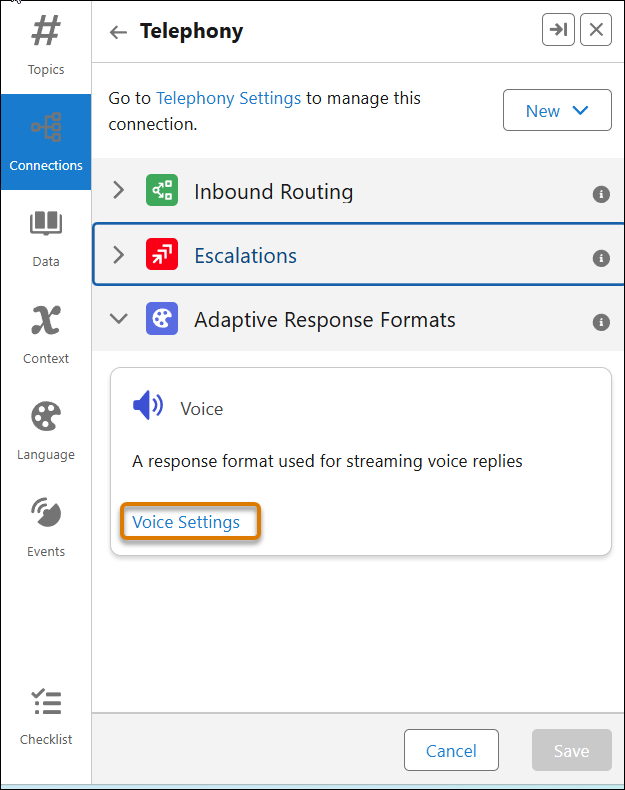
In Agentforce Builder, within the Connections tab, select the Telephony connection and
click Voice Settings.
-
Expand Basic and select a voice from the list. Review the
description and other characteristics such as gender, age, accent and style.
 Important Voice-enabled agents only support specific languages, and you must ensure the agent's default language (set in language settings) aligns with the voice setting you select. See Agentforce Voice Considerations.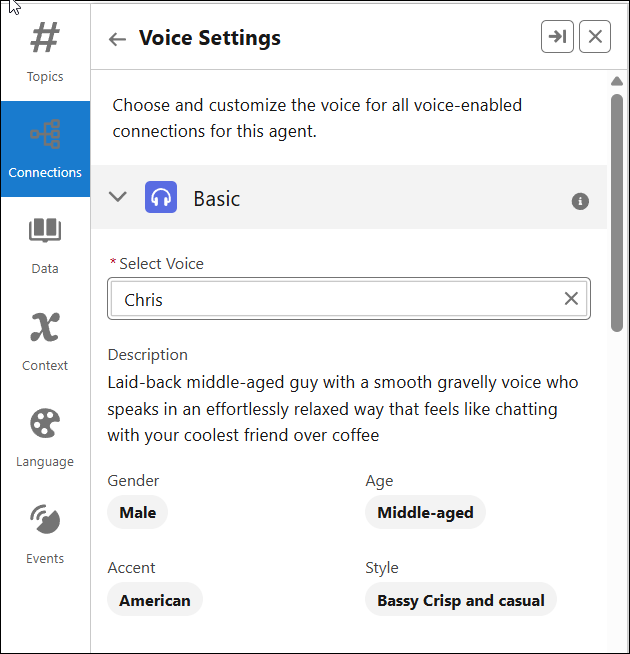
-
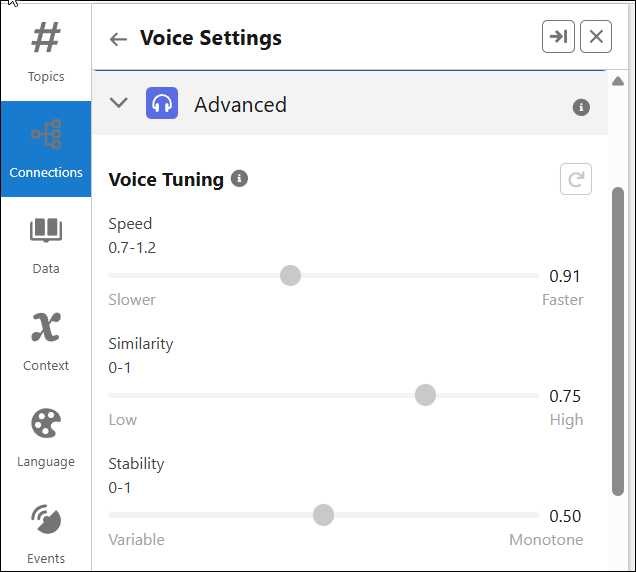
Expand Advanced. Advanced settings allow you to fine tune the voice
to your preferences. Make sure to test the settings and consider your audience and content and
adjust the settings if necessary.
- Speed: Allows you to either speed up or slow down the pace of the generated speech.
- Similarity: Controls how closely the generated speech matches the original voice you selected.
- Stability: Determines how stable the voice is and the randomness between each generation. Lower values allow for a broader emotional range for the voice. High values make the speech closer to serious or monotone.
-
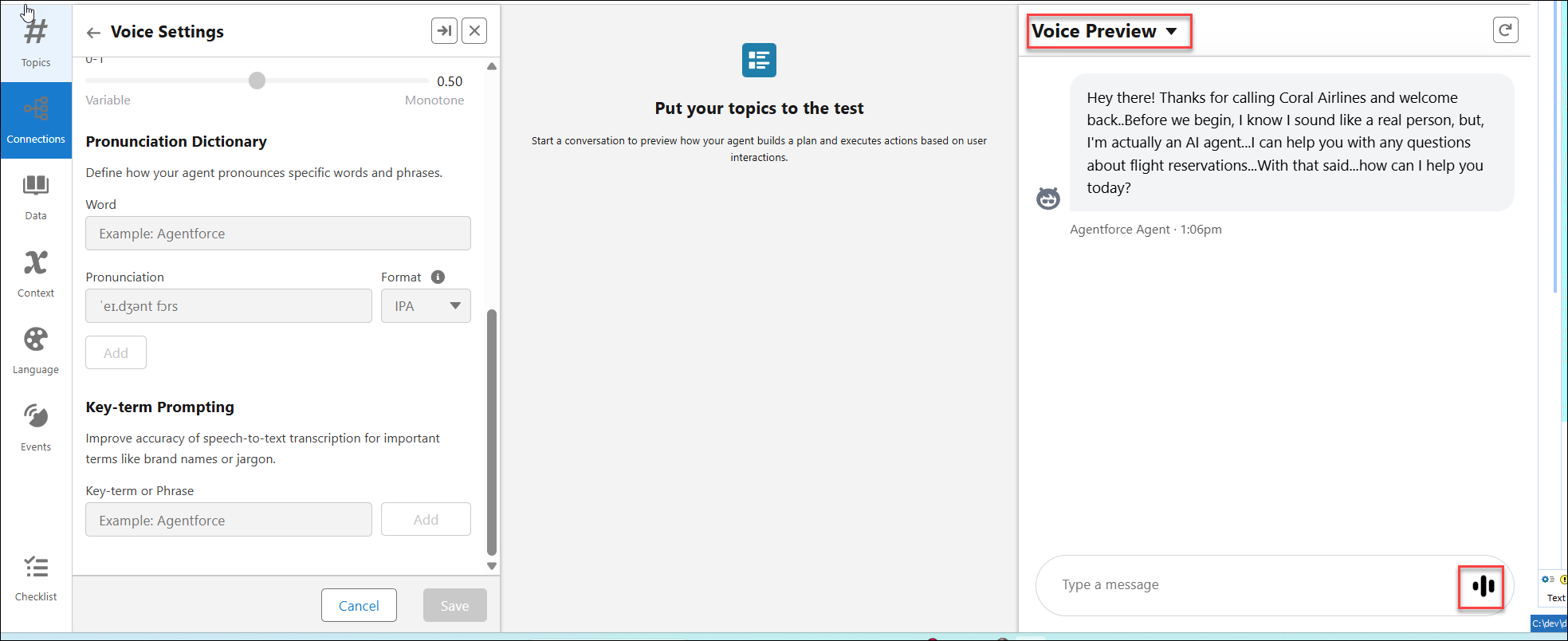
Under Pronunciation Dictionary, add any words or phrases that is unique to your
organization or use case and is likely to be mispronounced. This is an optional step. Review
the Agentforce Best Practices
guide.
- Word: Add the word or phrase.
- Pronunciation: Specify the pronunciation for the word or phrase you entered.
- Type: Select the type of pronunciation dictionary to use: The International Phonetic Alphabet (IPA) is a global system using unique characters, often from Latin and Greek, to represent speech sounds (e.g., "cat" is /kæt/). The Carnegie Mellon University (CMU) dictionary is an American English pronunciation dictionary using a simplified ASCII-based phoneme set (ARPA) for speech technology (e.g., "cat" is K AE T).
-
Under the Key-term Prompting, enter single terms or phrases that are unique to your
organization or might be difficult to translate to text. Key-term prompting can improve the
ability of the model to correctly recognize terms and phrases you specify. While the
pronunciation dictionary provides the phonetic spellings or pronunciation guidance, key-term
prompting helps the model recognize the terms and phrases and transcribe more accurately.
- Enter single terms or phrases such as uncommon words, proper nouns, product names, and industry-specific terms.
- Capitalize keywords as you want them to appear in transcripts.
- Limit to 100 keywords.
 Note This is an optional step it should only be used if words or terms are being misinterpreted or transcribed incorrectly and after careful testing. Review the Agentforce Voice Best Practices guide for more details.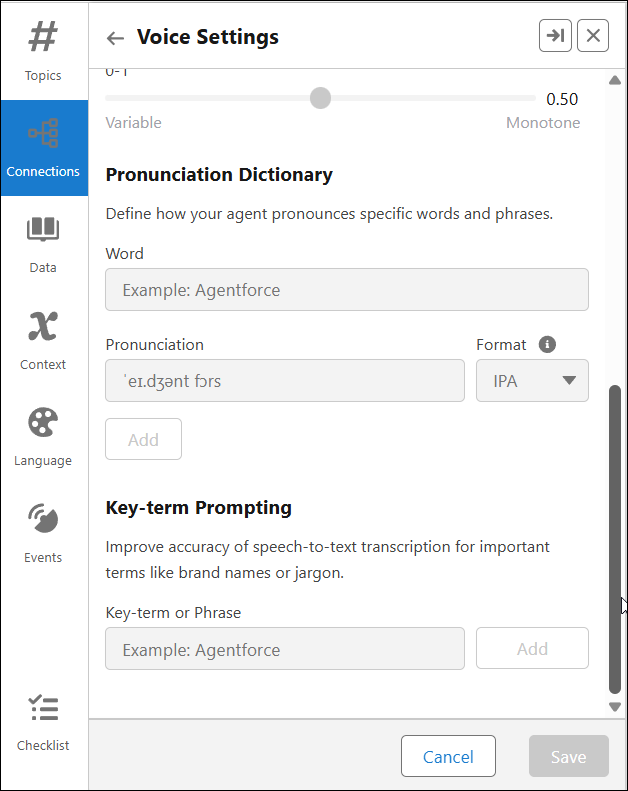
-
Use the Voice Preview panel to test how your agent sounds. Save your settings.
Did this article solve your issue?
Let us know so we can improve!
