
Use Uploaded Files
Select the files to upload for your data library to index.
Required Editions
| Available in: Lightning Experience |
| Available in: Enterprise, Performance, and Unlimited Editions with the Einstein for Platform or Einstein or Agentforce for Sales or Service add-on, or Agentforce Foundations |
| User Permissions Needed | |
|---|---|
| To set up Agentforce Data Libraries: | Data Cloud admin AND System Administrator permissions. |
- To configure a data library, select it and click Edit.
- To base a data library on your files, select the File Upload tab.
-
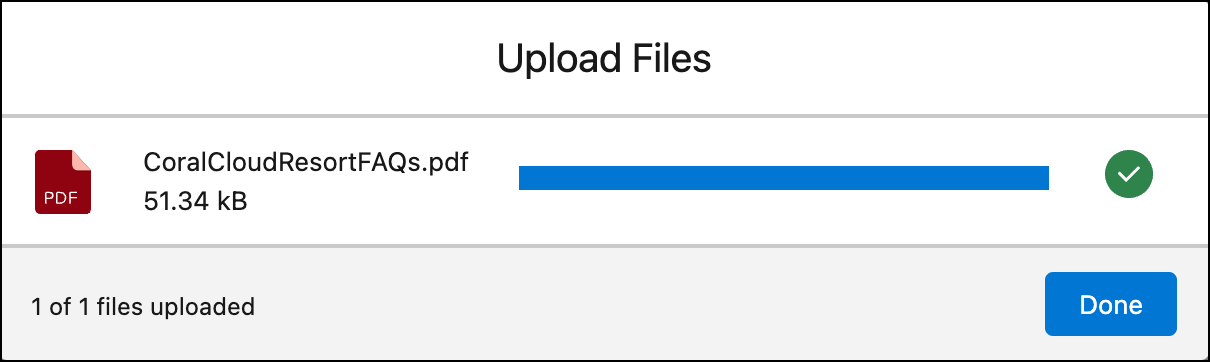
To add files, click Upload Files, select your files, and click
Save. Or, drag files directly into the upload box. When you create a file-based data library with a PDF that's 10 MB or less, we automatically apply advanced processing tools. Advanced processing uses Intelligent Context to create the best search index and retrieval pipeline for your data. The first 5 files are evaluated to determine optimal indexing configuration using Intelligent Context, so we recommend that they best represent the information you want to include in your data library. See Intelligent Context in Data 360.
 Note Data Cloud 1 orgs don't support advanced processing using Intelligent Context. Intelligent Context uses data credits. For more rate information see Data 360 Billable Usage Types.
 -
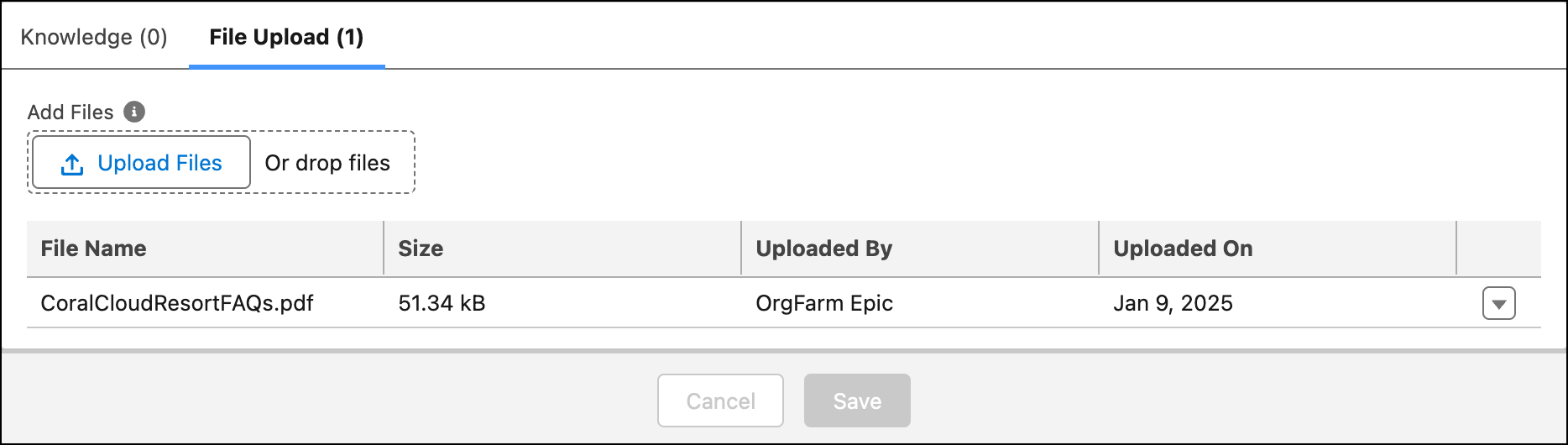
Go to the File Upload tab to see the files included in each data library.
 Note
Note- You can upload up to 4 MB for text or HTML files, or 100 MB for PDF files.
- When you add files to a data library, the search index associated with the data library rebuilds with the new files. While the library builds, its status changes to In Progress and it can't be used. Rebuild time can take from 30 minutes to several hours, and depends on the number and size of your files.
- During prompt template execution, a PDF file uploads as a binary file in the prompt request. Einstein Trust layer protections aren't applied to the contents of the PDF. See Grounding with File Inputs.
- Save your work.
After you save your selections, your data streams, a search index, and a retriever are created, which you can view or edit in Data 360. Monitor your data library’s progress from Setup. When the status updates to “Your data library is ready to use!” you can test and use the library data with agents.
Did this article solve your issue?
Let us know so we can improve!
