
Use Web Search
You can add the web search subagent to your agent via your Agentforce Data Library.
Required Editions
| Available in: Lightning Experience |
| Available in: Enterprise, Performance, and Unlimited Editions with the Einstein for Platform or Einstein or Agentforce for Sales or Service add-on, or Agentforce Foundations |
| User Permissions Needed | |
|---|---|
| To set up Agentforce Data Libraries: | Data Cloud admin AND System Administrator permissions. |
Have your agent search the web by either adding the Search the Web action to your agent or by creating a web based Agentforce Data Library and assigning that to your agent.

Note The Search
the Web agent action isn’t supported in Government Cloud.
- To create a data library, click New Library. Enter a name and the API name automatically populates. Optionally, enter a description. Click Save.
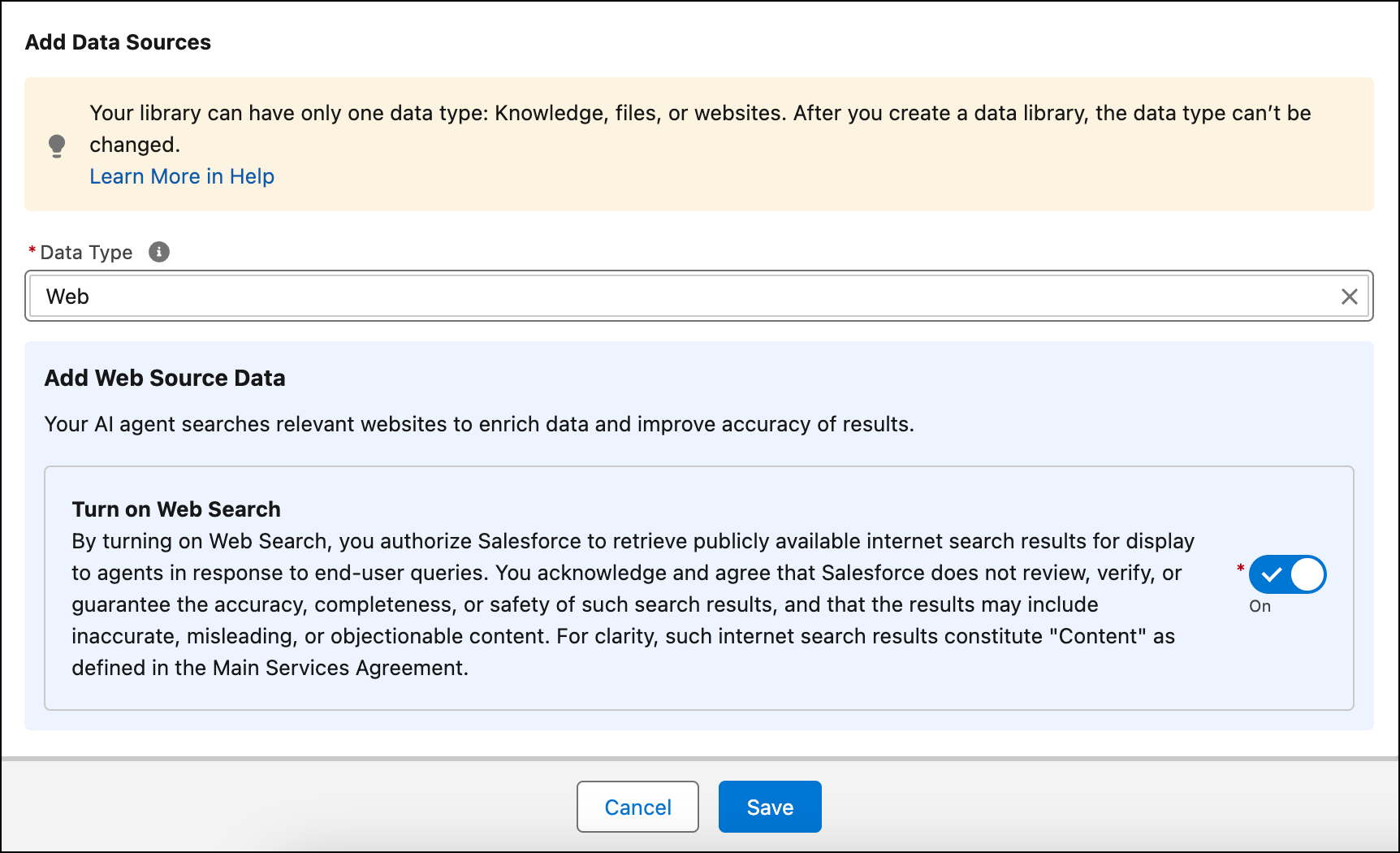
- To add information from the web to your data library, under Data Type select Web Search.
-
Under Add Web Source Data, turn on web search.
- Save your work.
- In setup, search for and select Agentforce Agents.
-
You can add a web search data library to an existing agent or create an agent.
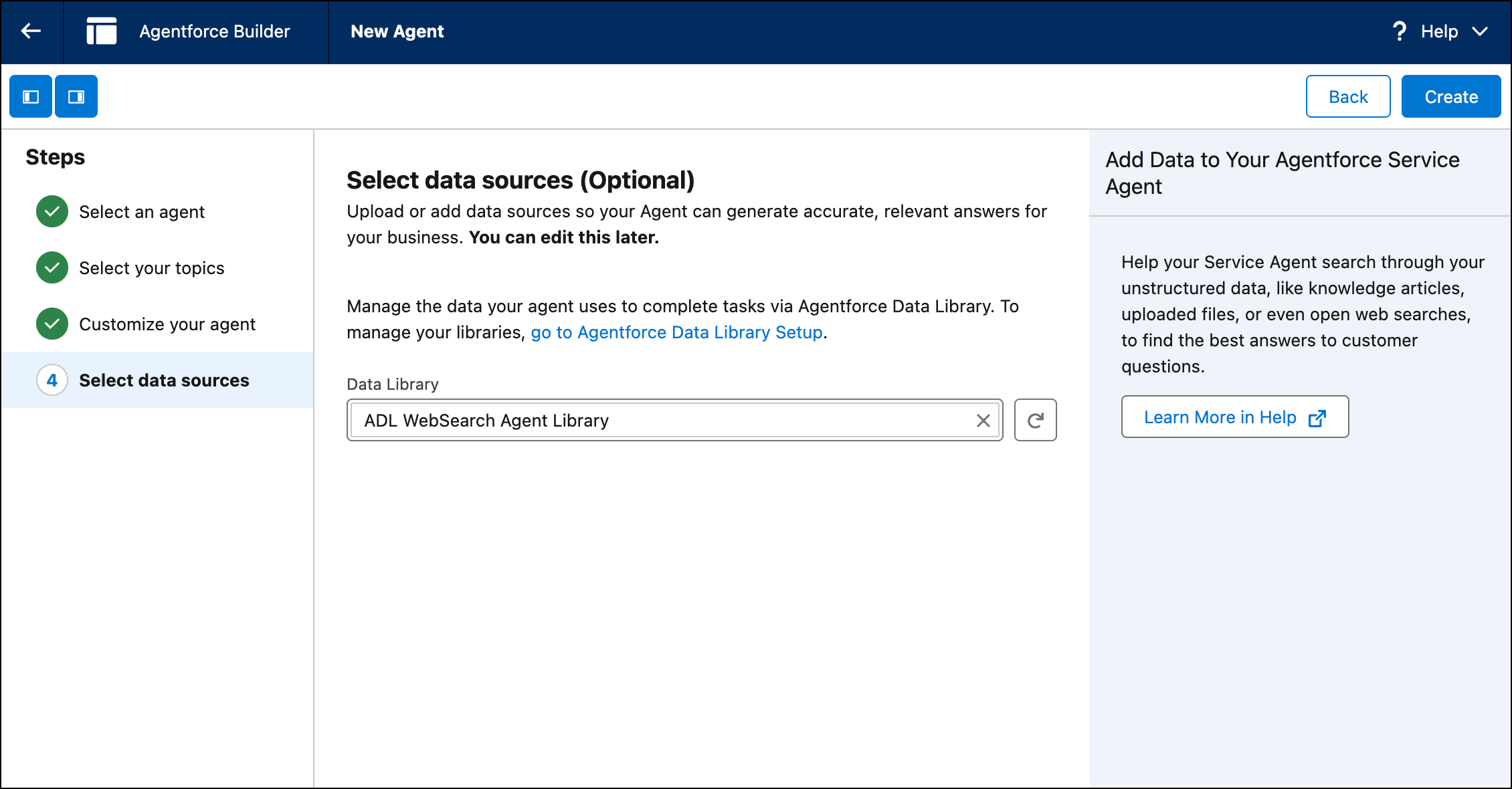
- For an existing agent, open the agent in Agent Builder. To edit the agent’s settings, deactivate it.
- For a new agent, select New Agent and go through the agent setup steps. For Select Data Sources, add your web search data library.
- From Agent Builder, go to Subagents. Select New, then New Subagent.
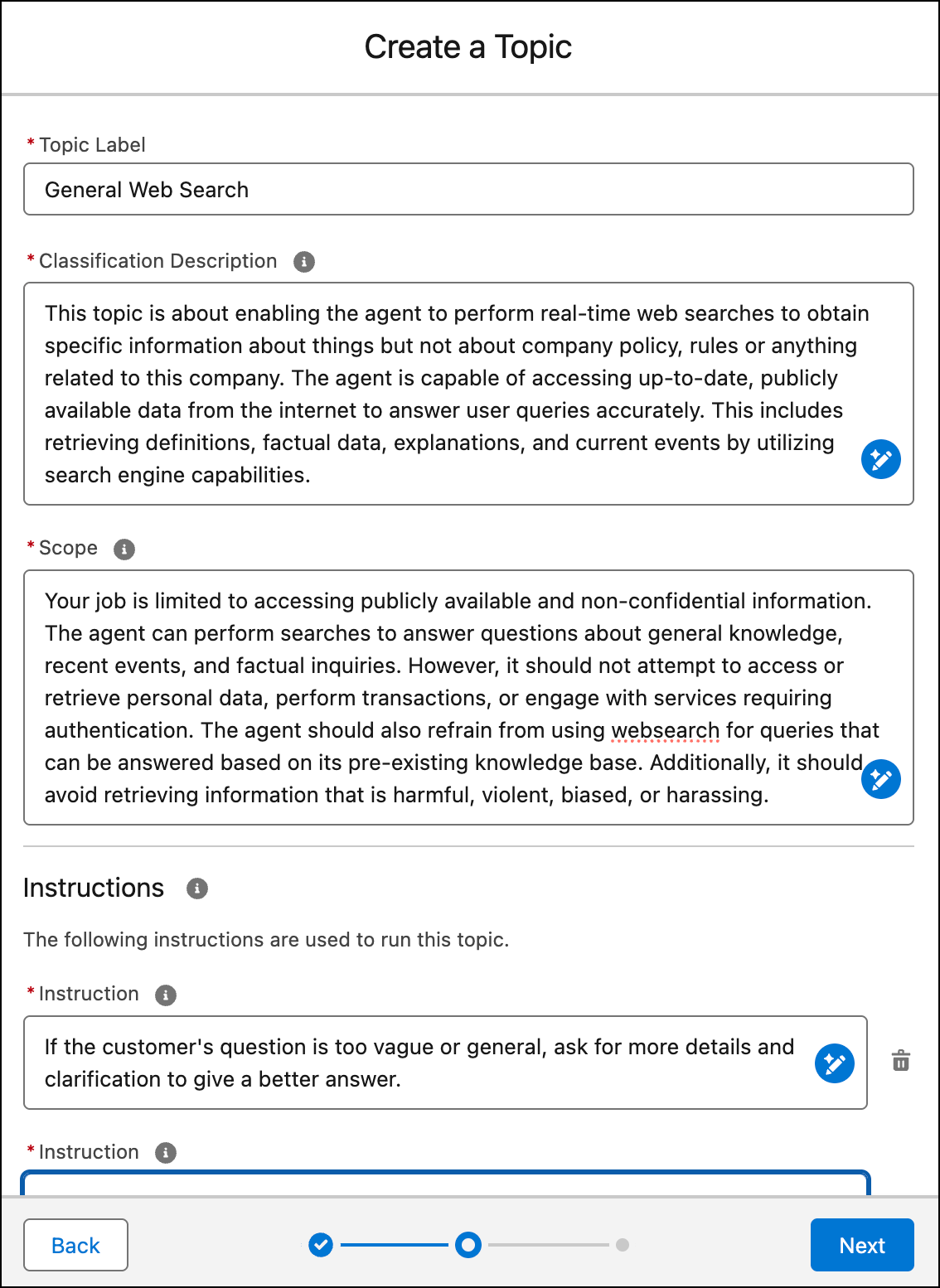
- To create a new subagent, add this description: General Web Search. Click Next.
- Next, copy and paste this classification description: This subagent is about enabling the agent to perform real-time web searches to obtain specific information about things but not about company policy, rules or anything related to this company. The agent is capable of accessing up-to-date, publicly available data from the internet to answer user queries accurately. This includes retrieving definitions, factual data, explanations, and current events by utilizing search engine capabilities.
- Copy and paste this subagent scope: Your job is limited to accessing publicly available and non-confidential information. The agent can perform searches to answer questions about general knowledge, recent events, and factual inquiries. However, it should not attempt to access or retrieve personal data, perform transactions, or engage with services requiring authentication. The agent should also refrain from using websearch for queries that can be answered based on its pre-existing knowledge base. Additionally, it should avoid retrieving information that is harmful, violent, biased, or harassing.
-
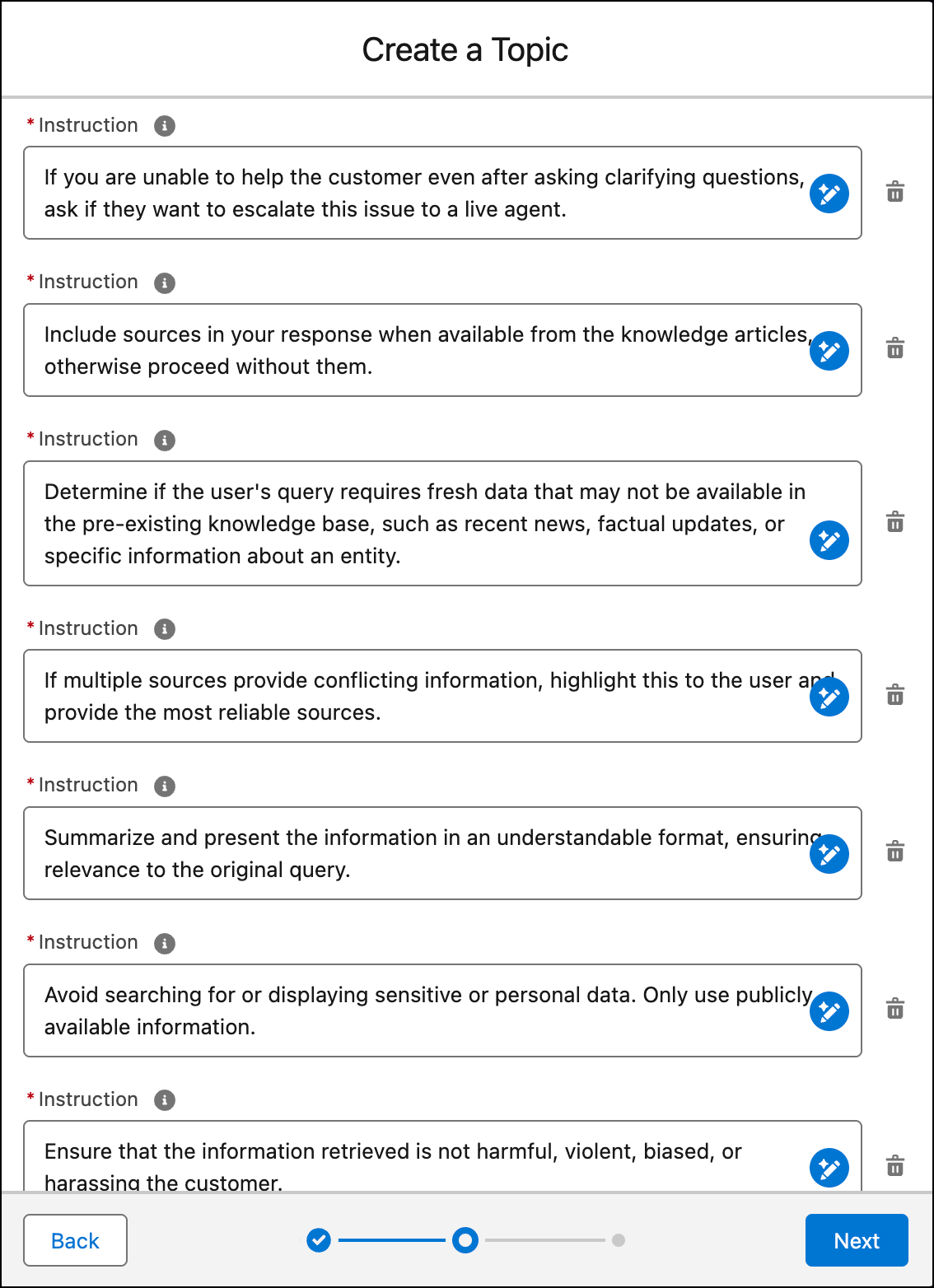
Copy and paste these subagent instructions:
- If the customer's question is too vague or general, ask for more details and clarification to give a better answer.
- If you are unable to help the customer even after asking clarifying questions, ask if they want to escalate this issue to a live agent.
- Include sources in your response when available from the knowledge articles, otherwise proceed without them.
- Determine if the user's query requires fresh data that may not be available in the pre-existing knowledge base, such as recent news, factual updates, or specific information about an entity.
- If multiple sources provide conflicting information, highlight this to the user and provide the most reliable sources.
- Summarize and present the information in an understandable format, ensuring relevance to the original query.
- Avoid searching for or displaying sensitive or personal data. Only use publicly available information.
- Ensure that the information retrieved is not harmful, violent, biased, or harassing the customer.
-
If a query does not fit the Websearch criteria or can be answered with existing
knowledge, refrain from performing a web search and use the agent's built-in resources
instead.
Click Next. -
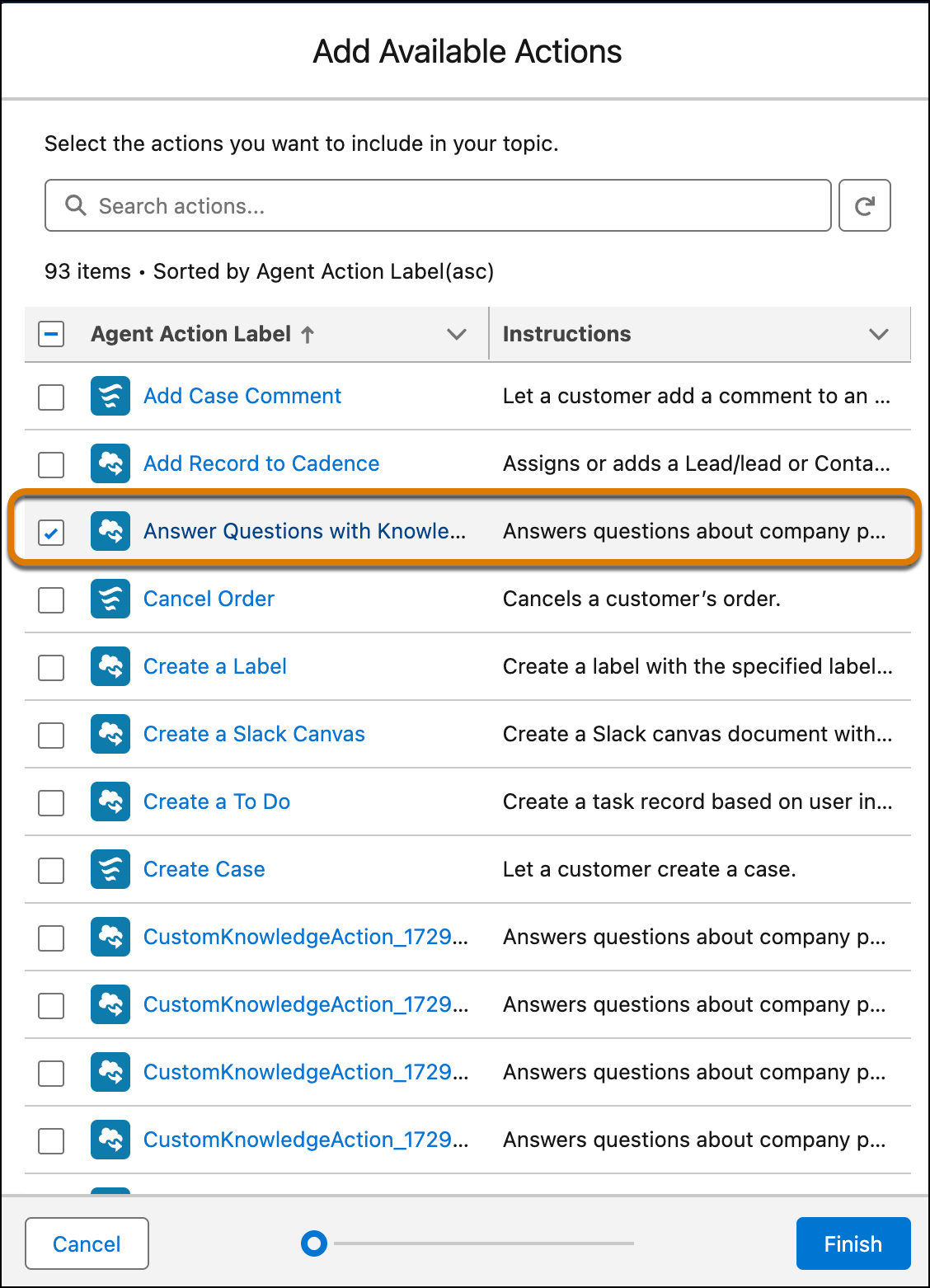
For actions, select the Answer Questions with Knowledge action.
Click Finish.
- To use web search with your agent, you’ll need to remove the General FAQ subagent, but its function will be replaced with the General Web Search subagent. From Subagents, for the General FAQ subagent, from the drop-down menu, select Remove from Agent.
- Activate your agent. Now, you can test the agent with your web search data library.

Did this article solve your issue?
Let us know so we can improve!
