
You are here:
Einstein Automated Contacts
Spend even less time on data entry. Einstein Automated Contacts uses email and event activity to find new contacts and opportunity contact roles to add to Salesforce. Depending on how your Salesforce admin set up the feature, Einstein suggests the new data or adds it for you.
Required Editions
| Available in: Lightning Experience |
| Available with Sales Cloud Einstein, which is available in Performance and Unlimited Editions, and for an extra cost in Enterprise Edition |

Einstein Automated Contacts finds new data by looking at your activities. For example, the title on suggested contacts comes from a person’s the email signature. If your admin chooses that new data is suggested to you, you see suggestions in the Einstein Insights component. If your admin chooses that data is added automatically, notifications alert you when new data is added to Salesforce. In both cases, the type of data determines who sees the suggestions or notifications.
| Type of Data | Where Suggestions Appears | Who Sees Suggestions or Notifications |
|---|---|---|
| Contact |
|
|
| Opportunity Contact Role |
|
|
Data Added from Suggestions
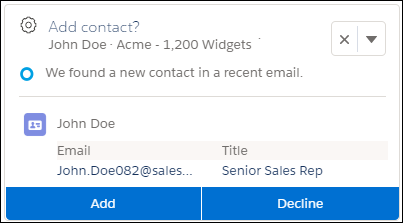
- When you add suggested data to Salesforce, Einstein takes you to the record edit page. From there, review and save the new data. After the data is added, the suggestion disappears for all users.
- When you decline suggested data, the suggestion disappears for all users.
- From the Home page, you can also dismiss suggestions, which removes them from the Home page. You can also leave feedback about the relevance of individual suggestions.
- To see which contacts and opportunity contact roles Einstein suggested, go to the app launcher and select the Einstein Contact Suggestions or Einstein Opportunity Contact Role Suggestions item. Review the suggestions to see what’s been added to Salesforce and what’s been declined. Suggestions with the New status can be added or declined from the row-level actions.
- If you use Duplicate Management, when you add a suggested contact, it could be flagged as a duplicate. If the suggestion is flagged, you must select a contact from the list.
Data Added Automatically
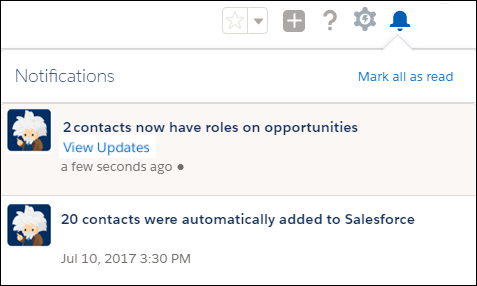
- To see which contacts were automatically added to Salesforce, review the contact list view called Added By Einstein. Click the notification text to go directly to the list view. We recommend sorting the list view by Created Date.
- If a contact can’t be automatically added because of an error (for example, a required field is missing a default value), the contact is shown to you as a suggestion. You can correct any errors when adding the contact.
