Create Custom Reports to Monitor User Feedback for Service Replies
Create a custom report type and custom report monitor the user feedback and analyze the performance of service replies while handling cases.
Required Editions
| Available in: Enterprise, Performance, and Unlimited Editions with an Einstein for Sales, Einstein for Platform, Einstein for Service, Einstein 1 Service, or Einstein GPT Service add-on. To purchase add-ons, contact your Salesforce account executive. |
| User Permissions Needed | |
|---|---|
| To create custom reports: | Create and Customize Reports |
| AND | |
| Manage Custom Report Types | |
| To turn on data collection: | View Setup |
| AND | |
| Customize Application | |
To collect generative AI audit and feedback data, Set Up Einstein Generative AI Audit and Feedback. Before you create the custom report types make sure you've created the relationships for the Case and Messaging objects. See Link Case and Messaging DMOs to Generative AI Data.
- From Setup, in the Quick Find box, enter Report Types, and then select Continue.
-
Click New Custom Report Type.
- For the primary object, select GenAIFeedback.
- Enter a label name, api name, and a description.
- For the category, select Data Cloud, and then click Next.
-
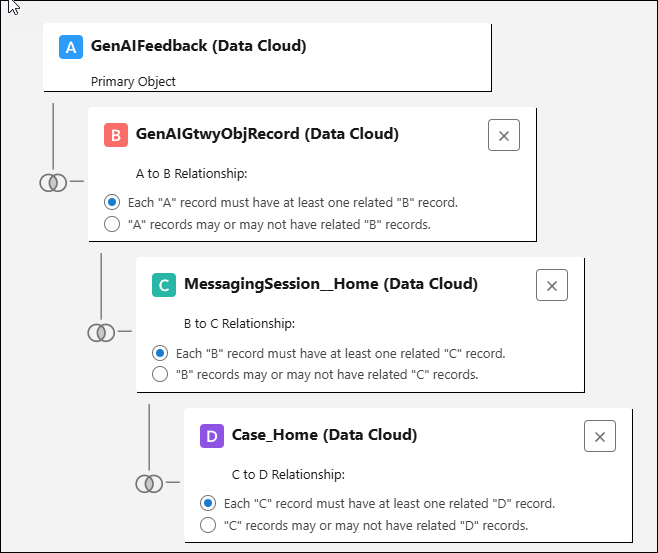
Define the relationship between the related objects.
- For GenAIGtwyObjRecord, create A to B Relationship, which means that each A record must have at least one related B record.
- For Messaging Session or Live Chat Transcript (or both if you’re using bothMesseging for In-app and Salesforce Chat), create a B to C relationship, which means that each B record must have at least one related C record.
- For Case, create a C to D relationship, which means that each C record must have at
least one related D record.
- Save your changes.
- Now, from the App Launcher, find, and select Reports.
- Click New Report and for the category select Data Cloud.
- Choose the report type that you created, then click Start Report.
- Add or remove fields, group by rows and columns, filter report data, or add a chart. Customize your report until it shows exactly the data that you need.
-
Click Save, and give your report a name and description. With access and sharing in mind,
save the report in an appropriate folder. Now you and your users can use this report to analyze
and monitor the user feedback on the AI responses.
 Note Currently, it's not possible to identify if a user actually used the generated response.

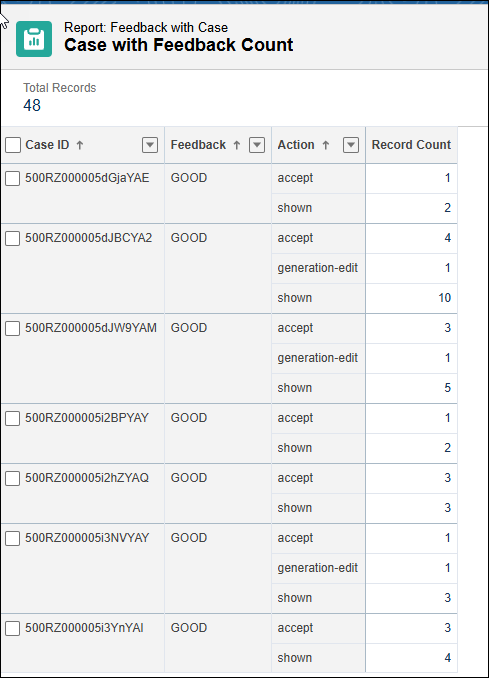
The case with feedback count report shows the user feedback received for the generated responses related to the case and the action taken by the user on the response. In the action column, generation-edit, means that a human user manually edited the generated response. Shown means the generated response was displayed. Accepted means that the generated response was used as is.