
Configure User Permissions for Unmetered Licenses
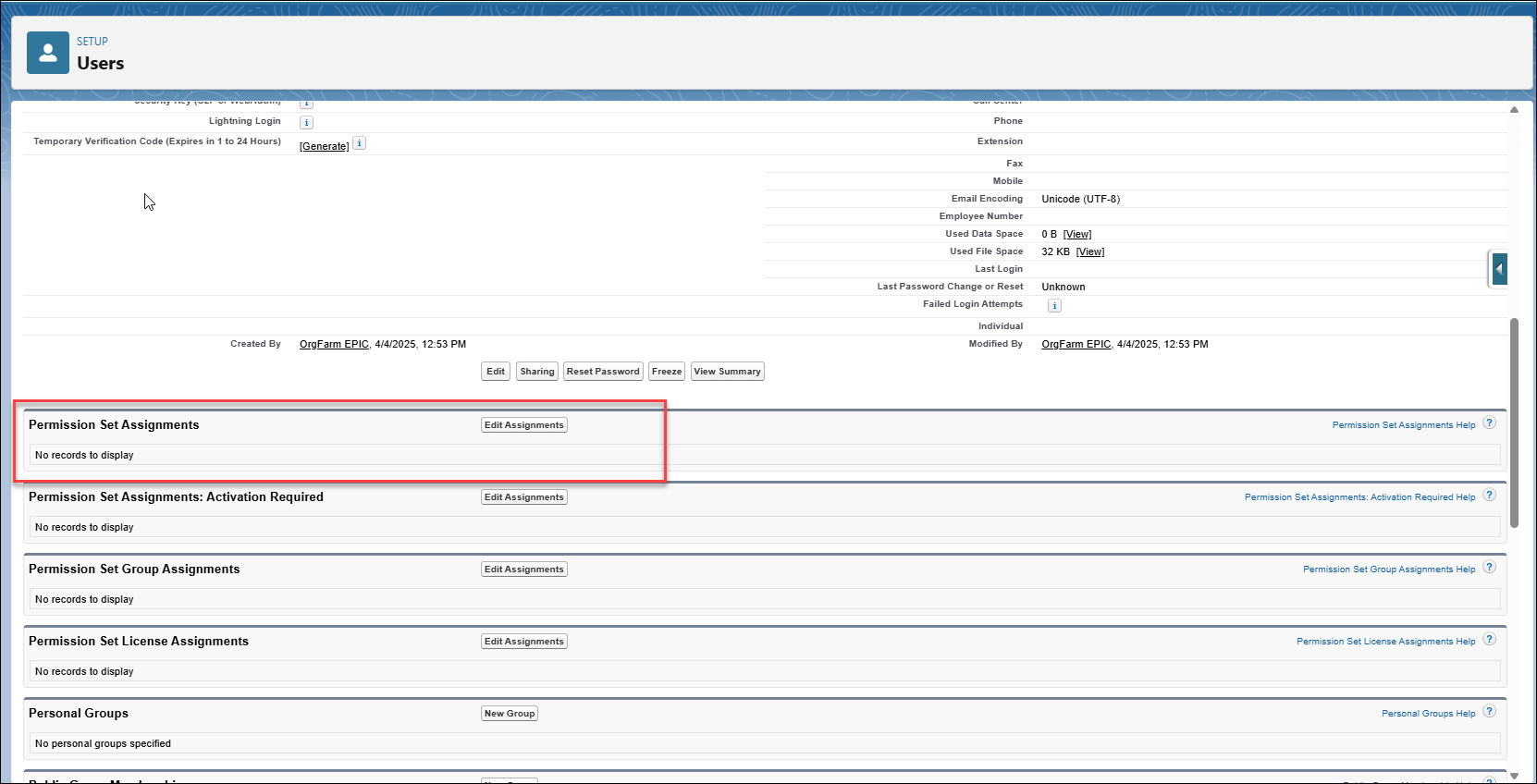
To enable unmetered AI usage, first assign the appropriate permission set license to the user where available. Create a permission set for the license, and then finally assign the permission to the user.
Required Editions
| Available in: Lightning Experience |
| Available in: Enterprise, Performance, Unlimited, and Developer Editions with the Agentforce 1 Edition, or Agentforce for Sales, Agentforce for Service, Agentforce for Field Service, or Agentforce for an Industry add-on license. |
| User Permissions Needed | |
|---|---|
| To edit user permissions: | Manage Profiles and Permissions Sets |

Note The steps described later uses the Unmetered User Based AI license as an
example. Unmetered User Based AI license applies to global unmetering usage. For information
about product-based unmetering licenses, refer to the documentation specific to your product
or feature.

Important Unmetered user licenses are primarily designed for business users (for
example, Sales, Service, or Marketing roles). While the platform does not enforce
restrictions, we recommend assigning these licenses in line with their intended use to
ensure accurate usage and billing behavior.
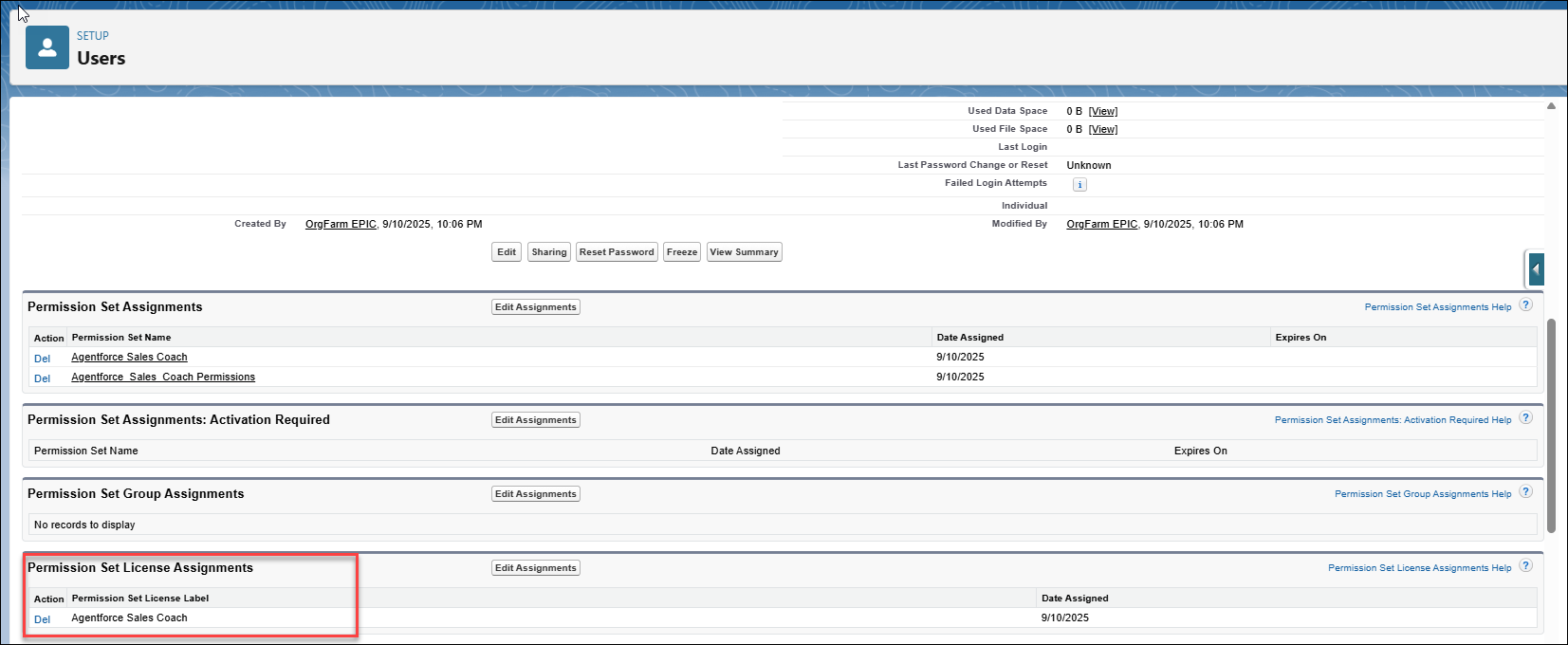
Assign Unmetered User Based AI Permission Set License to a User
Assign the Unmetered User Based AI permission set license to the user.
Create a New Unmetered User Based AI Permission Set
Create a permission set.
- From Setup, in the Quick Find box, enter permission sets, and then select Permission Sets.
- Click New.
- Enter a name for the label and click Save.
- From the new permission set you created, on the System tab, click System Permissions..
- Click Edit to edit the System Permissions. Select Unmetered User Based AI from the list and save.
Did this article solve your issue?
Let us know so we can improve!
