With generative AI-enabled fields, you can get real-time data from across your org
without leaving a Lightning page. Generative AI-enabled fields use field generation prompt
templates to provide dynamic summaries, descriptions, and more.
Required Editions
Available in: Lightning Experience
Available in: Enterprise, Performance, and Unlimited
Editions with the Einstein for Platform, or Einstein or Agentforce for Sales or
Service add-on, or Agentforce Foundations
User Permissions Needed
To access and run prompt templates outside Prompt Builder
Prompt Template User permission set
Note For users to access generative AI-enabled fields in the Salesforce mobile app, a Salesforce
admin must first enable Dynamic Forms on Mobile.
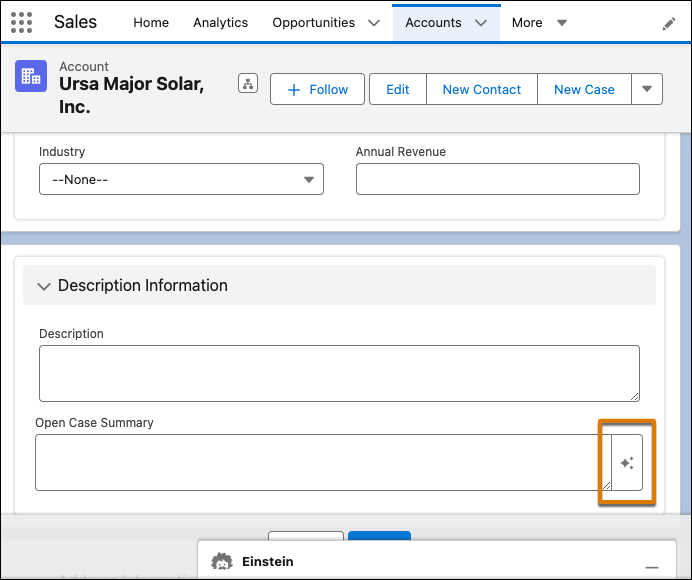
Click on a Lightning
record page form field.
If the form field is enabled for generative AI, appears on the field. To generate a draft of the field,
click .
If you don't see a generative AI-enabled field icon
on a record field (), then a prompt template isn't supported for that
field. If a custom
permission set is created for Prompt Builder and field generation templates aren't visible,
grant object access to prompt templates. Also, ensure the user has the permissions
ExecutePromptTemplate and ManagePromptTemplate.
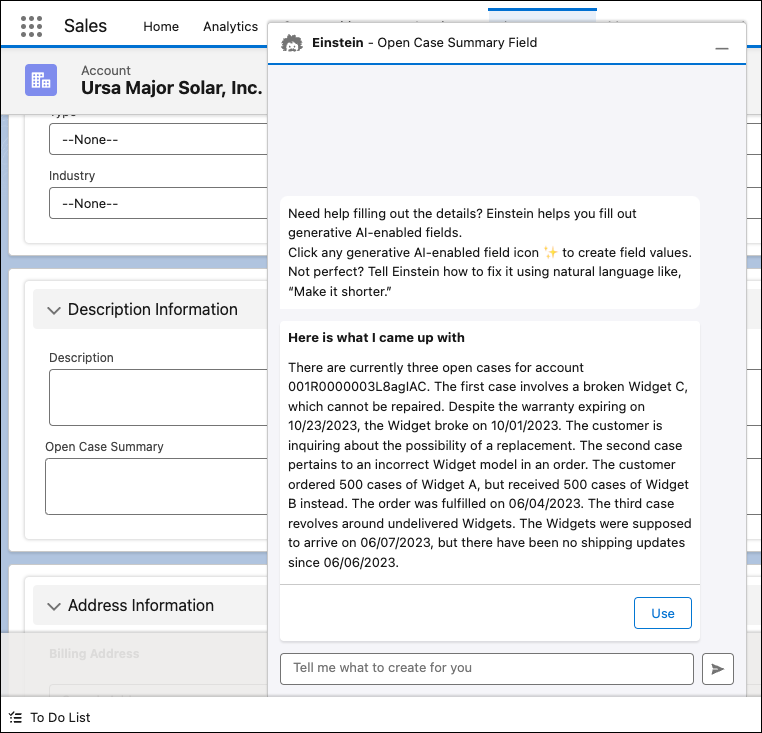
In the Einstein panel, review the draft that the AI generates.
To add the draft to the field, click Use.
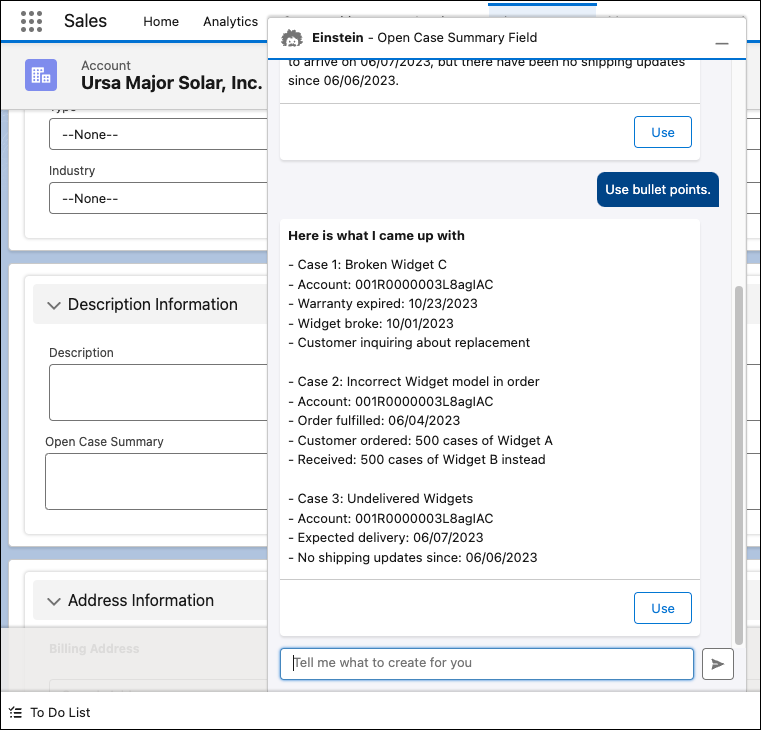
If you’re unsatisfied with the response, send a message that asks Einstein to rewrite the
draft. For example, you can ask Einstein to shorten a field description. Einstein supports
brief back-and-forth conversations, so if you’re still unsatisfied with the regenerated draft,
ask Einstein to revise the draft again.
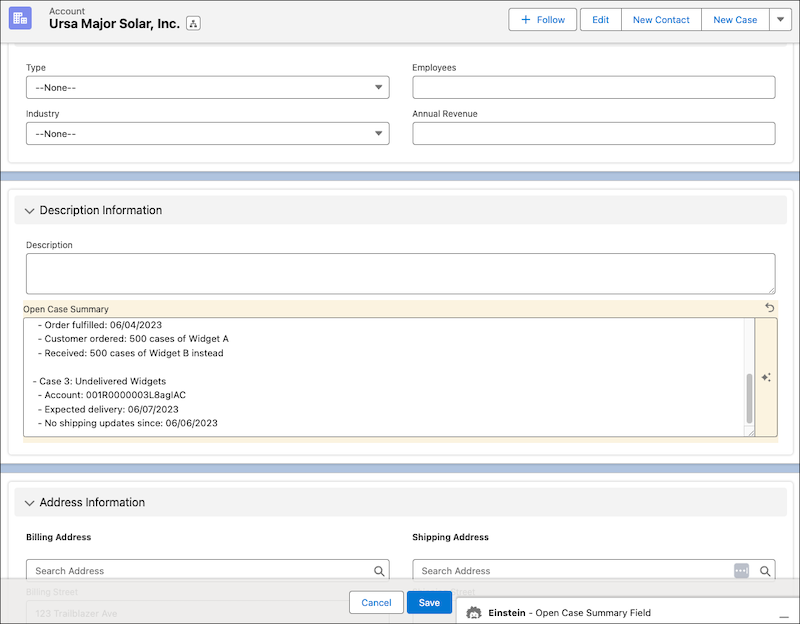
After you add the draft to the field, review the field again. Edit the field, if
desired.
Important This tool uses generative AI, which is known to include inaccurate or
harmful responses. Before using, review the output for accuracy and safety. You assume
responsibility for the output when shared.
Save the updated record.
Did this article solve your issue?
Let us know so we can improve!
Loading
Salesforce Help | Article
Cookie Consent Manager
General Information
Required Cookies
Functional Cookies
Advertising Cookies
General Information
We use three kinds of cookies on our websites: required, functional, and advertising. You can choose whether functional and advertising cookies apply. Click on the different cookie categories to find out more about each category and to change the default settings.
Privacy Statement
Required Cookies
Always Active
Required cookies are necessary for basic website functionality. Some examples include: session cookies needed to transmit the website, authentication cookies, and security cookies.
Functional Cookies
Functional cookies enhance functions, performance, and services on the website. Some examples include: cookies used to analyze site traffic, cookies used for market research, and cookies used to display advertising that is not directed to a particular individual.
Advertising Cookies
Advertising cookies track activity across websites in order to understand a viewer’s interests, and direct them specific marketing. Some examples include: cookies used for remarketing, or interest-based advertising.