
You are here:
See Instant Actionable Results
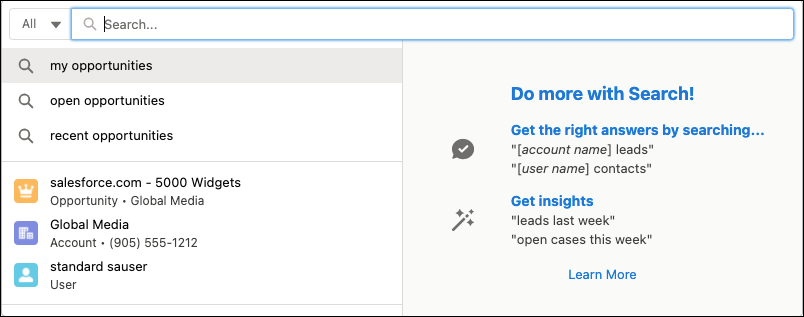
The moment you put your cursor in the global search bar, you see suggested searches and record previews based on your recent activity. Use these results to easily access records. You can also complete actions, such as editing a record and accessing related quick links.
When you begin typing, search looks at all your recently viewed records, and matches against the record name and any searchable secondary field. The secondary field is a field you see under the record name. If no matches are found, a general search runs, matching against only the record name, unless the record name is an auto-number, like cases or work objects. For these types of auto-number fields, search results are based on the searchable secondary field.

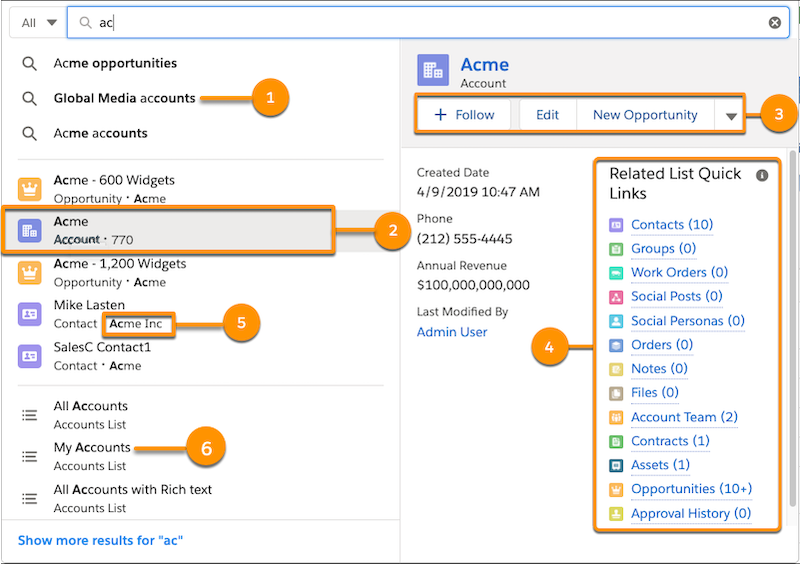
Let’s review the results more closely.
| You See: | What’s Included? |
|---|---|
| Suggested searches based on what you enter (1) | These searches go across all searchable objects, and take you to the Top Results page. Results are also personalized based on your most recent activity. |
| Suggested record previews (2) | Lists up to five records that have a name that matches your search term. The records shown include items from your most frequently used objects and items from the current object. To preview the record’s content, hover over a record. You can see up to 10 fields in the preview. To go right to the record page, select the record. When you view a record, the record doesn’t initially display in the recent items list. To refresh the list for global search, click outside of the search bar then select it again. You can also reload the page. |
| Record action buttons (3) | Actions from record pages and custom actions are now instantly accessible. |
| Related List Quick Links (4) | Go right to a record’s related lists. You can hover over any link to preview the contents before clicking a link. |
| Secondary field (5) | When available, your global search results show a secondary field beneath the record name and next to the object type. This secondary field provides context to help you figure out whether the record is the one you’re looking for. For example, the company Acme Inc appears under one of the contact names, which helps you decide if it’s the person you’re looking for. The secondary field is the first eligible field in the search layout. Your admin can customize the search layout by choosing which record fields to show and the order of those fields in the layout. Those choices determine the secondary field. Not all fields are eligible to be secondary fields. |
| List views (6) | Find the right list views without going to a list views page. You can see suggested list views when you click in the search bar, and they update as you type. Hover over one to see a preview. |
| Stopwords | Stopwords such as how and to, are included in instant results for these objects:
|
