
You are here:
Use Natural Language Search Filters (Pilot)
Einstein Search can understand a natural language search in different ways. If Einstein doesn’t interpret your search as you intended, you can change the filters that Einstein applied to the search. After you select new values, the search results are updated in real time.

You can select other options for each fragment of a query, but Einstein Search can’t join, split, or edit query fragments.
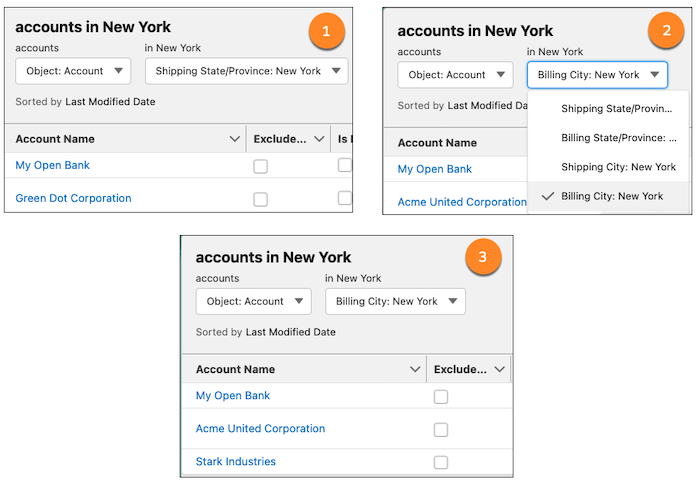
For example, when you enter accounts in New York, the initial results include accounts in New York state (1). But you meant accounts in New York City. Change the filter to Billing City: New York (2). The results update to show accounts in New York City (3). For accounts, search understands the concept of location (city, state, country, or province). If New York is labeled as a city in account records, search can suggest Billing City: New York and Shipping City: New York as filter options.
In general, filter options depend on the record that matches the query and the available fields. For example, you enter a query for an account object, such as show my Acme accounts. The available filter options include all fields for the account object with the value Acme:
- Account: Acme
- Parent Account: Acme
- Account: Acme USA
- Contact: Acme
To distinguish results with similar names, the records in the filter options include secondary fields, for example, a phone shown with an account record.
You can’t change all natural language queries. Search displays filters only for objects and their associated fields that natural language search supports and that Einstein Search understands. Some searches get only one interpretation.
- Enable Natural Language Search Filters (Pilot)
To change the filters that Einstein applies to a natural language search, enable natural language filters.
