Enable Search Answers or AI-Generated Search Answers
Search Answers gets the most relevant snippets from your data sources, and AI-generated
Search Answers uses knowledge articles and other sources to generate tailored responses to user
questions. Search Answers supports only English queries and searches English-only knowledge
articles or Data Cloud data model object (DMO) fields.
Required Editions
Available in: Lightning Experience and Salesforce Experience Sites (LWR or
Aura) with Lightning Knowledge enabled for Search Answers and AI-Generated
Search Answers.
Available in: Lightning Experience with Lightning Knowledge and Data Cloud
enabled for AI-Generated Search Answers from Data Cloud sources. See Data Cloud edition availability.
User Permissions Needed
To enable Search Answers:
Customize Application
Before you enable AI-Generated Search Answers from Data Cloud sources, enable Einstein Generative AI to get started with
generative AI features.
From Setup, in the Quick Find box, enter Einstein Search, and
then select Settings.
Select the Search Answers settings that you want to enable.
Feature
Details
Search Answers
Extract the most relevant snippet to answer a question. This feature can take up
to 24 hours to activate.
Starting in March 2025 (Spring ’25), you can’t enable
Search Answers.
AI-Generated Search Answers
Generate an answer to a question from multiple knowledge articles. This feature
can take up to 24 hours to activate. This feature also requires Search
Answers.
Starting in March 2025 (Spring ’25), you can’t enable AI-Generated Search
Answers.
AI-Generated Search Answers from Data Cloud sources
Generate an answer to a question from up to 5 Data Cloud DMOs that you specify
as sources.
If Search Answers and AI-Generated Search Answers are enabled in your
org, you must disable them to select AI-Generated Search Answers from Data Cloud
sources.
Save your changes.
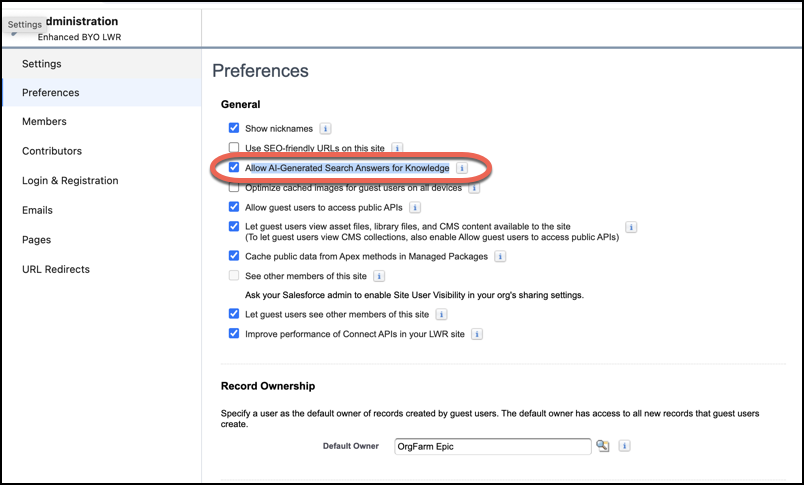
If you want to enable AI-Generated Search Answers for Experience Cloud sites, from the
site workspace, go to Administration | Preferences, and select Allow AI-Generated Search Answers for
Knowledge.
If you're using an LWR site, this feature requires the Search Bar and the Results
Layout component on the Search page. In the Results Layout component, make sure the result
source is set to CRM Object and the object included in the search is set to the Knowledge
object. If you’re using an Aura site, include the Global Search Results
component.
AI-Generated Search Answers from Data Cloud sources doesn't currently
support Experience Cloud sites.
Save your changes.
After you enable AI-Generated Search Answers from Data Cloud sources, the next step is to
select the DMOs and fields to use as sources for Search Answers.
We use three kinds of cookies on our websites: required, functional, and advertising. You can choose whether functional and advertising cookies apply. Click on the different cookie categories to find out more about each category and to change the default settings.
Privacy Statement
Required Cookies
Always Active
Required cookies are necessary for basic website functionality. Some examples include: session cookies needed to transmit the website, authentication cookies, and security cookies.
Functional Cookies
Functional cookies enhance functions, performance, and services on the website. Some examples include: cookies used to analyze site traffic, cookies used for market research, and cookies used to display advertising that is not directed to a particular individual.
Advertising Cookies
Advertising cookies track activity across websites in order to understand a viewer’s interests, and direct them specific marketing. Some examples include: cookies used for remarketing, or interest-based advertising.