
(For PSTN Only) Procure a Phone Number for the Channel
To transfer calls to the Agentforce agent by using PSTN, first procure a phone number. Later, you associate this phone number with the channel that’s used to transfer calls to the agent.
Required Editions
| Available in: Lightning Experience |
| Available in: Enterprise, Unlimited, and Developer Editions with Foundations or Agentforce 1 Editions, and Salesforce Voice add-ons. |

- From Setup, in the Quick Find box, enter Agentforce Voice, then select Agentforce Voice Setup.
- In the Voice Channels with Agents section of the Agentforce Voice Setup page, click New Number.
-
In the Select Country and Code step, select the country and number type.
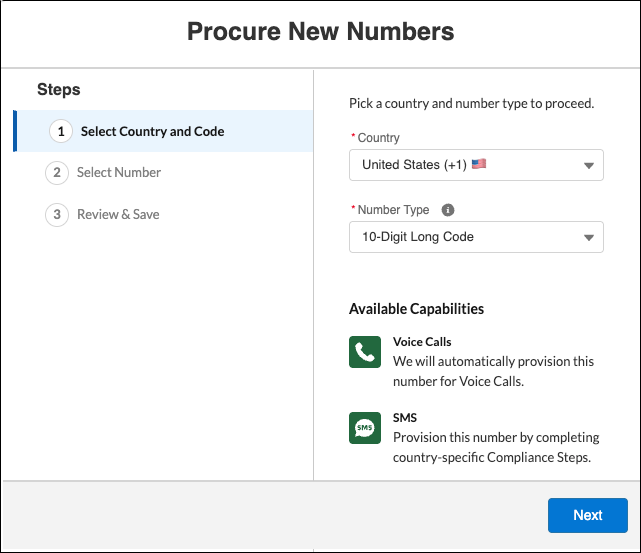
- Click Next.
- In the Select Number step, enter the 3-digit area code and click Search.
- Select a phone number.
- Click Next.
-
In the Review & Save step, review the phone number details, and click
Finish.
The window automatically closes. Your number is queued for provisioning and is in the Provisioning status. After your number is successfully provisioned, you receive a confirmation email. You can use the number when its status is Live.
Note If two users simultaneously provision the same number, the number is allocated to the user whose request came in first. -
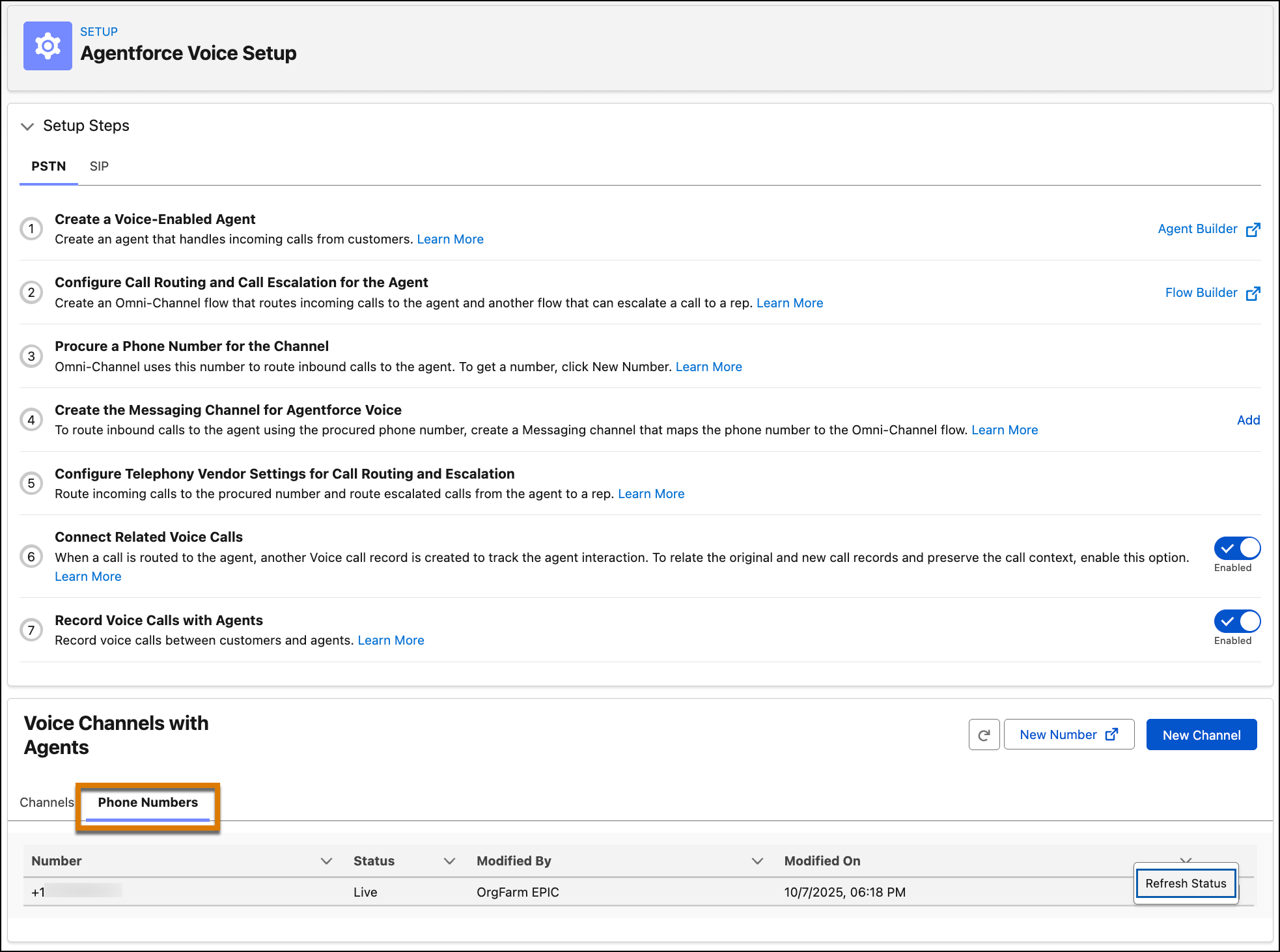
If you don't see the phone number in the Phone Numbers tab, refresh the page.
A newly procured phone number can take a couple of minutes to appear in this tab.
To use a phone number, its status must be Live. To determine what to do if the status is different, see Procured Phone Number Statuses.
- To see the latest status of a phone number, click the down arrow to the right of the phone number, and click Refresh Status.
The Phone Numbers tab in the Agentforce Voice Setup page shows the phone numbers with their statuses.
- Procured Phone Number Statuses
Review the possible statuses of procured phone numbers. To route a call to an agent with a procured phone number, the number must have a Live status.
