Loading
Salesforce now sends email only from verified domains. Read More
Analyze Your Data
Table of Contents
Select Filters

          No results
          No results
          Here are some search tips

          Check the spelling of your keywords.
          Use more general search terms.
          Select fewer filters to broaden your search.

          Search all of Salesforce Help
          Manage Your Reports and Dashboards on Analytics Home

          Manage Your Reports and Dashboards on Analytics Home

          The Analytics tab provides a modern and cohesive experience for organizing all your analytics content in one place. You can access all your reports and dashboards in a single location, making it easier for you to manage and analyze your data. Some of the enhancements you can experience in the Analytics tab include an improved search experience that helps you find the information you need more efficiently. Another enhancement is the organization of your data with Collections to curate analytics for a project or items that are the most relevant to you.

          Required Editions

          Available in: Lightning Experience
          Available in: Essentials, Group, Enterprise, Professional, Unlimited, and Developer Editions.
          User Permissions Needed
          To access the Analytics tab:
          Enhanced Folder Sharing
          Run Reports AND Create and Customize Dashboards
          To access the Analytics tab with CRM Analytics items: Use CRM Analytics

          Watch a Demo: Watch Video DemoUnified Analytics Home

          From the App Launcher, select Analytics.

          Note
          Note If you can’t find the Analytics tab or accidentally remove it, refer to the steps in Personalize the Navigation Bar in Lightning Experience.

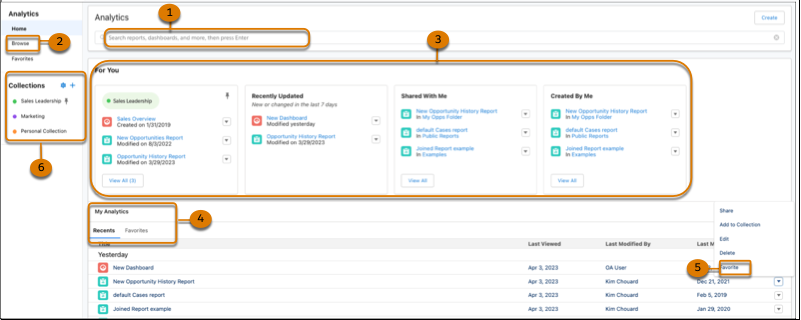
          Use the search bar (1) for keyword searches and Browse (2) to locate specific reports and dashboards. The cards in For You (3) organize your reports and dashboards and help you find what you’re looking for quickly. Go to My Analytics (4) to access content from a chronological listing and Favorites (5). Use Collections (6) to curate and organize analytics across different folders, and share them with other users.

          Analtytics tab
          • Browsing the Analytics Tab
            Find the last report or dashboard that you worked with or see what’s available on the Analytics tab. Browse enables you to quickly locate the items you’re looking for by filtering through different categories.
          • Use Navigation Breadcrumbs on the Analytics Tab
            Use the navigation breadcrumb to guide you back to where you started when opening items in the Analytics tab.
          • Favorite Your Reports and Dashboards
            Favorite your reports and dashboards for quick access, such as My Analytics, and throughout the Analytics tab.
          • Stay Organized with Collections
            Collections enable you to curate and organize your analytics in a customized way. By creating a collection, you have a personalized set of analytics that’s relevant to your projects or interests. Your analytics can be drawn from different folders, and you can avoid searching different folders to access your most important analytics. In addition, collections can personalize the home page that makes it easier to find and use the information that matters most to you.
          • Create Reports and Dashboards on the Analytics Tab
            Create reports and dashboards right from the Analytics tab. Rather than opening multiple tabs, you can stay in one app and create the analytics you want.
          • Share a Lightning Report or Dashboard Folder
            Use enhanced folder sharing to share a report or dashboard folder with users, groups, roles, or territories. Enhanced folder sharing is the default option for all orgs created after 2013.
          • Update Multiple Assets Simultaneously with Bulk Actions
            Bulk Actions available on the Analytics Browse and Favorites pages let you quickly make updates to batches of assets.
           
          Loading
          Salesforce Help | Article