
You are here:
Share CRM Analytics in Experience Cloud Sites
With CRM Analytics in Experience Cloud sites, external users can view apps shared with them via CRM Analytics dashboards embedded in their site. You can embed dashboards using Experience Builder or Visualforce pages.
Required Editions
| Available in Salesforce Classic and Lightning Experience. |
| Available for an extra cost in Enterprise, Performance, and Unlimited Editions. Also available in: Developer Edition. |
| User Permissions Needed | |
|---|---|
| To create, customize, or activate a site: | Create and Set Up Experiences AND is a member of the site they’re trying to update |
| To modify CRM Analytics settings: | Analytics Growth permission set license with Manage CRM Analytics permission |
| To view, explore, and share embedded CRM Analytics dashboards for users with an Experience Cloud site license: | CRM Analytics for Communities permission set license with View CRM Analytics on Experience Cloud pages permission |
| To download data from widgets and lenses using the CRM Analytics user interface: | Download CRM Analytics Data |

Experience Cloud site users with license and permission can view dashboards embedded in their site, and they can explore lenses, facets, and links in the embedded dashboards. Site users can’t access the CRM Analytics home page or create, update, or delete any CRM Analytics asset. They also can’t upload data.
This table summarizes differences between internal CRM Analytics users and external site users.
| CRM Analytics Users | Site Users*** | |
|---|---|---|
| Access, Explore, and Facet Dashboards and Lenses |

|
|
| View Analytics Assets backed by Data 360 Objects |
|
|
| Create, Update, and Delete Dashboards and Lenses |
|
|
| Share Dashboards and Lenses (post to Chatter and download images and data*) |
|
|
| View Analytics Assets backed by Data 360 |
|
|
| Save Dashboard Views** |
|
|
| Access the CRM Analytics Studio or CRM Analytics Mobile App |
|
|
| Access CRM Analytics Prebuilt Apps |
|
|
| Analyze Large Datasets |
|
|
| Benefit from Security Predicates and Encryption |
|
|
| Annotate Dashboard Widgets* |
|
|
| Subscribe to Lenses and Dashboard Widgets* |
|
|
| Set and Track Notifications |
|
|
| Open Salesforce Records |
|
|
| Perform Record-level Actions from Custom Action Menus**** |
|
|
| Perform Bulk Actions from Customized Widget Menus**** |
|
|
| Use Filter Builder**** |
|
|
| View Charts Based on a Timeseries Query |
|
* Requires user permission. ** Requires setting enabled in Setup. *** Requires CRM Analytics for Communities permission set license with View CRM Analytics on Experience Cloud sites permission.
**** Custom actions, bulk actions, and the filter builder aren't supported when embedding the LWC CRM Analytics Dashboard component in Experience Cloud sites.
Here are the high-level steps for setting up CRM Analytics for Experience Cloud sites.
- Enable Share Analytics with Communities and set up site members. See Enable CRM Analytics for Experience Cloud Sites.
-
Create CRM Analytics dashboards and save them in a CRM Analytics app
that you can share with your Experience Cloud site.
 Important All datasets and other assets referenced by the dashboards must also be in the same app that you share with your site.
 - From the CRM Analytics app containing your dashboards, select Share.
-
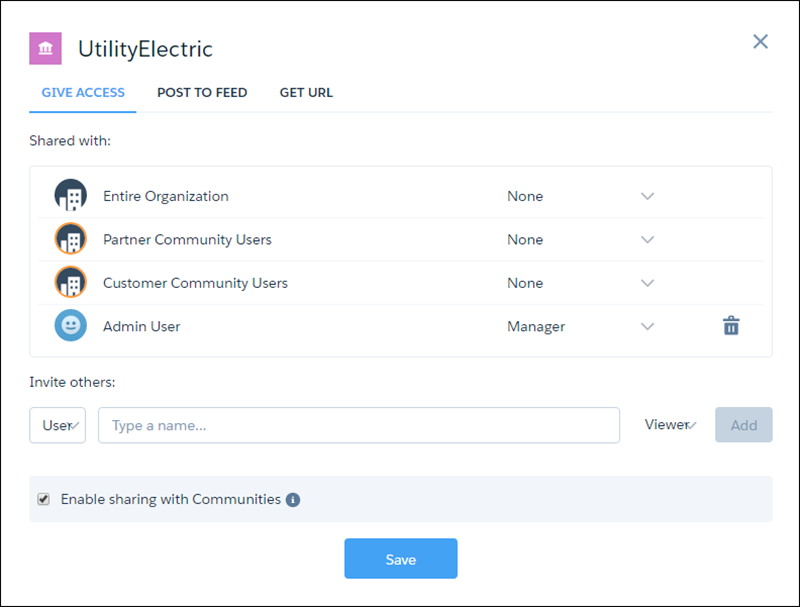
In the Share dialog, select Enable sharing with
Communities.
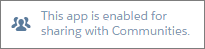
When an app is enabled for sharing with external users, a message appears to let you know at a glance. You can easily check and change the sharing status of apps.
- Share the app with site partners and customers by entering their names and clicking Add. Site members in the sharing list are highlighted in orange to distinguish them as external users, and Viewer is the only access available for them.
-
Embed your CRM Analytics dashboards using either Experience
Builder or Visualforce.
Note Apex steps aren't supported for dashboards embedded in Experience Cloud sites.
For the best embedded experience, we recommend using the LWC CRM Analytics Dashboard component. This component integrates smoothly in your Experience Cloud site.
Security is enforced at these levels.
- By role, group, or user, via the Sharing dialog.
- At the CRM Analytics app level, via the Enable sharing with Communities checkbox.
- At the org setup level, via security predicates. Note
Embedded dashboards in Experience Cloud sites don't support sharing inheritance. Use security predicates to control security.
Access to the CRM Analytics Connect REST API is limited to the GET method for these endpoints:
/wave/folders/<folder ID>— Access to folders shared with the site./wave/dashboards/<dashboard ID or API Name>— Access to dashboards belonging to a folder shared with the site./wave/lenses/<lens ID or API Name>— Access to lenses belonging to a folder shared with the site./wave/datasets/<dataset ID>— Access to datasets belonging to a folder shared with the site.
- Use Experience Builder to Embed CRM Analytics Dashboards in Experience Cloud Sites
Add analytics via the CRM Analytics Dashboard component available in Experience Builder–based templates. - Use Visualforce to Embed CRM Analytics Dashboards in Experience Cloud Sites
Share analytics with external users via CRM Analytics dashboards embedded in their site. - Collaborate on CRM Analytics Dashboards in Experience Cloud Sites with Annotations
Foster an environment of open communication sparked by CRM Analytics dashboards embedded in Experience Cloud sites. With annotations, partners and customers can converse in Chatter feeds on individual dashboard widgets. Annotations are available whether dashboards are embedded via Visualforce or the Experience Builder. - Subscribe to CRM Analytics Dashboard Widgets in Experience Cloud Sites (Beta)
Subscribe to dashboard widgets embedded in your Experience Cloud site to receive regular updates via email or portal notifications. Each subscription captures the state of the asset with any filters or selections that you applied, ensuring that you see the metrics most relevant to you. - Take Action in Salesforce from Experience Cloud Sites
From CRM Analytics in Experience Cloud sites, you can open Salesforce records and perform record-level actions and bulk actions. You set up an action menu on a dataset or a bulk action on a table widget. Then your site users can open records and take action in Salesforce directly from the CRM Analytics dashboard, without leaving your site. - Best Practices for CRM Analytics for Experience Cloud
Before setting up an Experience Cloud site with CRM Analytics, keep these best practices in mind for optimal performance and data security.
