
You are here:
Set Up and Create the Field Service Analytics App
Set up Field Service Analytics app permissions, make sure your org is enabled to use Field Service, and assign field level security correctly so you can create and share the app.
Required Editions
| User Permissions Needed | |
|---|---|
| To create and manage CRM Analytics apps: | Manage CRM Analytics Templated Apps |
| “Edit CRM Analytics Dataflows” | |
Set Up Field Service Analytics App Permissions
The Service Analytics license provides access to the Field Service Analytics app. To set up permissions for Field Service Analytics, follow the detailed instructions starting at Set Up Permissions for the Service Analytics App.
Make Sure That Field Service Is Enabled in Your Org

- Go to Salesforce Setup.
- Enter Field Service in the Quick Find/Search box. If Field Service Settings appears in Setup, click it.
- In the center window, under Field Service Settings, check to see if the box for
Enable Field Service is checked.
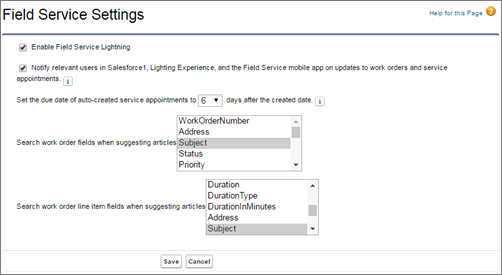
If you’re unsure that your org is set up to use Field Service, contact your Salesforce representative.
Assign Field Level Security
Before you create Field Service Analytics, set Salesforce field-level security to enable the CRM Analytics Integration User to see all fields you want your app to include. Integration users run the dataflow, and if they don’t have proper field-level security permissions, the dataflow can fail. For instructions, see Create and Share the Service Analytics App, Step 2.
Create Field Service Analytics
When you’ve completed the previous setup processes, create Field Service Analytics.
- Go to CRM Analytics.
- Click Create in the upper right corner.
- Select the Field Service Analytics template.
- Name your app and click Create.
CRM Analytics creates your app, which can take a few minutes while CRM Analytics runs a new dataflow and creates the app’s dashboards. Refresh your browser, and click the app you just created to see the dashboards.
Share Field Service Analytics
Now that you’ve created the app, share it with users in your organization. You can only share it with users who have the “Use CRM Analytics Templated Apps” and “Access Service Cloud Analytics Templates and Apps” permissions enabled.
- Open your app if it’s not already open. If you’ve navigated away from CRM Analytics Studio, go back to it, select All Items, find your app, and click it.
- Click the Share icon
 at upper right.
 - In the next screen, use the search field under Invite others: to find other users in your org.
- Select whether you want to make the selected user a Viewer, Editor, or Manager of the
app.Important Users with the “Use Analytics Templated Apps” permission and Editor or Manager access to the app can create, edit, and delete assets in the app.
- Click Add, then click Save.
