CRM Analytics templated apps have multistep processes for installation and upgrades. Use
the App Install History page to monitor installations in progress, track the assets created for
the app, and view logs to troubleshoot any installation issues. After an app is installed, run or
schedule one-click data refreshes.
Required Editions
Available in: Lightning Experience
Available in: Enterprise, Performance, Unlimited, and
Developer Editions
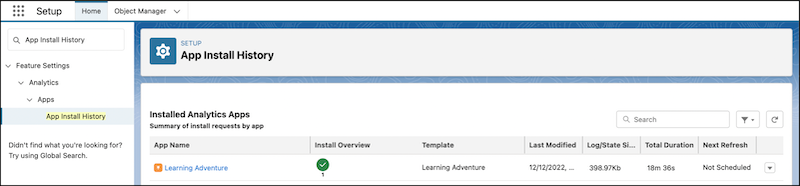
From Setup, in the Quick Find box, enter App Install History, and then
select App Install History.
Only Templated apps shared with manage access are visible to the user.
The home page shows the installed CRM Analytics templated apps that are shared with manage
access to your user. Embedded apps that are auto-installed and templated apps installed from
Analytics Studio are listed here. The summary information includes the app name, the install
overview for each app, the last modified date, the log size, the install duration time, and the
next app refresh.
App Refresh
When an app is installed, the data assets used by the app must be refreshed to provide to most
up-to-date insights for you and your users. To refresh all of the data assets for an installed
app, in the correct order, you can refresh the app on-demand or create a schedule.
Note The refresh action menu, used to refresh and
schedule apps, is only available for users with CRM Analytics Growth or Plus permissions. If a
user only has CRM Analytics Embedded App permissions, they can't access refresh or schedule
actions.
To run a data refresh for your app immediately, from the app’s actions, select
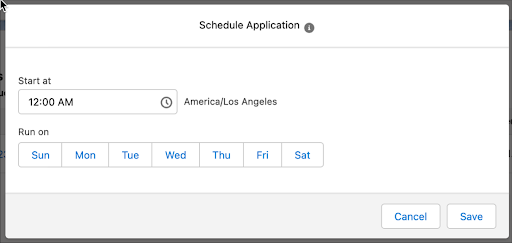
Refresh Now. To schedule regular data refreshes, select
Schedule.
You can schedule daily or weekly refreshes. The refresh runs according to the time zone of the
user who set the schedule.
Monitor and Troubleshoot Templated App Installations Click an app name to see the entire install history for the app, cancel running installations, and view app logs and state. The app logs and state provide details for each installation and each task. Use this information for troubleshooting why an installation or task wasn’t successful or when an installation was canceled.
Did this article solve your issue?
Let us know so we can improve!
Loading
Salesforce Help | Article
Cookie Consent Manager
General Information
Required Cookies
Functional Cookies
Advertising Cookies
General Information
We use three kinds of cookies on our websites: required, functional, and advertising. You can choose whether functional and advertising cookies apply. Click on the different cookie categories to find out more about each category and to change the default settings.
Privacy Statement
Required Cookies
Always Active
Required cookies are necessary for basic website functionality. Some examples include: session cookies needed to transmit the website, authentication cookies, and security cookies.
Functional Cookies
Functional cookies enhance functions, performance, and services on the website. Some examples include: cookies used to analyze site traffic, cookies used for market research, and cookies used to display advertising that is not directed to a particular individual.
Advertising Cookies
Advertising cookies track activity across websites in order to understand a viewer’s interests, and direct them specific marketing. Some examples include: cookies used for remarketing, or interest-based advertising.