
You are here:
Integrate Sales Analytics With Salesforce
Make Sales Analytics more usable by performing a variety of optional integrations and customizations.
Required Editions
| Available in Salesforce Classic and Lightning Experience. |
| Available with CRM Analytics, which is available for an extra cost in Enterprise, Performance, and Unlimited Editions. Also available in Developer Edition. |
| User Permissions Needed | |
|---|---|
| To use CRM Analytics templated apps: | Use CRM Analytics Templated Apps |
| To use Sales Analytics: | Access Sales Cloud Analytics Templates and Apps |
| To create and manage CRM Analytics apps: | Manage CRM Analytics Templated Apps |
| Edit CRM Analytics Dataflows | |
| To edit a dataset's extended metadata (XMD) file: | Edit CRM Analytics Dataflows |
Overriding role names in datasets, embedding the “Sales Analytics - Account Overview” dashboard in your Salesforce Accounts page, and expose Sales Analytics as a tab in Salesforce Classic can make it easier for your team to use the app.
Add Actions to Sales Analytics Dashboards
Sales Analytics dashboards use actions that are enabled on the Account and Opportunity page layouts. To add actions, you edit the page layout for those objects.
In Salesforce, go to the Accounts or Opportunities tab, open the page for an account or opportunity, and click the Edit Layout link at the top right of the page.
In the Quick Actions in the Publisher section, click the override the global publisher layout link. If you or someone else in your org has already completed this action, you don’t see the link. Note that this section can be called something slightly different in the org you use, for example “Quick Actions in the Salesforce Classic Publisher.”
In the Account Layout or Opportunity Layout panel (depending on which object you’re adding actions to) at the top of the page, click Quick Actions on the left. Drag the actions that begin with the word “New” (for example, New Task, New Note) to the Quick Actions in the Publisher section.
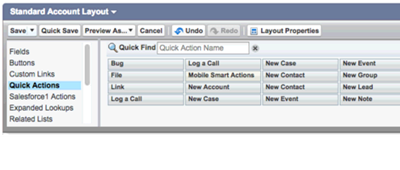
Click Save to save your changes. The actions you added to the layout are now available from charts and tables in Sales Analytics dashboards.
Override Role Name in Datasets
Sales Analytics uses Salesforce Role Hierarchy to help you to understand your company’s sales performance. When you first create the app, Sales Analytics dashboards show the number associated with role name in the hierarchy. It’s not the most useful way to view the role. To see the name of the person responsible for that role, you can update the role value by editing the corresponding dataset’s Extended Metadata (XMD) file.
Let’s say your role hierarchy is the following:
CEO (Manager: Paul)
                  Sales_WW (Manager: Yves)
                       Sales_WEST
                       Sales_EAST
To have the manager’s name appear in Sales Analytics dashboards, update the Opportunity dataset XMD file with the following:
{"labels": {
         "keys": {
                 "RoleName": {
                	"CEO": "Paul",
                	"Sales_WW": "Yves"
                  },
          }
}}
For more information, see Analytics Extended Metadata (XMD) Developer Guide.
Embed the Account Overview Dashboard in Account Page Layout
We’ve optimized the Sales Analytics Account Summary and Opportunity Summary dashboards to be embedded in the Salesforce Account page layout. You can do that by following the instructions in Embed Your Dashboard in a Salesforce Page.
To be able to filter the dashboard based on the account that you’re viewing, use this string as filter:
      {
           "opportunity1": {
                  "AccountId": ["$Id"]
           }
       }
opportunity1 corresponds to the
system name of the Opportunity dataset. Its name can be different in your organization.
Make Sales Analytics Available in a Salesforce Classic Tab
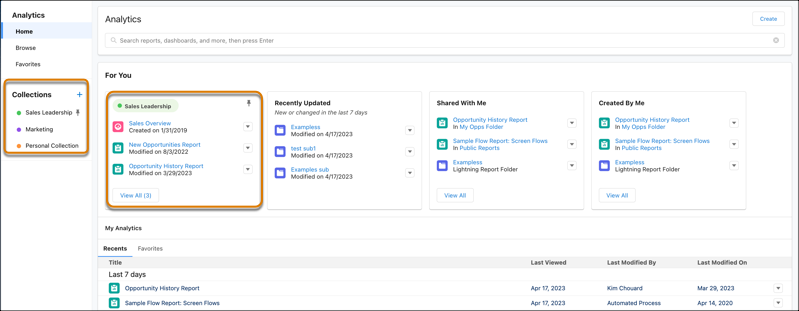
You can access Sales Analytics by going to Analytics in the Lightning Platform menu and selecting the app from the CRM Analytics home page. To make it easier for your team to reach the app, you can expose it as a tab in Salesforce Classic. To do so, create a tab that points to a Visualforce page that includes the “Sales Analytics - Overview” dashboard. Complete instructions are available in Add a CRM Analytics dashboard to a Visualforce Page.
 |
|
|---|---|
