Edit the Forecast Dashboard Data Source Connection Make Sure Quotas Data Is
Accurate
If Sales Analyticsquotas numbers look higher than expected in the Forecast dashboard,
it can be because the app counts some quotas twice. To make sure that the dashboard accurately
reflects your team’s quotas, specify the dataset field the dashboard uses as its data
source
Required Editions
User Permissions
Needed
To create and manage CRM Analytics apps:
Manage CRM Analytics Templated Apps
Edit CRM Analytics Dataflows
The Forecast dashboard automatically rolls up quota amounts from a manager's direct
reports. If the manager also has a quota assigned, that amount is rolled up with the team’s
quota amount, which can cause the manager’s quota to be counted twice. To avoid double
counting, assign different quota amounts to managers than the sum of their reps' quotas.
Here’s how to do that.
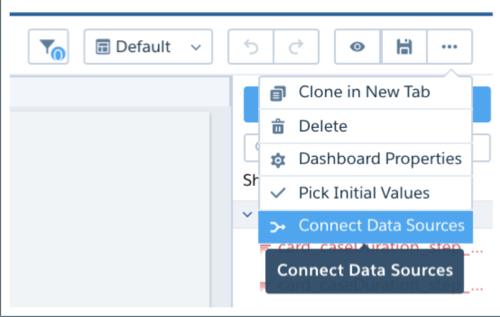
Open the Forecast dashboard, and click to edit it.
Click in the upper right corner
to open more options.
Select Connect Data Sources.
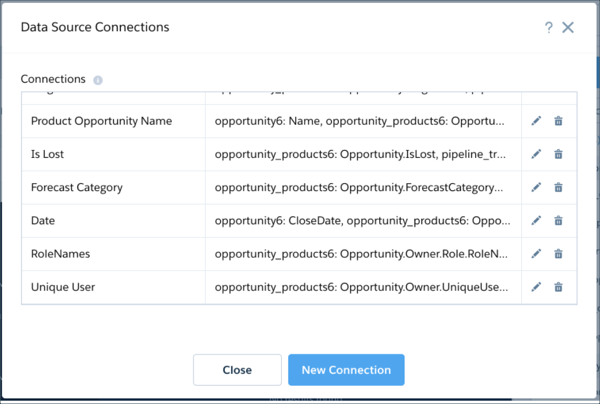
In the Data Source Connections window, scroll to find the
RoleNames connection and click to edit it.
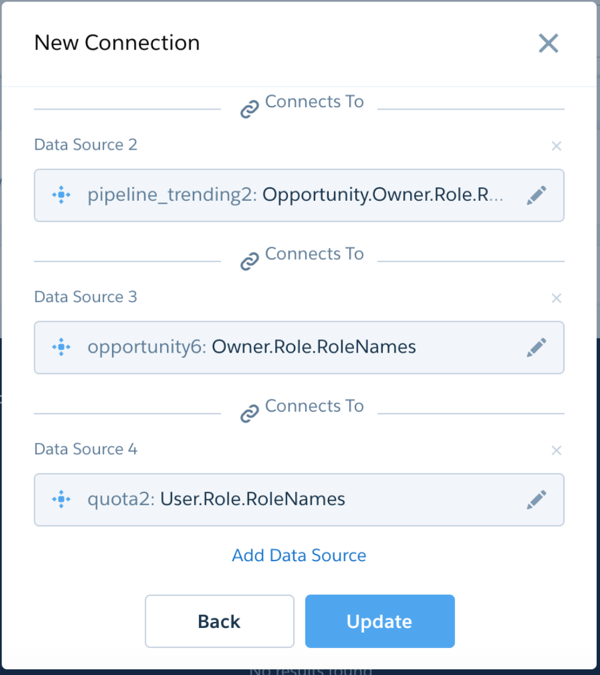
In the New Connection dialog box, look for the Data
Source field containing the word ‘quota’. This field is the data source for
the Quota dataset. Click to edit it.
Select the Quota dataset. In the list of fields, scroll to find
the User.UniqueUserName field and select it.
In the New Connection dialog, click
Update. Then click Close in the
Data Source Connections window.
Click the disk icon in the upper right corner to save the dashboard.
Did this article solve your issue?
Let us know so we can improve!
Loading
Salesforce Help | Article
Cookie Consent Manager
General Information
Required Cookies
Functional Cookies
Advertising Cookies
General Information
We use three kinds of cookies on our websites: required, functional, and advertising. You can choose whether functional and advertising cookies apply. Click on the different cookie categories to find out more about each category and to change the default settings.
Privacy Statement
Required Cookies
Always Active
Required cookies are necessary for basic website functionality. Some examples include: session cookies needed to transmit the website, authentication cookies, and security cookies.
Functional Cookies
Functional cookies enhance functions, performance, and services on the website. Some examples include: cookies used to analyze site traffic, cookies used for market research, and cookies used to display advertising that is not directed to a particular individual.
Advertising Cookies
Advertising cookies track activity across websites in order to understand a viewer’s interests, and direct them specific marketing. Some examples include: cookies used for remarketing, or interest-based advertising.