
You are here:
Auto-Installed Apps
Monitor and interact with installed apps on the Apps tab.
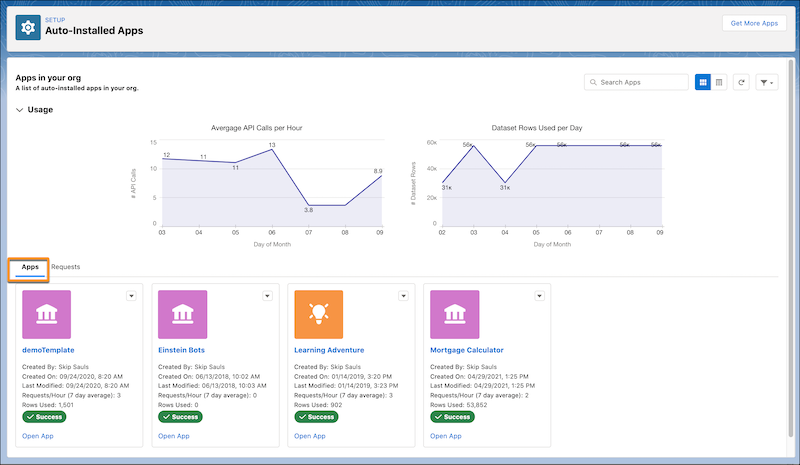
Apps
The default view of your installed apps is the tile view. You can also view the installed apps in a list view.
Each installed app includes this information:
| Attribute Name | Description |
|---|---|
| Name | The name of the installed app. |
| Type | The type of auto-install request last processed for this app. The values are: App Create, App Update, App Delete, and Start Dataflow. This value is only visible in the apps list view. |
| Status | The status of the most recent auto-install request for the installed app. The values include: Success, Failed, In Progress, Not Started, and Canceled |
| Reason | The failed reason of the installed app. For successful requests, the value is N/A. For failed requests, the failure reason is displayed. |
| Created By | The user who installed the app. |
| Created On | The date and time the installed app was created. |
| Last Modified | The date and time the installed app was last modified. |
| Requests/Hour | The 7-day average of API requests made for the installed app per hour. |
| Rows Used | The number of dataset rows used by the installed app. |
Open App
This link is only visible to users with access to CRM Analytics Studio and only in the apps tile view. To open the installed app in CRM Analytics Studio, click the Open App link on the app tile.
App Actions
Each app has an action menu accessible from the dropdown list icon  . The app actions include:
- Open— Opens the installed app details. These details include all auto-install requests for the installed app, the most recent app logs, and the request details as described here.
- Delete App — Deletes the installed app.
- View Log— Displays the auto-install request log.
- Try Again— Runs the last auto-install request for this installed app again.
- Cancel— Appears only when the auto-install request status is In Progress. Use this action to cancel long-running requests or when you don’t want app creation or upgrade to complete.
Search Apps
Use the search bar to search installed apps by app name.
Refresh Page
To update the statuses of the installed apps, click the Refresh icon  .
.
App Details
To see the details for an individual app, on the home page, click the app name. On the details page, you can view the app information, see the app requests, the app usage data, the log results, app settings, and open and update the app.
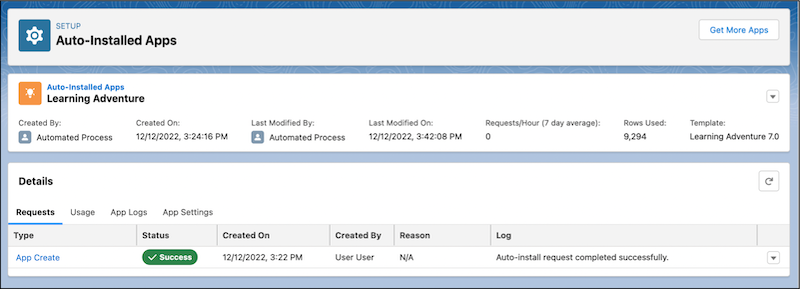
The app has an action
menu accessible from the dropdown list icon . The app actions include:
- Update App— Updates the app using the current version of the template.
- Open App— This action is only visible to users with access to CRM Analytics Studio. Opens the app in CRM Analytics Studio.
- Install History— Opens the App Install History install details for the app.
To view and manage settings for an installed app, click App Settings.

Some installed apps have auto-upgrade enabled, which upgrades the app automatically when the template is updated. Auto-upgrade keeps installed apps up to date with current features. It’s a best practice to allow installed apps to auto-upgrade unless you’re customizing these apps.
