
You are here:
Add Multiple Reference Lines to Charts
You can use any number of static or dynamic reference lines to mark up a chart, such as when you indicate points of reference on a timeline before and after a predictive line. Dynamic reference lines are powered by existing queries in the dashboard.

Note Dynamic reference lines don't appear while exploring a chart when the dashboard is in Edit
mode. However, reference lines with static values are visible in Edit mode.
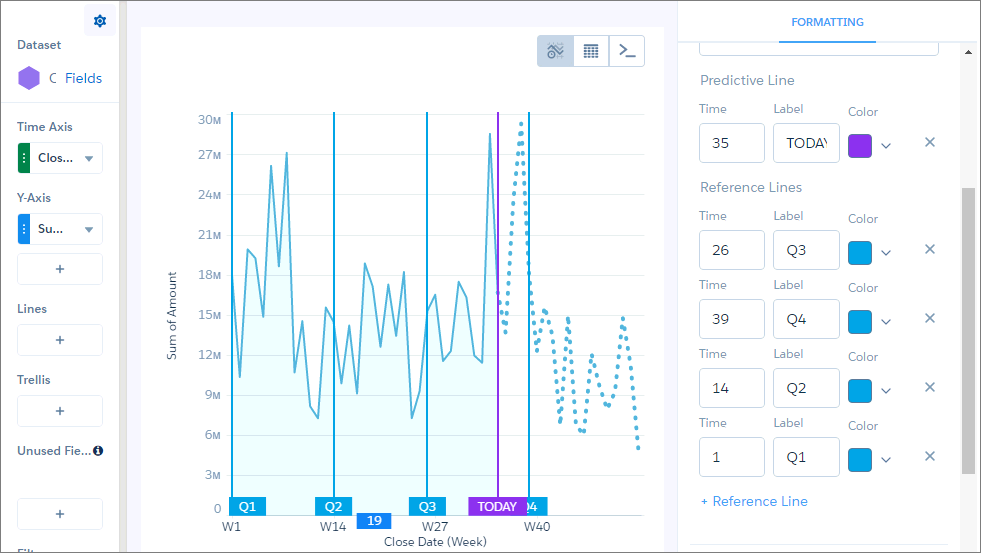
- Tap +Reference Line in the X-Axis or Y-Axis section of the chart widget panel.
-
Add either a static or dynamic value for the reference line.
- To add a static value, type a numeric value in the Value field.
-
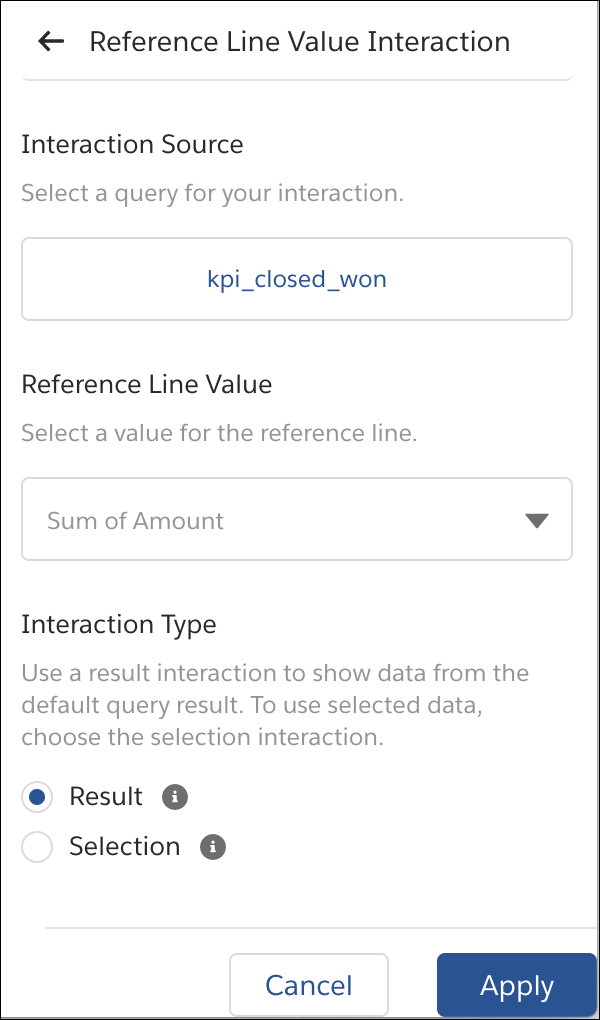
To add a dynamic value, tap
 .
.
- Select a source query.
- Select a reference line value based on the query.
-
Select an interaction type.
To learn more about interaction types, see Result Binding and Selection Binding.
- Tap Apply to add the value to your reference line.
-
Add either a static or dynamic label for the reference line.
- To add a static label, type custom text in the Label field.
-
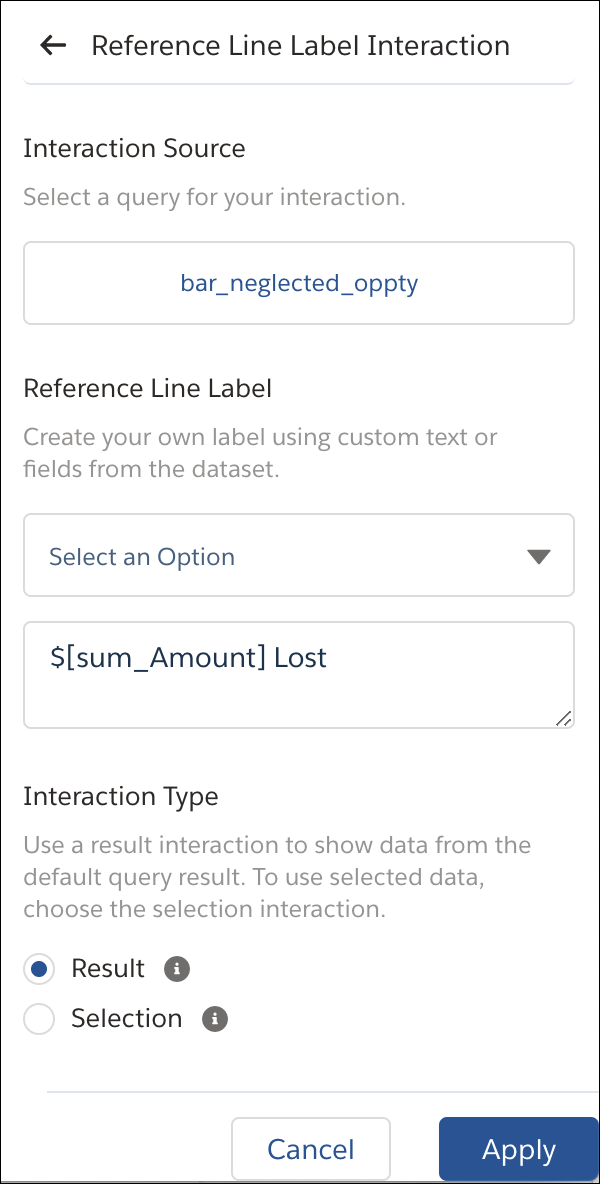
To add a dynamic label, tap .
- Select a source query.
- Use the query fields and custom text to create your label.
-
Select an interaction type.
To learn more about interaction types, see Result Binding and Selection Binding.
- Tap Apply to add the value to your reference line.
- Select a default or custom color.
Did this article solve your issue?
Let us know so we can improve!
