
You are here:
Use Parameters to Make Components Dynamic
Parameters are configurable options that adjust a component's behavior and appearance according to specific requirements or preferences without rebuilding the component.
Required Editions
| Available in Salesforce Classic and Lightning Experience. |
| Available with CRM Analytics, which is available for an extra cost in Enterprise, Performance, and Unlimited Editions. Also available in Developer Edition. |
| User Permissions Needed | |
|---|---|
| To create a parameter: | Create and Edit Analytics Dashboards |
Watch a Demo:  Get Multiple Use Cases With Components Using
Parameters
Get Multiple Use Cases With Components Using
Parameters
Parameters enhance component reusability by providing benefits that include customization options, flexibility to handle different scenarios, and configurability. By using parameters effectively, components become versatile and adaptable building blocks that can be reused across various projects and contexts, saving development time and effort.
| Benefit | Description |
|---|---|
| Customization | Parameters provide a way to customize the behavior and appearance of a component. By defining parameters for various aspects of a component, such as format changes or query options, you can make the component more adaptable to different use cases. Use stakeholder input for these parameters to tailor components to specific business needs without recreating the underlying component. |
| Flexibility | Parameters allow components to handle different data inputs. For example, a component with a table can have parameters for the column configuration, sort options, and filter criteria. By defining these parameters, the component can be reused with customized configurations making it adaptable to a wide range of scenarios. Parameters can also enable interactions with dashboards, such as passing a dashboard filter selection to a component. |
| Configurability | Parameters allow dashboard builders to configure components without starting over. By exposing configurable parameters, the component can be easily adjusted to fit specific requirements, promoting reusability across projects without the need for extensive modifications. |
- To create a parameter, edit an existing component or create one.
- Create a widget or select an existing widget in the component.
- Click Advanced Editor.
-
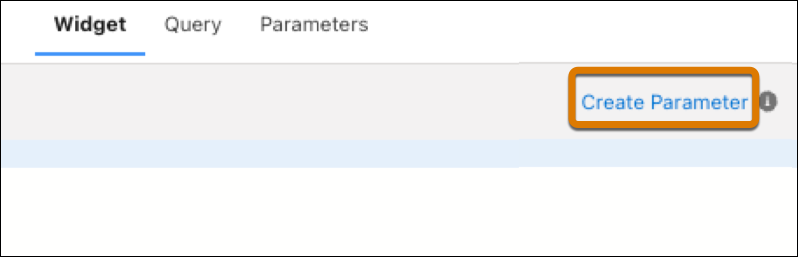
Click the Create Parameter link.
-
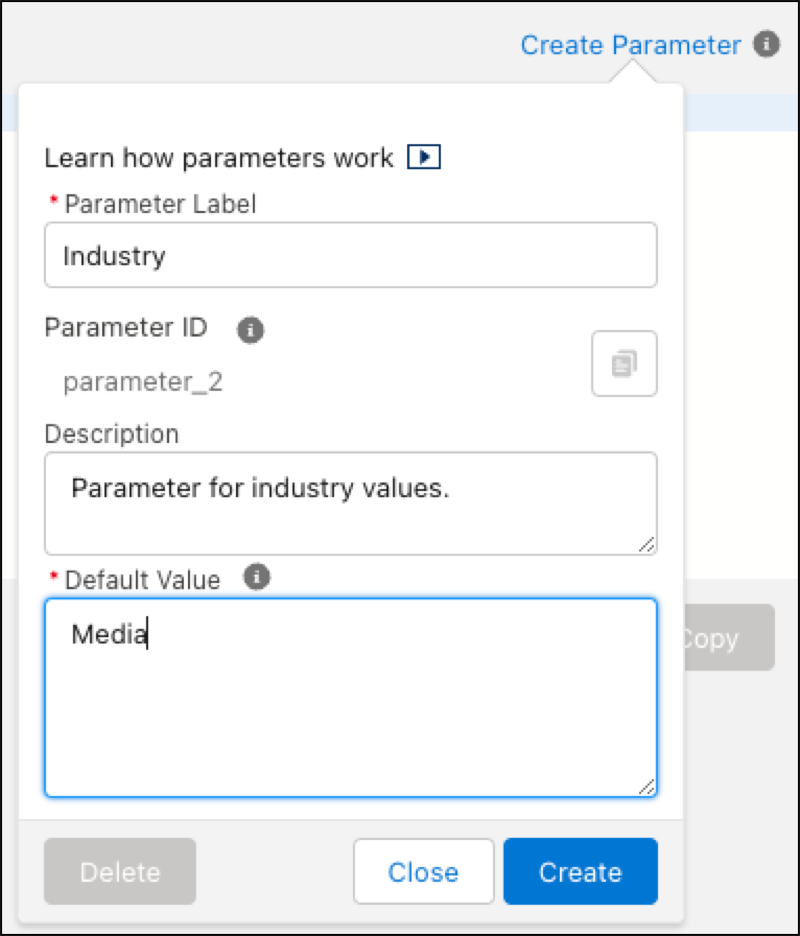
Add a parameter label, optional description, and a default value that’s used if no
other value is found.
-
Click Create. The parameter ID is automatically saved to the
clipboard. You can also use the
 button.
After a parameter is created it’s now ready to be inserted in the component’s widget and query properties.
button.
After a parameter is created it’s now ready to be inserted in the component’s widget and query properties. - Click Close.
-
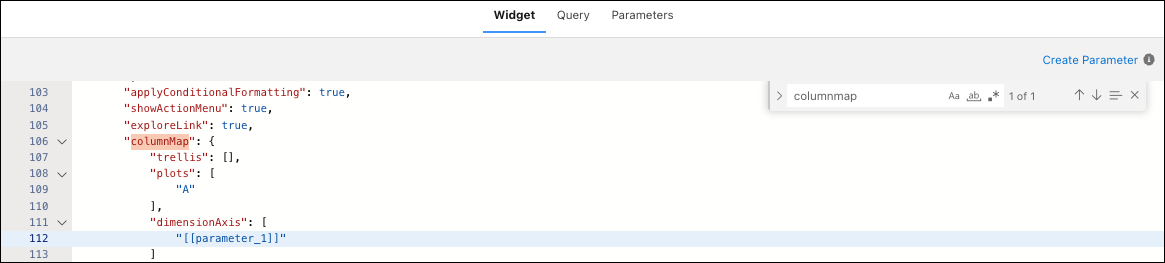
Click the Widget and Query tabs and paste the copied parameter to the applicable
properties.
- Click Save.

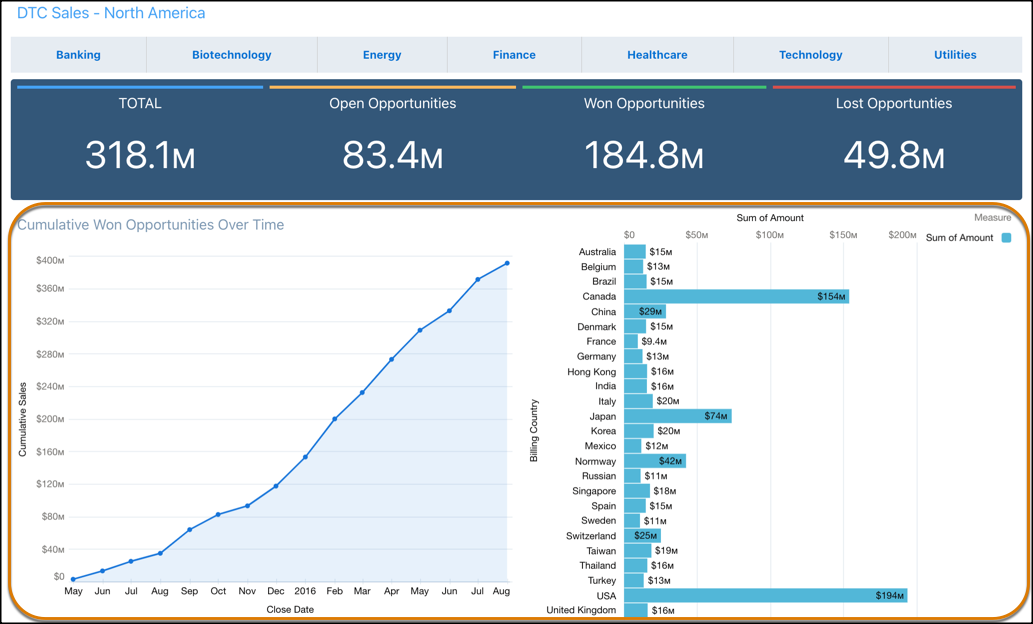
Instead, you can make the applicable widget and query properties dynamic to enable the desired chart organization.

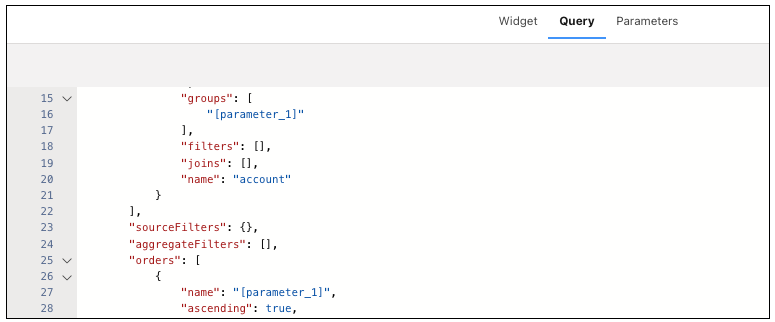
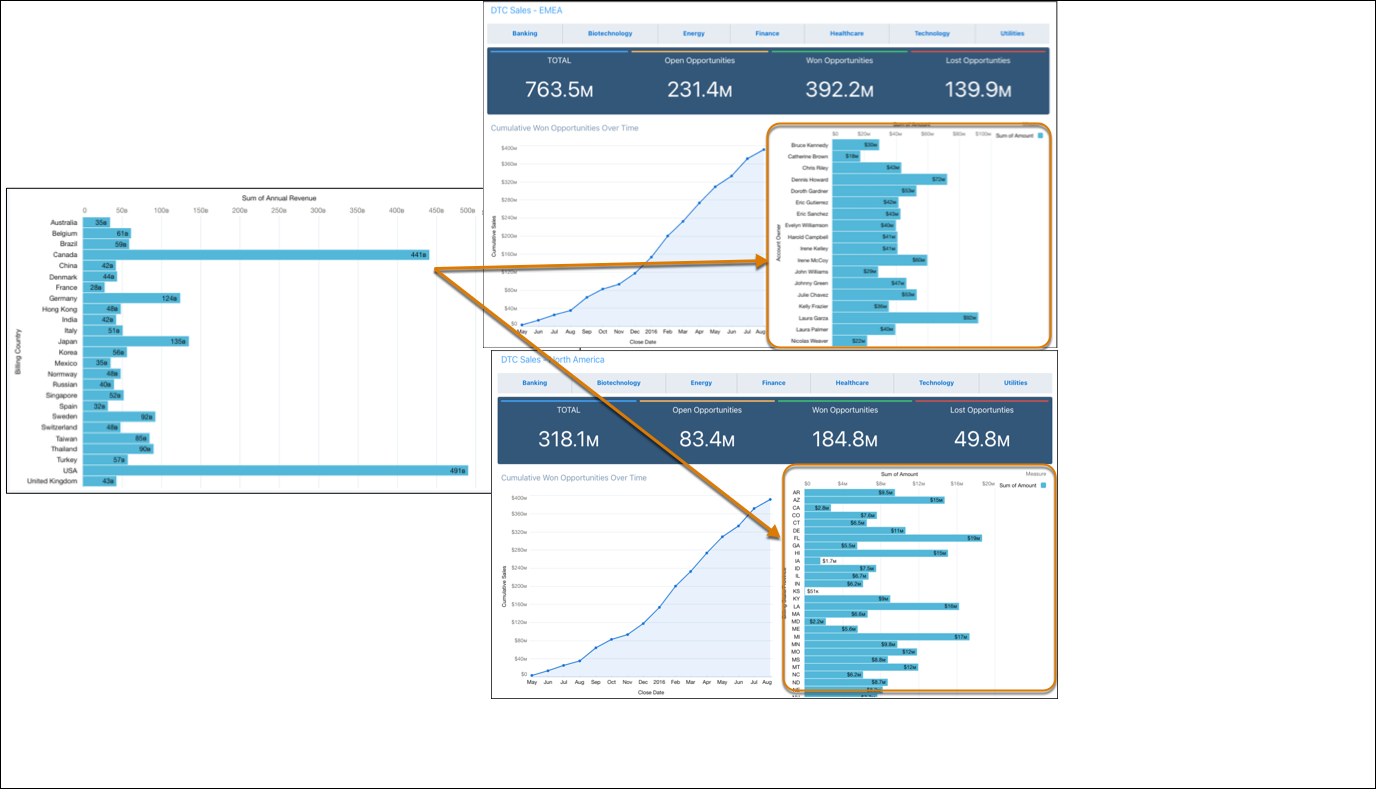
The component chart can now accept new field values to group by without recreating the component.
- Parameter Value Type
Parameters offer a versatile way to reuse components and manage how updates are implemented according to your requirements. - Use a Parameter with a Dynamic Value Type
In this example a parameter is added to enable a dashboard filter to update a component chart by Industry selections. - Use a Parameter with a Static Value Type
In this example a parameter is added to the appropriate widget and query values to update a component chart by different groupings. - Use a Parameter to Update a Query
In this example dashboard stakeholders want the flexibility to add filter values and fields to a single column in a table. This type of request can be complicated because it requires passing data to a portion of a query. However, you can insert a parameter into the column filter to be updated with desired values and fields. The parameter can be set up to work as a static or a dynamic value type. - Manage Parameters
You can edit parameters to make minor adjustments or change for a different use, and delete them when they’re no longer needed.
