In this example dashboard stakeholders want the flexibility to add filter values and
fields to a single column in a table. This type of request can be complicated because it
requires passing data to a portion of a query. However, you can insert a parameter into the
column filter to be updated with desired values and fields. The parameter can be set up to work
as a static or a dynamic value type.
Required Editions
Available in Salesforce Classic and Lightning Experience.
Available with CRM Analytics, which is available for an extra cost in
Enterprise, Performance, and Unlimited Editions. Also available in
Developer Edition.
User Permissions
Needed
To create a parameter:
Create and Edit Analytics Dashboards
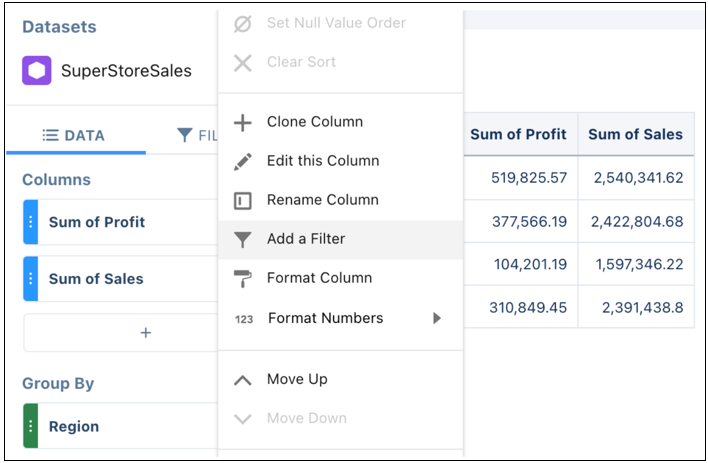
Create a query with at least two measures (columns) and one grouping in the
component.
Add a filter to the column to be filtered.
Switch the query to Query Mode and click Done.
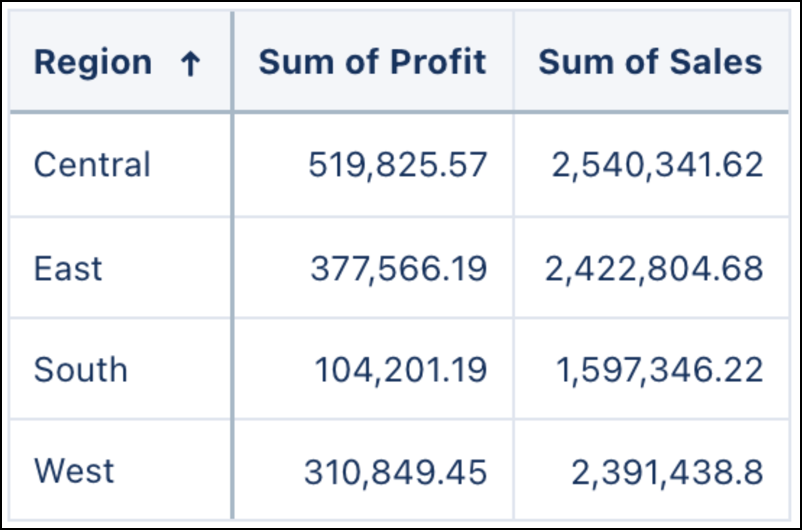
Add the query to a Table widget in the component.
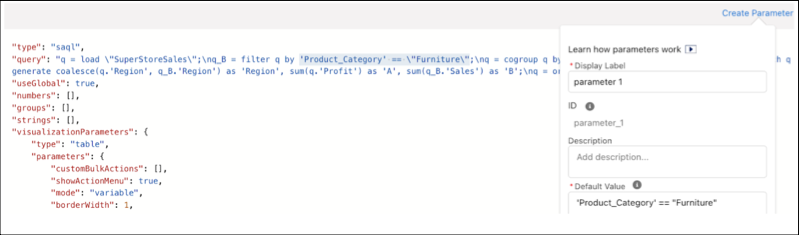
Select the query in the component and click Advanced Editor.
Create a parameter and add a default filter field and value the component query can
process, such as ‘Product_Category’==”Furniture”.
Click the Query tab and replace the existing filter in the SAQL
statement with the parameter.
Note Make sure there are no escape (‘\’) symbols in the parameter default value.
Save your changes and the component.
Edit the dashboard the component is embedded in.
Click the updated component widget and click the Parameters
tab.
Click the parameter you created and select Static from the Value
Type dropdown menu.
Add your desired filter condition by typing in a filter field and filter value in the
text box.
Click Update.
Data from the parameter now powers the filter portion of the query. Notice the
parameter is filtering only the Sum of Sales column.
Note The filter field and value must
exist in the component query otherwise no results appear.
The parameter can also
be set up as a dynamic value type to accept commonly used filter conditions to update the
column.
Add a filter widget to the dashboard.
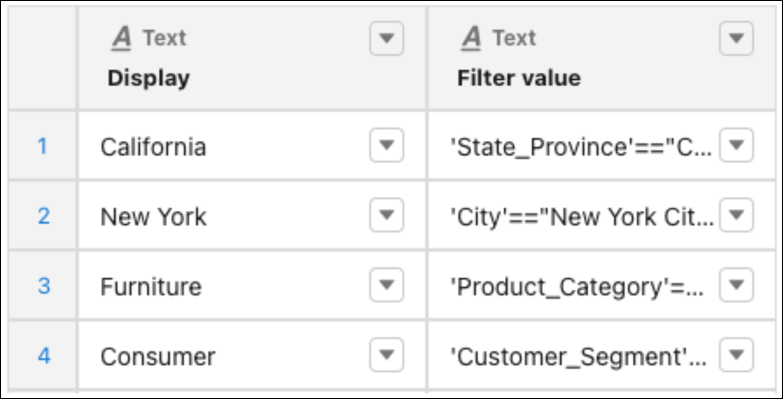
Create a custom query. Add display values along with its corresponding filter fields
and values.
Repeat steps 1 through 10 to set up the table and parameter.
Click the parameter and select Dynamic from the Value Type
dropdown menu.
Click Choose Query and select the custom filter query.
Select the column that lists the filter fields and values from the New Value
menu.
Select an interaction type then click Update.
The filter selections now update the Sum of Sales column.
Note Note: The Selection Type for the custom query must be Single selection or
Single selection (required).
We use three kinds of cookies on our websites: required, functional, and advertising. You can choose whether functional and advertising cookies apply. Click on the different cookie categories to find out more about each category and to change the default settings.
Privacy Statement
Required Cookies
Always Active
Required cookies are necessary for basic website functionality. Some examples include: session cookies needed to transmit the website, authentication cookies, and security cookies.
Functional Cookies
Functional cookies enhance functions, performance, and services on the website. Some examples include: cookies used to analyze site traffic, cookies used for market research, and cookies used to display advertising that is not directed to a particular individual.
Advertising Cookies
Advertising cookies track activity across websites in order to understand a viewer’s interests, and direct them specific marketing. Some examples include: cookies used for remarketing, or interest-based advertising.