
You are here:
Considerations for Connected Data Sources
Keep these considerations in mind when faceting queries from different datasets.
Selecting Connection Fields
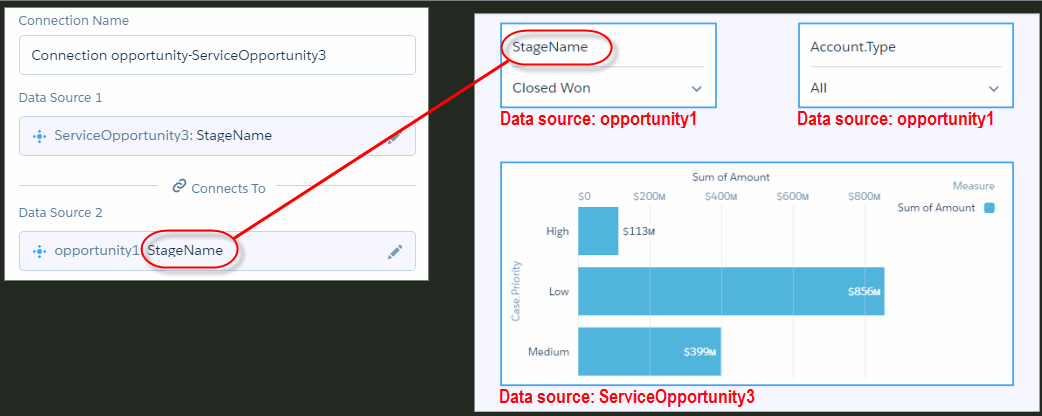
Faceting only works on the fields used to define the connection. For example, the connection in the following screenshot is based on the StageName field. As a result, the StageName list widget is faceted to the bar chart. If a selection is made in the Account.Type list widget, faceting doesn’t happen—the results aren’t filtered. To enable faceting on the Account.Type field, define another connection based on this field using the same data sources.
Selection Persistence
Removing a filter doesn't automatically remove its selections, and its impact on those selections still remain. Selections have to be manually reset.

Connecting Date Fields
When using date fields to connect datasets you must use time periods that describe the top-level date field. For example, if you want to group by Close Date [top-level] in a lens, you’re prompted to select time periods, such as Close Date (Year) [time period] or Close Date (Year-Quarter) [time period].
- Create a filter widget with a time period of your choice, such as Close Date (Year) or Close Date (Year-Quarter).
- Create a connection using Connect Data Sources in the dashboard builder, select the datasets, and top-level date field, such as Close Date, to connect.
- Open the dashboard JSON, press Ctrl+E (Windows), Cmd+E (macOS).
- Press Ctrl+F (Windows), Cmd+F (macOS), and search for dataSourceLinks.
- Update “fieldName” by replacing its current value with the time period used in the filter widget. Separate multiple time periods with ~~~ as shown in the example.

     "dataSourceLinks": [
            {
                "name": "Link_544",
                "label": "Close Date Connection",
                "fields": [
                    {
                        "fieldName": "Close_Date_Year~~~Close_Date_Quarter",
                        "dataSourceName": "DTC_Opportunity",
                        "dataSourceType": "dataset"
                    },
                    {
                        "fieldName": "Close_Date_Year~~~Close_Date_Quarter",
                        "dataSourceName": "ACME_Opportunities",
                        "dataSourceType": "dataset"
                    }
                ]
            }
        ],