
You are here:
Create a CRM Analytics dashboard with a Template
Dashboard templates speed your analytics development by automatically creating dashboards. Some provide blank layouts that you populate with data, while other “smart” templates create dashboards that require little to no additional configuration.
Required Editions
| User Permissions Needed | |
|---|---|
| To create a dashboard: | Create and Edit Analytics Dashboards |
Watch a Demo:  Quickly Create Wave Dashboards with Templates
(English Only)
Quickly Create Wave Dashboards with Templates
(English Only)
Each dashboard template provides a prebuilt layout with empty widgets, sections, and a color scheme. Use the widget wizards to populate the widgets with your data. Choose the blank template if you prefer to create your own layout.
Choose smart templates to create complete dashboards already populated with your data. They also include a configuration wizard to guide you through the creation process. You don’t have to create queries or do any manual configuration—just answer a few questions about the data you’d like to include.
-
From the home page, select Create | Dashboard.
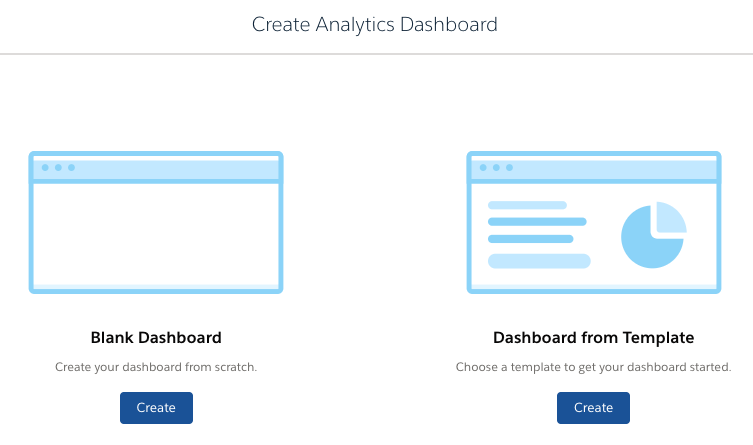
- Choose Blank Dashboard or Dashboard from Template, and click Create.
-
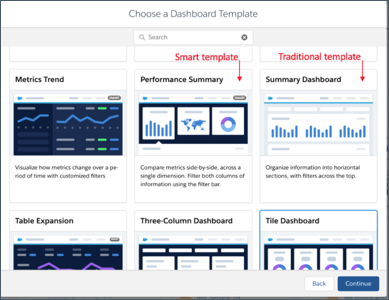
Choose the template to use from the template picker. The SMART
icon in the upper-right corner of a template thumbnail designates a smart template.
-
If you use a smart template, follow the instructions in the wizard. They prompt you to
choose datasets and the specific data to display in the dashboard.
 Important Creating dashboards from smart templates requires the ‘Use Any API Client’ permission. Without that permission, you may not see all available datasets in the wizard.. To assign that permission, request API Access Control from Salesforce Customer Support. See Restrict Access to APIs Connected Apps.
 - If you use a traditional template, add a query to each widget by clicking the icon inside the empty widget. A wizard guides you through adding the query. When you complete the wizard, CRM Analytics populates the widget based on the results of the query. CRM Analytics also adds the query to the query panel. If you use a smart template, you’re asked a set of questions about your data before CRM Analytics creates the dashboard. Dashboards created from smart templates usually don’t require any more configuration work, but you can customize them as you would any other dashboard.
-
To set the dashboard properties, click
 and then click
Dashboard Properties.
The dashboard properties include the default widget properties, which you can use to ensure that the background and borders of all widgets are consistent. When you create a widget, you can specify whether the widget uses these default properties.
and then click
Dashboard Properties.
The dashboard properties include the default widget properties, which you can use to ensure that the background and borders of all widgets are consistent. When you create a widget, you can specify whether the widget uses these default properties.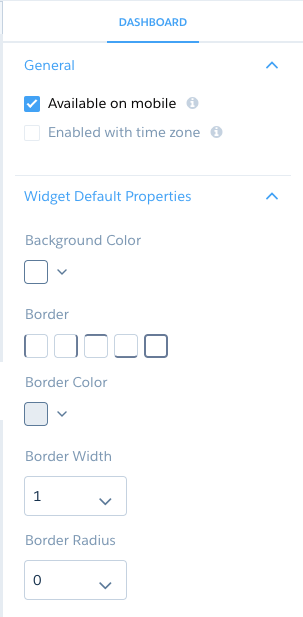
-
To save the dashboard, click
 , enter a title and description. Also enter a brief description in the
Version History field to help you remember what’s unique about it
in case you ever want to revert to it. For example, since it’s the first version, enter
Original. Select the app in which you want to save the dashboard,
then click Save.
The permissions on the app determine each user’s access to the dashboard. To ensure that the right users have the right access to the dashboard, review the app permissions.
, enter a title and description. Also enter a brief description in the
Version History field to help you remember what’s unique about it
in case you ever want to revert to it. For example, since it’s the first version, enter
Original. Select the app in which you want to save the dashboard,
then click Save.
The permissions on the app determine each user’s access to the dashboard. To ensure that the right users have the right access to the dashboard, review the app permissions.
- Dashboard Properties
These properties apply to a dashboard designer dashboard. Some of them are the default widget properties that you can apply to each widget to ensure a consistent appearance. - Smart Dashboards
Use a smart dashboard template to create a ready-made dashboard that’s prepopulated with your Salesforce data. - Best Practices for Building Your Own CRM Analytics Dashboard
Follow best practices to design and build useful, effective CRM Analytics dashboards, while minimizing rework and addressing potential gaps.
