
You are here:
Create Interactions with Clicks
Interactions, previously called bindings, are the most powerful way to specify relationships between different queries on your dashboard. Creating the right syntax for an interaction can be complex. With the Advanced Interaction Editor, create, edit, and preview your interactions with clicks.

Note Dashboard builders must place each interaction (binding) in the right place in the
JSON or SAQL for an individual widget or query. To learn more, see the Analytics Bindings Developer Guide.
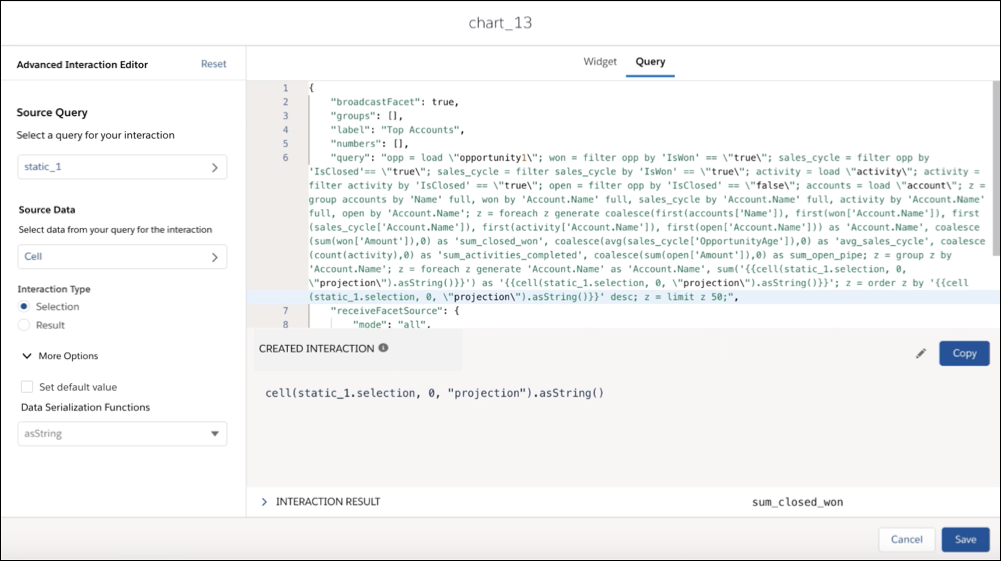
- Click Advanced Editor in the widget properties panel or
 to launch the Advanced
Interaction Editor.
to launch the Advanced
Interaction Editor. - Click Select a query… and choose from any query in the
dashboard.
Queries are searchable by name.
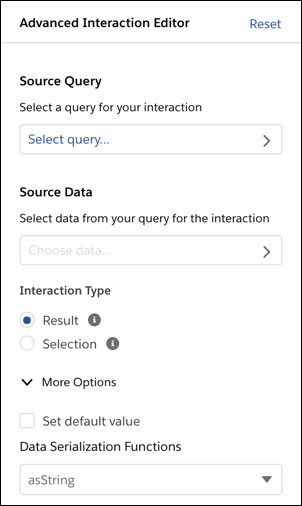
- Click Select data….
- Select Row, Column, or Cell.
- Select the desired options.
Use the Preview button to see details of the query without leaving the Interaction Editor.
- Click
 .
.
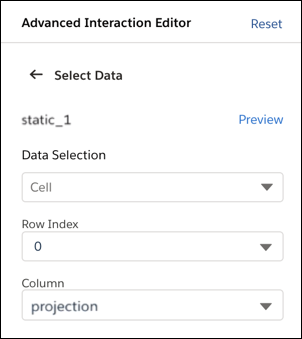
- Select Result or Selection for
your interaction.
Result is the default interaction type.
To learn more about interaction types, see Result Binding and Selection Binding.
- Click More Options to set a default value or change the
data serialization function.
To learn more, see Data Serialization Functions.
- To edit the interaction manually, click
 . This step is optional.
- Add functions to your interaction and specify the source.
- Copy your interaction.
- Paste the interaction into the JSON or SAQL.
- Click Save.
- Dynamically Modify the Query, Initial Selection, and Widgets with Bindings
Compared to facets, bindings are more programmatic, and provide more ways to specify interactions. Bindings can dynamically modify a query, set an initial filter selection, or change a widget’s appearance. For example, you can change the measure in a query based on a selection in a custom query. You can initially filter a region-based dashboard based on the country of the logged-in user. Or, you can change the color of the metric in a number widget based on whether its value is high, medium, or low. Each binding is unidirectional, meaning it affects other queries, but other queries don’t affect it.
Did this article solve your issue?
Let us know so we can improve!
