
You are here:
Configure Cross-Dataset Faceting with Connected Data Sources
By default, queries from the same dataset are faceted—automatically filtering each other. To facet queries from different datasets or even custom queries in the dashboard designer, connect them using common fields between them.

Note You can’t connect custom queries that specify date or measure ranges.
-
Click
 to edit
the dashboard.
to edit
the dashboard.
-
Click
 and
then select Connected Data Sources.
and
then select Connected Data Sources.
-
In Data Source Connections, on the Connections tab, click
New Connection.
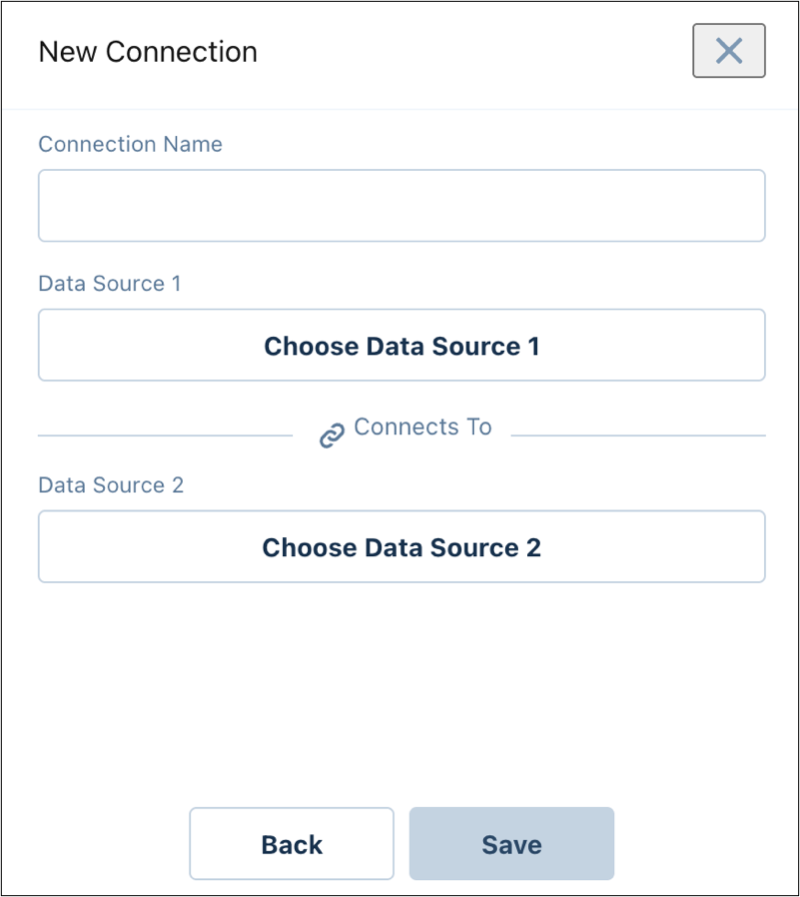
- Enter a name for the connection.
- Click Choose Data Source 1 to select the first data source. For each data source, select a dataset or a custom query used in the dashboard.
-
Select a field from the data source by choosing it from the menu or typing its API name
into the search field. This enables CRM Analytics to match records between the specified
sources.
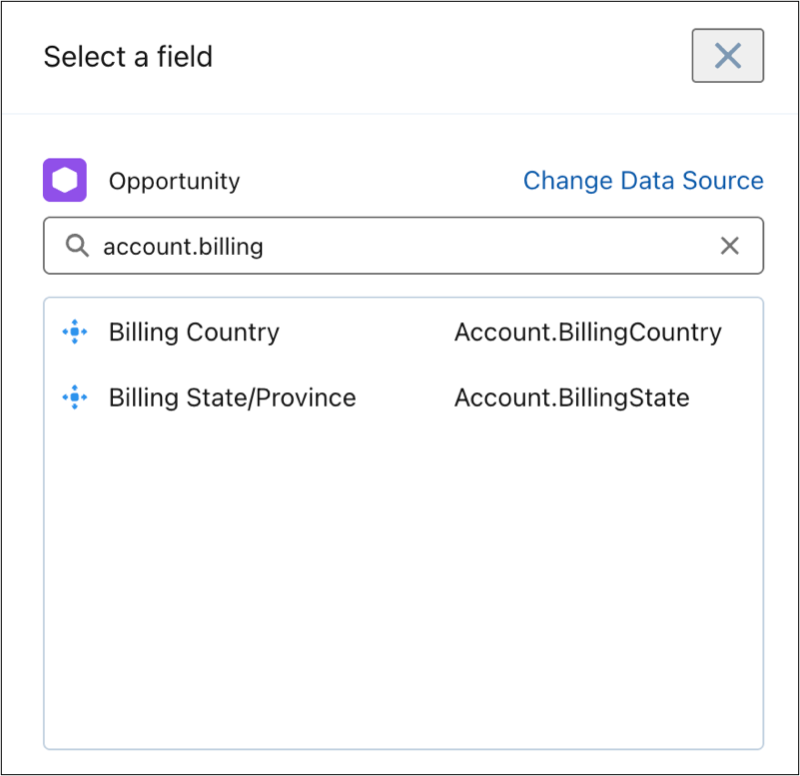
- Click Choose Data Source 2 to select the second source, and then select a field from the menu or API name.
-
To add another data source, click Add Data Source. This option
appears after you connect two data sources.
You can connect two or more data sources.
- Click Save.
Did this article solve your issue?
Let us know so we can improve!
