
You are here:
Set Initial Selections in the Dashboard
If the CRM Analytics dashboard contains selection-based widgets (chart, date, list, range, or toggle), you can set initial selections that are applied when the dashboard first opens. For example, you can select a bar in a bar chart and set that as the initial selection. If the underlying query for the bar chart is faceted, other widgets with faceted queries are filtered based on this initial selection. While viewing the dashboard, a user can change the selection in the chart to filter the results differently or remove the selection and filters altogether.
If a widget’s query is configured to require a selection, set the initial selection. If you don’t, CRM Analytics selects the first value when the dashboard opens.
CRM Analytics selects the value if it’s present in the results, otherwise, it attempts to
search the data for the result by name. If the value is still not found, it’s unselected.
Keep in mind, for any custom query like SAQL, SOQL, or SQL, the system
assumes the results are complete and doesn't attempt to remotely search for additional
values. For more information about query limits for a SAQL query type, see saql Step Type Properties.
-
While editing the dashboard, click
 and then select
Pick Initial Selections.
CRM Analytics previews the dashboard.
and then select
Pick Initial Selections.
CRM Analytics previews the dashboard. -
Make selections in chart, date, list, range, or toggle widgets.
You can also select a row in a compare table.
-
Click Done.
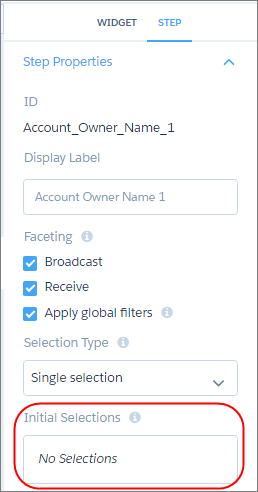
CRM Analytics saves the selections as start values for the widget queries. You can view the initial selections in the query properties.
- Dynamically Set Initial Selections Based on the Dashboard Viewer
You can set initial filter selections to show information that’s relevant to the logged in user. For example, you can filter a sales dashboard such that each sales rep views only their sales opportunities and performance. You can set initial filter selections based on the user ID, user name, role ID, or role name of the logged in user.
