
You are here:
Generate Unique CRM Analytics Dashboard Layouts for Different Devices
After you add widgets to a dashboard, optimize it for viewing on smaller screens. For example, remove widgets from a layout for on-the-go mobile users, and rearrange widgets for users with tablet-sized screens.
When you generate a new layout, widgets from the currently selected layout can be automatically added to the new layout or you can add widgets manually. If the current layout contains multiple pages, CRM Analytics also copies the pages to the new layout. You can also add and rearrange widgets in one layout without affecting other layouts.

Note Use Manage Layouts to enable or disable synchronization between layouts. 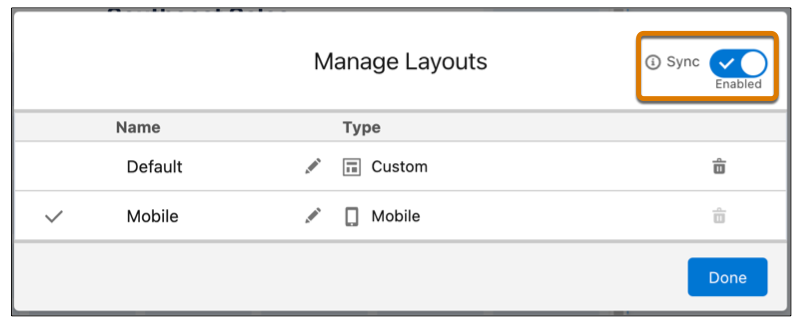
- Open a dashboard.
-
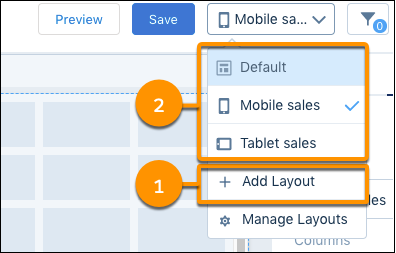
To create a layout, click Add Layout (1). To open an existing
layout, select it from the list (2).
-
Add and rearrange widgets, and choose other layout properties. The designer updates the
preview in real time so that you can see how your changes affect the display.
- General
- Set the layout name, grid settings, and background color. The designer previews the dashboard and layout based on the layout property settings.
- Device
- Specify information about the devices that can use this layout. For more information about how CRM Analytics uses these properties to choose the right layout, see Rules for Choosing a Layout for a Device.
- Background Image
- To apply a background image to the entire dashboard when this layout is used, enter the details about the background image. You don’t have to include a background image.
- Unused Widgets
- To add an unused widget to the layout, drag the widget from the Unused Widgets section to the canvas.
-
Note CRM Analytics also adds the widget to other layouts if layout synchronization is on and the layouts were created with Copy Content enabled.
- Theme
- Themes enable you to create and apply aesthetic properties for dashboard widgets all at once. For more information, see Manage Widget Properties with Themes.
-
To save your layout changes, save the dashboard.
To edit a layout name or delete a layout, click Manage Layouts.
- Layout Properties for Analytics Dashboard
Layout properties specify the layout name, designer grid settings, background settings, and requirements for devices that can use this layout. The properties apply only to dashboards created in the dashboard designer. - Rules for Choosing a Layout for a Device
If multiple layouts are defined for a dashboard, CRM Analytics chooses the optimal layout when displaying the dashboard on a device. To determine the optimal layout, CRM Analytics uses the device properties specified for each layout. - Manage Widget Properties with Themes
Themes enable you to create and apply uniform color and style properties for dashboard widgets.
Did this article solve your issue?
Let us know so we can improve!
