
You are here:
Create Dashboard Pages
Make the information on a dashboard easier to digest by chunking the content into multiple pages. And with fewer queries per page, dashboard performance increases. With pages, you can tell a story by creating a dynamic pathway through your dashboard. Depending on how you lay out your pages, you can also create some cool effects as you transition from one page to the next.
Share widgets, queries, global filters, and selections across pages to keep the same focus as you go from one page to the next. For example, a selection in one page also filters the results of the other pages.
Pages apply to the layout in which they’re created. When you create a layout, all pages in the current layout are copied to the new layout.
-
To add another page, click
 .
Each page appears as a separate tab. You can add up to 20 pages per dashboard. When you preview a page, it looks just like a dashboard.
.
Each page appears as a separate tab. You can add up to 20 pages per dashboard. When you preview a page, it looks just like a dashboard. -
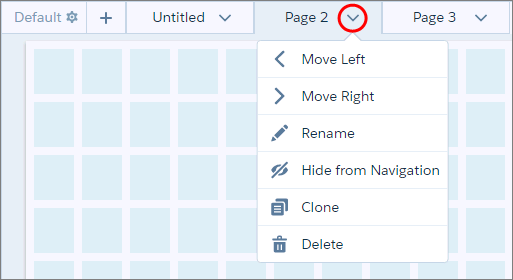
Click
 next to a page to configure it, like rename it or hide it
from the navigation widget when a user views the dashboard.
next to a page to configure it, like rename it or hide it
from the navigation widget when a user views the dashboard.
-
To enable pages to link to each other, add a navigation widget that contains a tab for
each visible page.
When a navigation widget is added, mobile users can no longer swipe to access other pages—they must use the navigation widget.
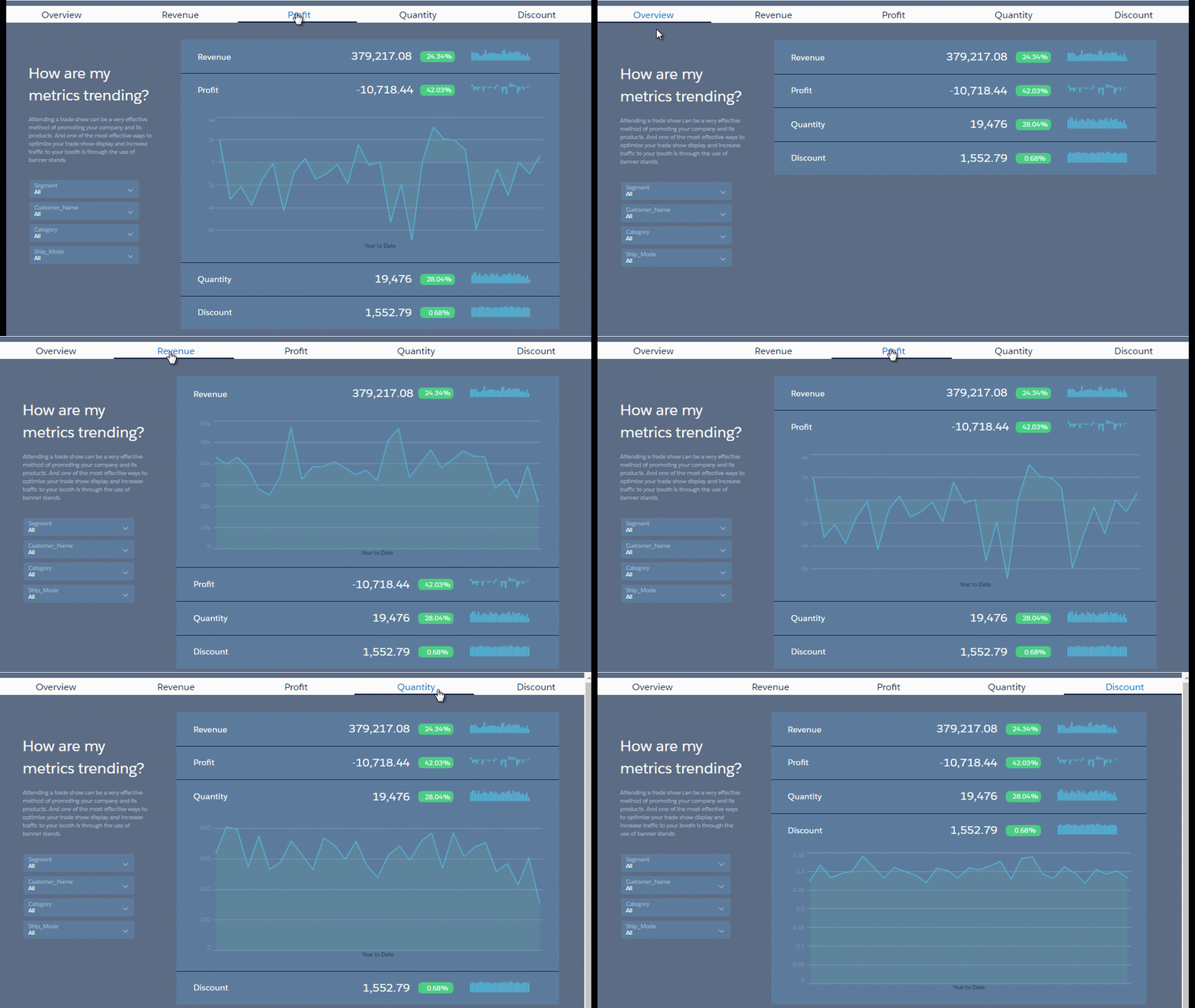
 Note If you don’t add a navigation widget, mobile app users swipe to get to the next page. Use the Move Left and Move Right actions to reorder the pages.
 -
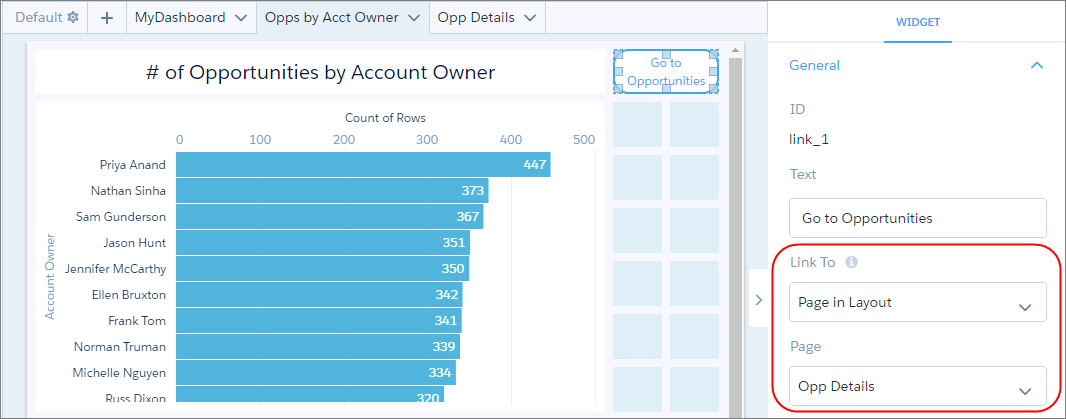
To create a path for viewers to navigate to a specific page, add a link widget. In the
link widget properties, you can link to a dashboard, page, query, lens, or web page.
-
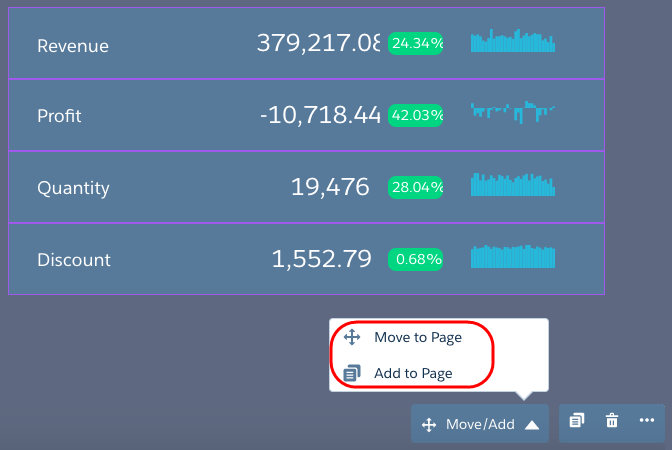
To share widgets on other pages, select the widgets, click Add to
Page, and then specify the pages.
For example, use it to add the navigation widget to all pages. When you use the Add to Page option to add a widget to another page, you add an instance of the same widget to the page. Basically the widget is shared across both pages, making it easier to maintain. The styling properties you set for the widget reflects across all pages.
- If needed, repeat these steps to set up pages for other layouts.
- Save the dashboard to save changes to pages. When you save the new version, enter a brief description of the changes in the Version History field. The description can help you remember what’s unique about this version of the dashboard in case you want to restore this version after you make changes and save a new version. For example, enter Added Pages.
