
You are here:
Manage Widgets on a Page
You can move widgets to another page. To share them and their queries across pages, add them to other pages. If you no longer need a widget, delete it from the page.
-
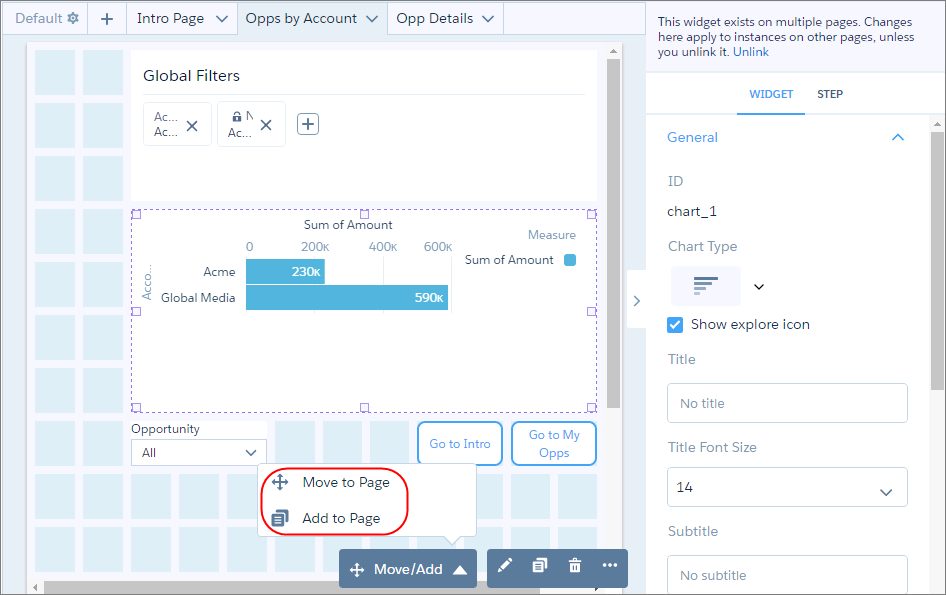
To move a widget to another page, select the widget, click
Move/Add in the widget actions menu, and then click
Move to Page.
-
To add a widget to another page, select Add to Page.
When you add a widget from one page to another, CRM Analytics adds an instance of the same widget. If you change a widget property on one page, it affects all instances on other pages. If a widget is used in multiple pages, dashboard designer highlights the widget in purple and adds a banner in the right pane when you select it.
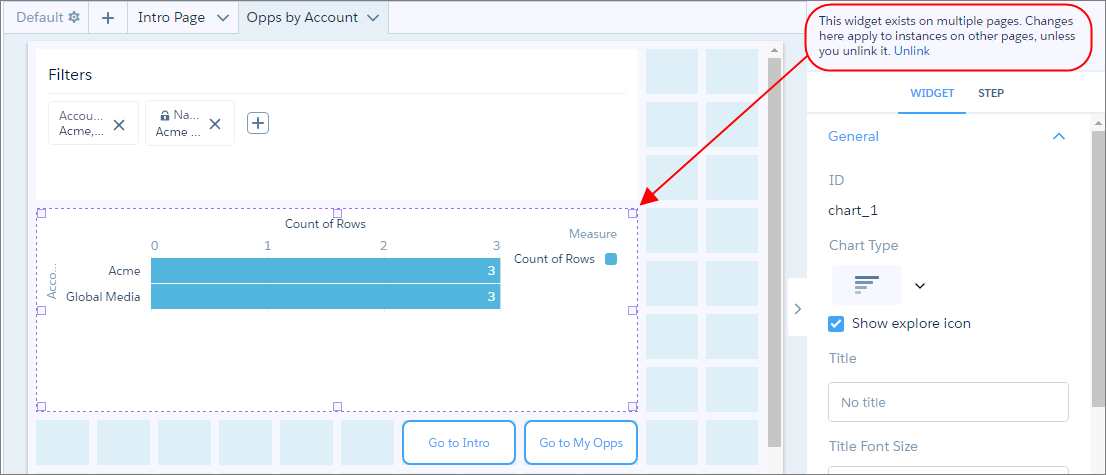
- To make a widget work independently from other instances, select the widget, and then click Unlink in the banner.
-
To delete a widget from the page, select the widget, and then press the Delete
key.
If you delete a widget from a page:
- and the widget is used in other pages, CRM Analytics removes the widget only from the current page.
- and the widget isn’t used in other pages but is used in other layouts, CRM Analytics removes it from the page and current layout.
- and the widget isn’t used in other pages or layouts, CRM Analytics deletes it from the dashboard.
- To save your changes, save the dashboard.
Did this article solve your issue?
Let us know so we can improve!
