
You are here:
Transform Tabular Data with Repeater Widgets
Use repeater widgets to show select fields from a query in a scrollable list in your dashboard. Create a customized layout of text, numbers, charts, and images in a repeater widget, and your dashboard users can scroll through a stylized view of query data.
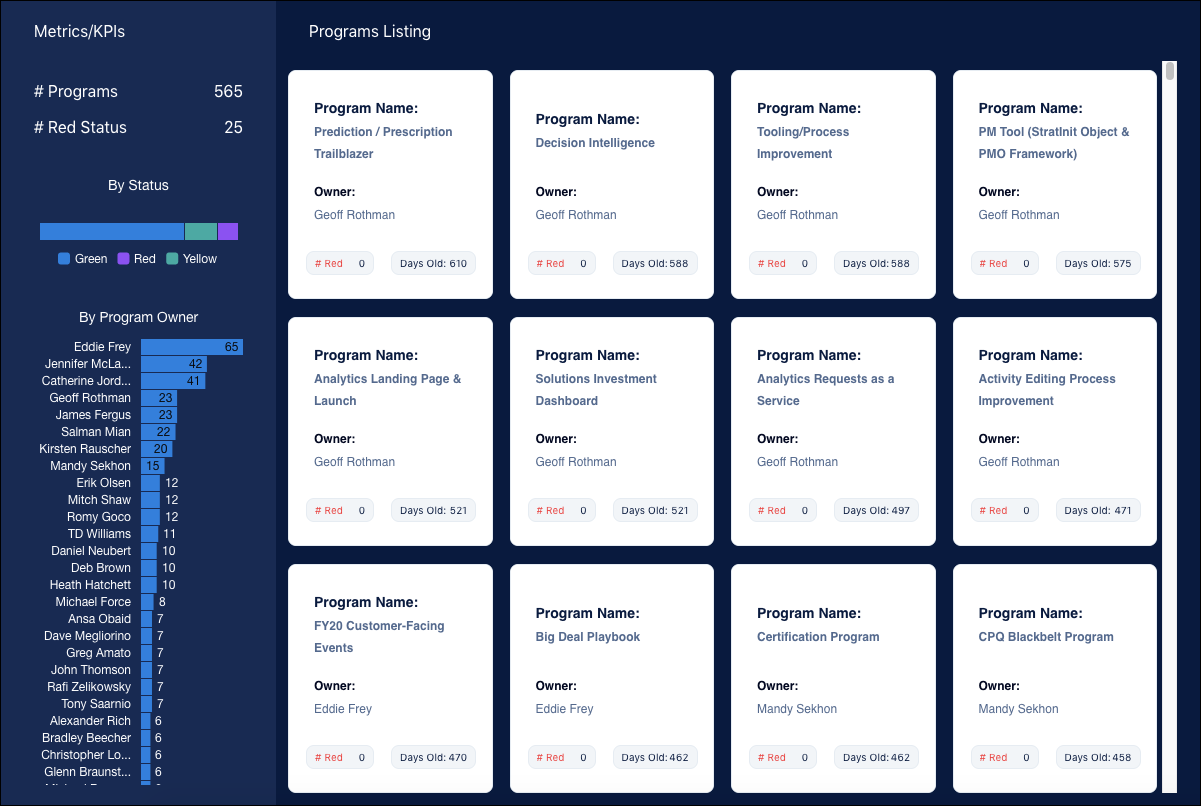
- Create a Repeater Widget
A repeater widget is easy to create because you make just one custom layout using fields from a row of data. For each row of data in a query, the custom layout repeats in a scrollable list. - Change the Layout and Style of a Repeater Widget
Fine-tune your repeater widget layout and stylize its content. - Use One-Click Actions from Repeater Widgets
When you add an actionable dataset field to a text widget in a repeater widget, the text in the widget becomes a one-click action. - Add Style to Your Toggles with the Repeater Widget
Liven up your dashboard toggles using a repeater widget instead of a toggle widget. With a repeater widget, you can add images to provide visual cues for the available toggle states, change the text position, and add emoji to the text. - Highlight Repeater Widget Content with Conditional Formatting
Make key data in repeater widgets stand out by adding conditional formatting rules to text, numbers, charts, or images. For example, highlight countries with opportunity amounts less than 3 million dollars in the Opportunities dashboard that’s set up with a repeater. You can apply the same rule or a separate one for each widget in the repeater based on a value or range. - Add Custom Headers and Sorting in the Repeater Widget
Add custom headers to the repeater widget and enable sorting to organize data. - Create Tooltips for Repeater Widgets
For a quick review of related data while reviewing metrics in a scrollable layout, add tooltips to a repeater. You can design a separate tooltip for text, numbers, images, and bullet, gauge, polar gauge, or flat gauge charts in the repeater. The options available vary depending on the widget type. For example, on a number widget, you can choose a default or custom tooltip, while you can include custom text, data point details, and visualizations in a chart widget’s tooltip. - Sort Contents in a Repeater Widget
View metrics in the order that you want by sorting repeater cards at run time. - Delete a Repeater Widget
You can delete a repeater widget and its content. - Repeater Widget Considerations
Keep these considerations in mind when using repeater widgets.
Did this article solve your issue?
Let us know so we can improve!
