
You are here:
Change the Layout and Style of a Repeater Widget
Fine-tune your repeater widget layout and stylize its content.
Control a repeater widget’s layout when adding content. For example, change the size of the repeater widget grid for more granular control of spacing within a repeater widget.
-
To adjust the repeater widget grid, select the Style tab when
you’re editing repeater widget content.
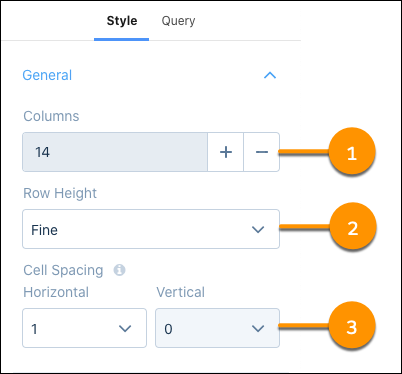 You can add additional columns (1), and set row height to Fine (2) for more granular control. You can also adjust the horizontal and vertical spacing (3) between cells.You can stylize the repeater widget the same way you stylize standard widgets. For example, adjust background color, border color, and border width and radius.When you’re done editing repeater widget content, you can make more adjustments to the layout.
 -
To change the number of data groupings that show horizontally, select the repeater
widget in the Dashboard Designer.
By default, a repeater widget shows one data grouping horizontally.
-
In the widget properties, expand the Content Layout section.
Enter the number of data groupings to show in a row.
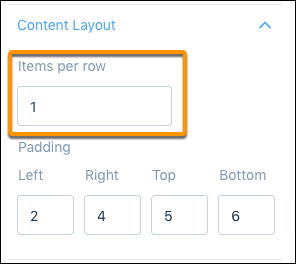 The vertical height is automatically adjusted to show all widgets within the repeater widget.
Did this article solve your issue?
Let us know so we can improve!
