You are here:
Add Style to Your Toggles with the Repeater Widget
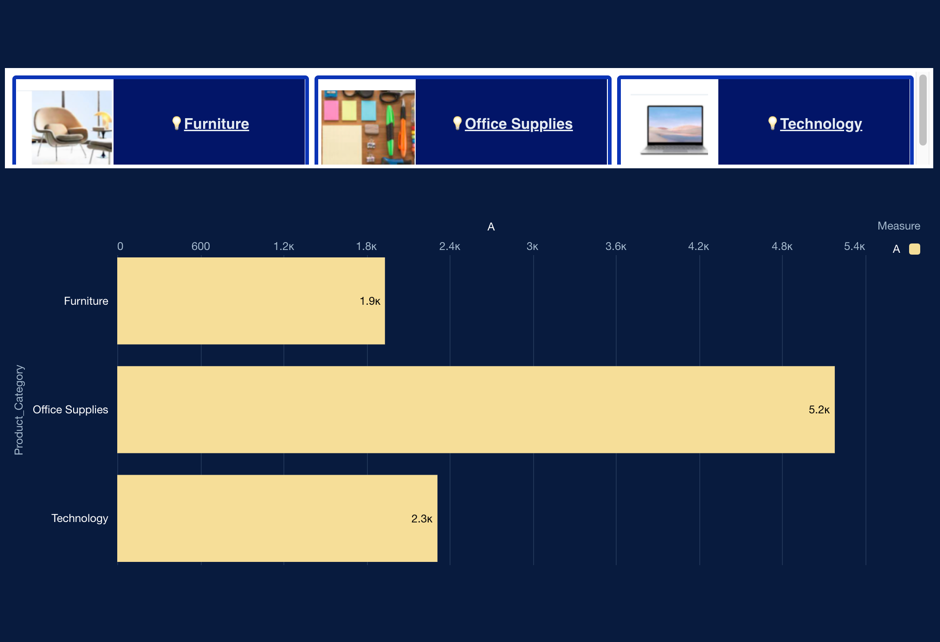
Liven up your dashboard toggles using a repeater widget instead of a toggle widget. With a repeater widget, you can add images to provide visual cues for the available toggle states, change the text position, and add emoji to the text.
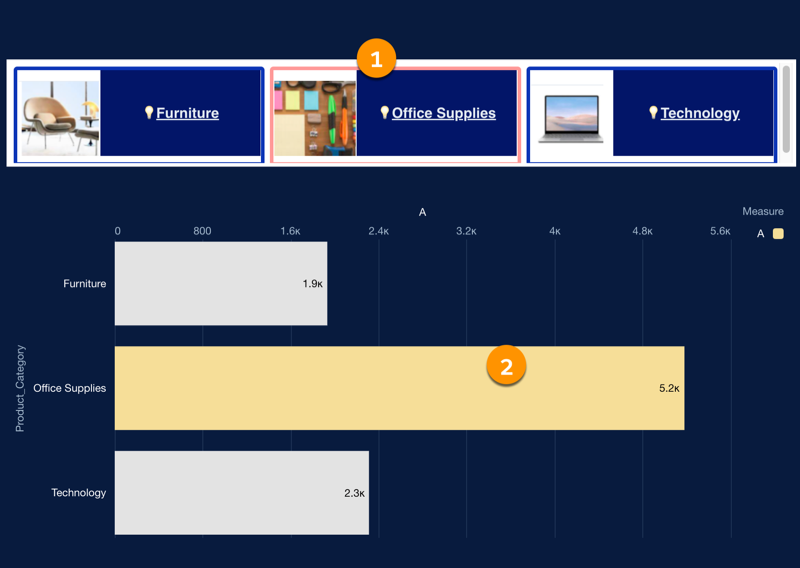
You can use the toggle at the top of this dashboard (1) to highlight the quantity sold in these three product categories. Each toggle option includes a photo representing the product category. When you click a toggle, that product category is highlighted in the bar chart (2).
Here’s how you do it.
1. Upload images to your gallery.
In the dashboard builder, use an image widget to upload the images that you want to use. You can place the image widget anywhere on the dashboard. Click the image icon in the widget to open the Select Image window. Follow the on-screen instructions to upload the first image. To add more images, click the image name in the Widget panel on the right of the dashboard builder.
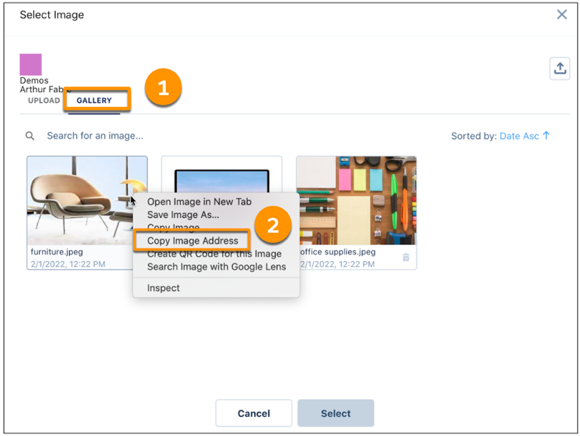
After you upload all the images, copy their URLs to store in a text file for later use. In the Widget panel, click the image name to open the Select Image window. On the Gallery tab (1), right-click each image and select Copy Image Address (2). Paste the image addresses into the text file.
When you’re done copying the URLs, close the image widget.
1. Create a query.
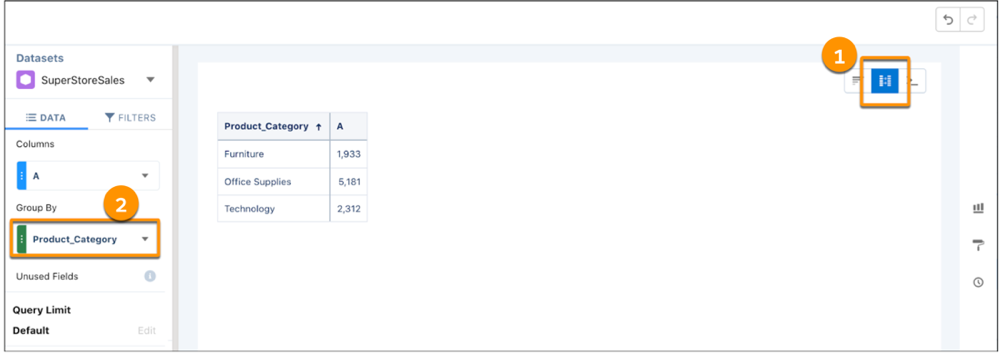
Use a compare table to create the query you want (1). In this example, for the data source, we use a dataset of quantities sold for each product category. For Group By, select the field that you want to associate with the toggle action (2). The grouping in this example is by product category.
3. Add a column for the image URLs using Query Mode.
In Query Mode (1), create a SAQL statement to associate each product category with the appropriate image, and store the URL in a new Photo column (2). Use the URLs that you saved in the text file.
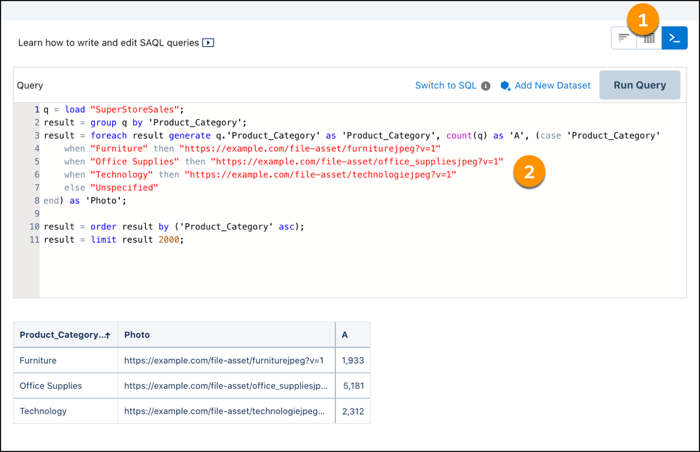
This SAQL statement was created for our example. Each product category is mapped to its image and added to the Photo column. You can use this statement as a model when creating your own.
q = load "SuperStoreSales";
result = group q by 'Product_Category';

result = foreach result generate q.'Product_Category' as 'Product_Category', count(q) as 'A', (case 'Product_Category'
   when "Furniture" then "https://example.com/file-asset/furniturejpeg?v=1"
   when "Office Supplies" then "https://example.com/file-asset/office_suppliesjpeg?v=1"
   when "Technology" then "https://example.com/file-asset/technologiejpeg?v=1"
   else "Unspecified"
end) as 'Photo';

result = order result by ('Product_Category' asc);
result = limit result 2000;
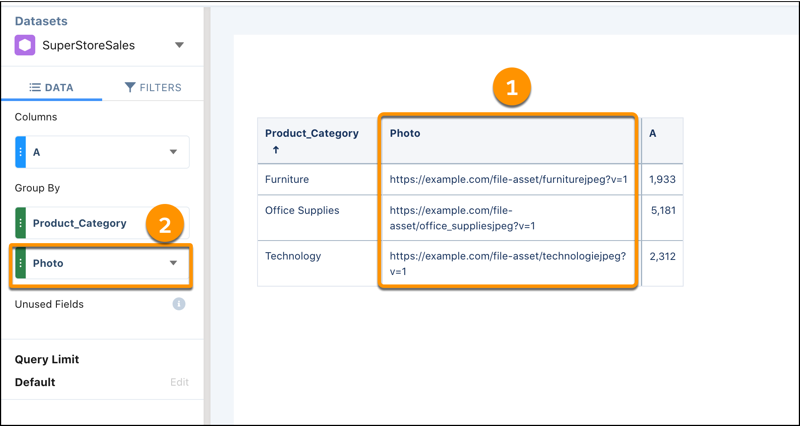
To confirm what you did, click back over to the compare table view. The image URLs are listed in the Photo column (1), and the new grouping is on the left (2).
4. Design the repeater widget toggle.
Now design the repeater widget using the image URLs from the Photo column.
- Drag the repeater widget to the dashboard canvas.
- Drag your query from the right panel to the widget.
- Drag an image widget to the repeater. In the property panel, select Photo as the image source. Adjust the image scale to fit. Click Done.
- Edit the repeater content again. Drag a text widget to the repeater widget. In the Widget panel on the right, change the text to [Product_Category]. Add color and style. To add an emoji, right-click in the text area. When you’re finished, click Done.
- Under Content Layout in the right panel, enter three items per line so that the toggle options for this example are displayed side by side.
That’s it! Save and preview the dashboard. When you click one of the toggles, the bar for that product category is highlighted.