
You are here:
Restore a Previous Version of a Dashboard
CRM Analytics uses version history to back up dashboard versions when you edit them so you can restore a previous version.
Here’s how to restore a previous version of a dashboard.
- Click the
 button at upper right.
- Select the Version tab to see a list of previous versions of the
dashboard.
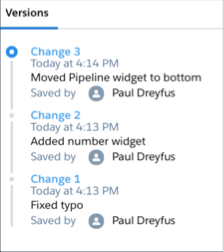
- Click the links (Change 1, Change 2, and so on) to view previous versions. The text under the links provides a brief description of the version if one was added to the Version History field the last time someone saved the dashboard.
- When you see the one you want to restore, click the disk icon and then click Save. It’s a good idea to enter a brief description of what’s unique about this version in the Version History field for future reference.

Warning When you restore a previous version, the dashboard doesn’t run as
expected if it depends on a dashboard, dataset, or lens that’s been deleted. If you get an
error when you load a restored version of a dashboard, try restoring older versions until
you get one that works. You can use that one as a starting point to rebuild the dashboard
with errors.
For details, see Backup and Restore Previous Versions of Analytics Assets with History API.
Did this article solve your issue?
Let us know so we can improve!
