
You are here:
Configure Faceting on Related Salesforce Objects
Surface trends between Salesforce objects with parent-child relationships in a single dashboard. For example, on a dashboard that’s set up to monitor Salesforce account records, you can track related opportunities and cases. To facet queries based on parent-child relationships in the dashboard designer, connect them using common fields between them.
Parent-child faceting between steps built on Salesforce objects is enabled by default on new dashboards.
-
To edit the dashboard containing queries on Salesforce objects with parent-child
relationships, click
 .
.
-
Click
 in the
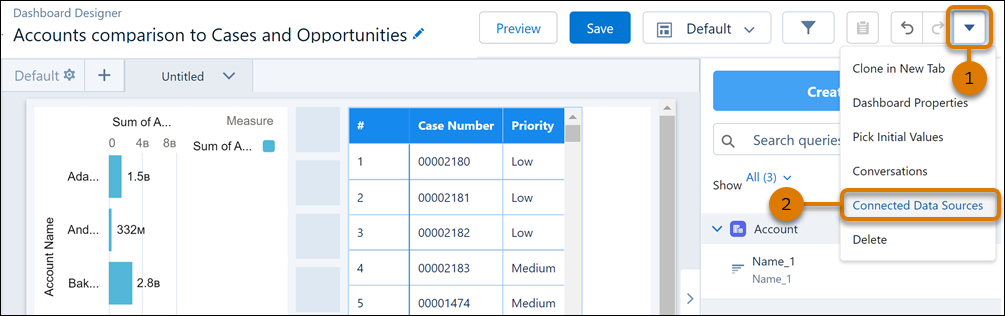
dashboard designer (1) and then select Connected Data Sources
(2).
in the
dashboard designer (1) and then select Connected Data Sources
(2).
-
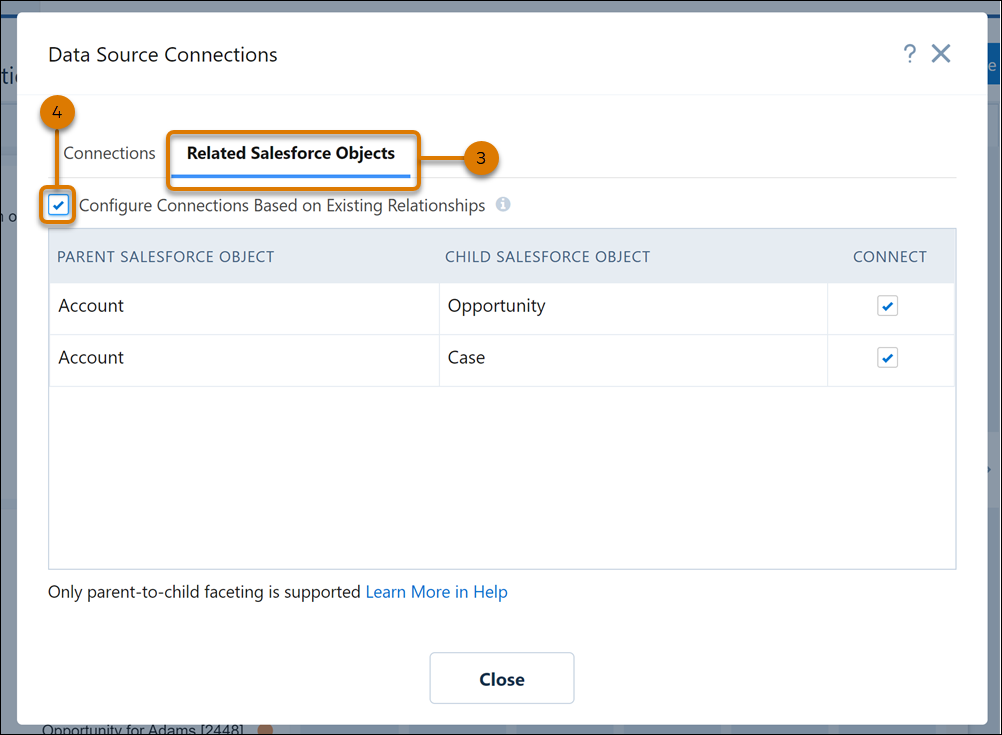
In Data Source Connections, on the Related Salesforce Objects
tab (3), select Configure Connections Based on Existing
Relationships (4). If you’d like to exclude faceting for a Salesforce
object, uncheck the box next to it.
- Close the window and save your changes.
In preview mode, click an account to review related opportunities and cases. 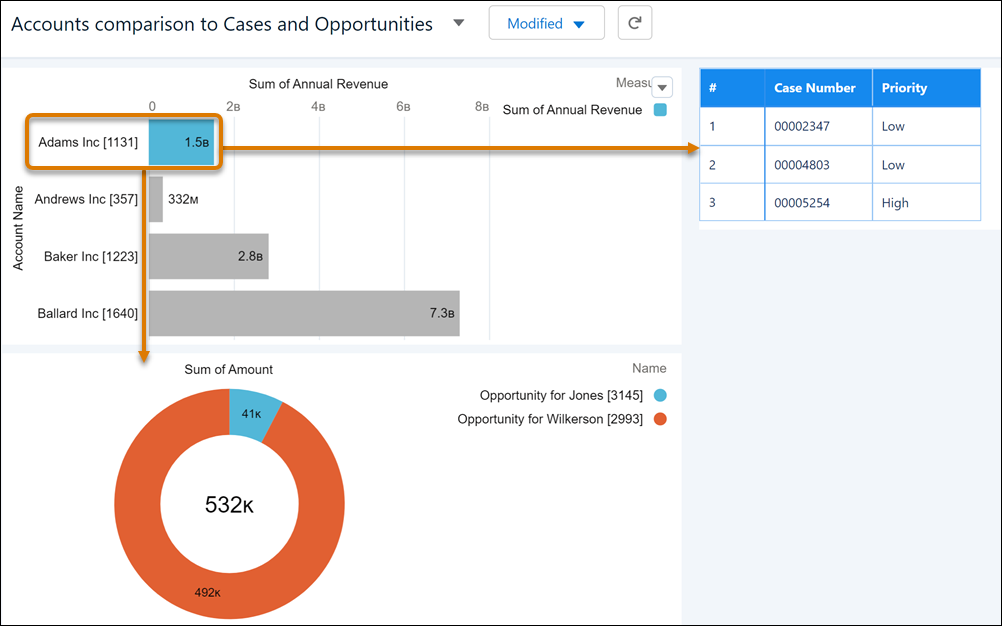
Did this article solve your issue?
Let us know so we can improve!
