
You are here:
Create a Query with the Query Editor
Use the query editor to create or customize SAQL or SOQL queries. The query editor gives you additional flexibility over queries created by widget wizards or in the chart and table modes of the lens.

Note If you modify a query using the query editor, you can no longer add dimensions,
measures, and filters if you switch back to the table or chart view. However, you can still
change the visualization parameters.
-
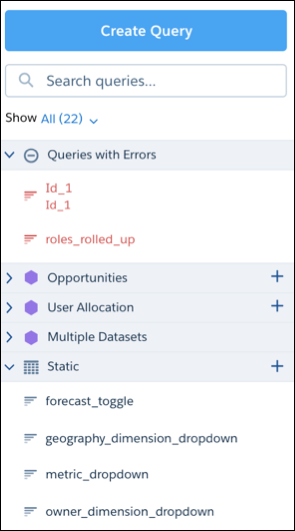
To open the queries panel, click an empty space in the dashboard canvas in the
dashboard designer.
-
Click Create Query.
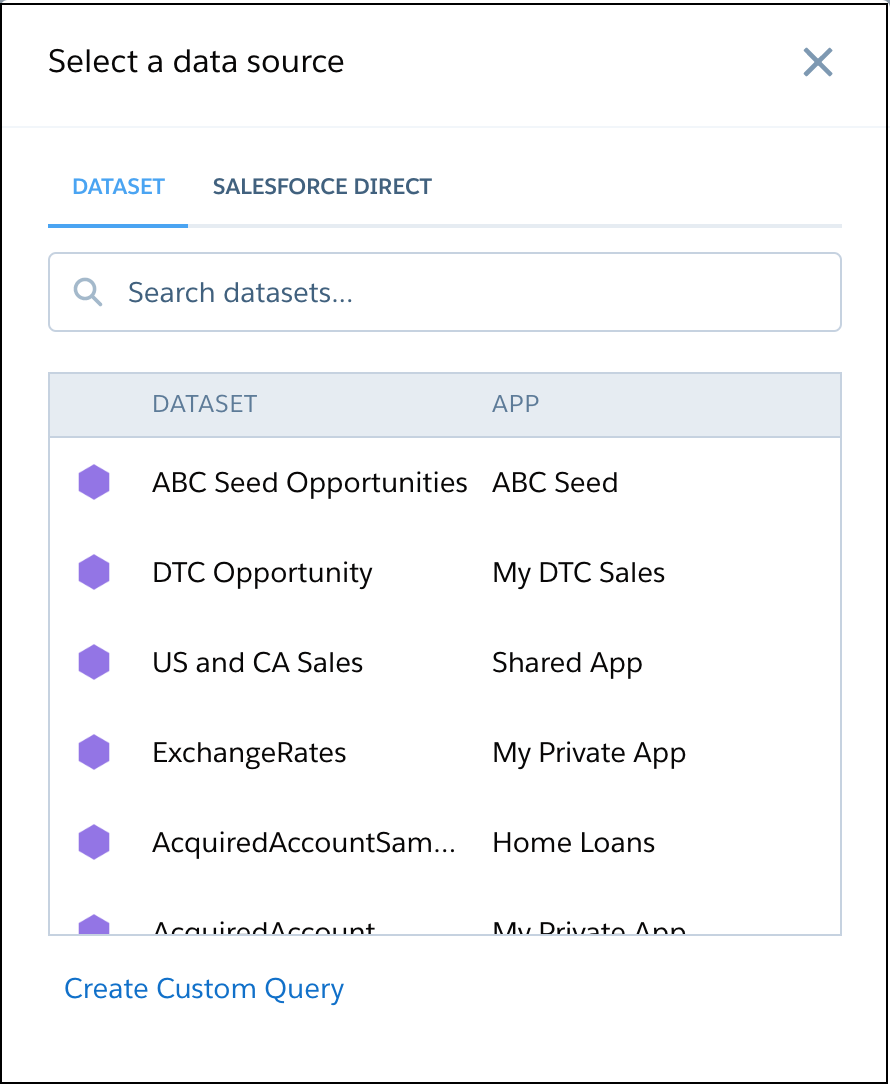
- Click Dataset for a CRM Analytics dataset or Salesforce Direct for a Salesforce object.
-
Select the dataset or Salesforce object that contains the data
that you want to include in the query. Enter the name in the search box if your data
source isn’t easy to find.
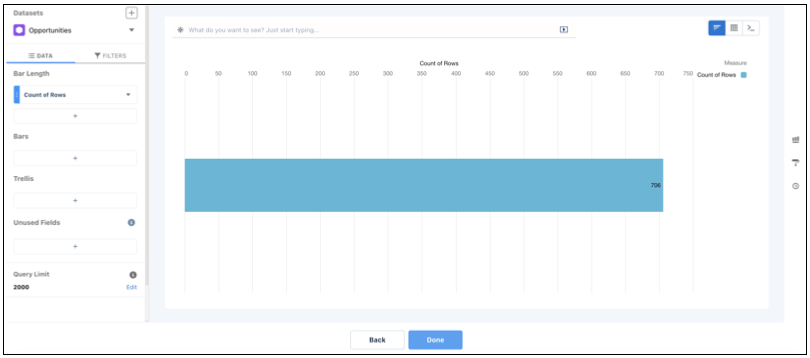
The lens appears showing the default measure, Count of Rows.
-
In the lens, click Untitled Query and enter the query
label.
CRM Analytics creates the query ID from the label. After you create the query, you can’t change the query ID. CRM Analytics refers to queries by their ID so dashboards don’t break if you change the labels.
-
To write a custom SAQL or SOQL query, click
 .
The query editor appears, showing the code for the current query.
.
The query editor appears, showing the code for the current query.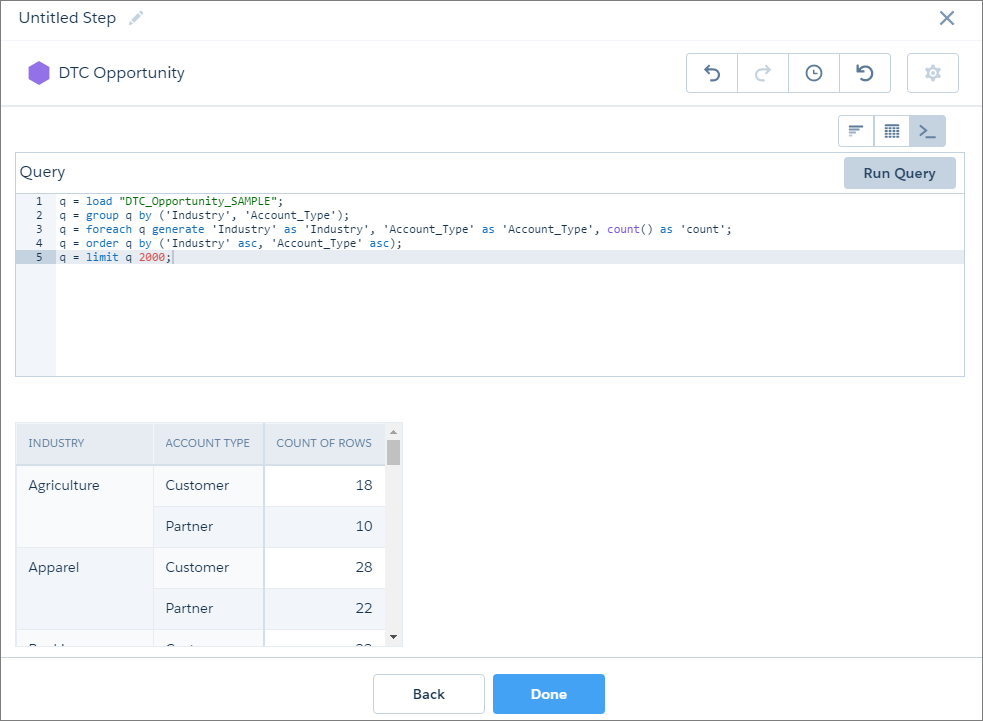
-
Edit the query as needed.
For SAQL, the editor provides contextually smart, auto-completion suggestions. For more information about SAQL queries, see the CRM Analytics SAQL Developer Guide.
-
Click Run Query to validate the query.
The Done button becomes active if the query is valid.
-
Click Done.
CRM Analytics adds the query to the query panel, making it available for use by other widgets in the dashboard.
- Save the dashboard.
- Tips for Working with SAQL Queries in the Query Editor
Queries created or edited in the query editor have unique characteristics compared to other queries, like those queries created in the lens. Review the following tips for working with queries created in the query editor. - Query Editor Considerations
Keep these considerations in mind when switching to the Query Editor to update a query.
Did this article solve your issue?
Let us know so we can improve!
