You are here:
Queries and Custom Queries
Widgets that display data require queries. A widget displays the results returned by a query. For example, a query calculates the average opportunity amount, grouped by region. The widget displays the results in a bar chart format with each bar showing the average amount for a region.
In the dashboard designer, a lens and a query are similar, but not the same. Unlike a query, a lens can be saved as a standalone asset in an app. For example, you can save a lens that displays opportunity trends as a timeline chart. We use “query” to refer to the underlying calculation used to populate a widget in a dashboard.
Query
You can build a widget using one of the following types of queries.
Most queries are this type. The type of query is based on the data source. For instance, CRM Analytics can execute a SAQL query against one or more datasets or a SOQL query against a Salesforce object. CRM Analytics provides multiple ways to create queries.
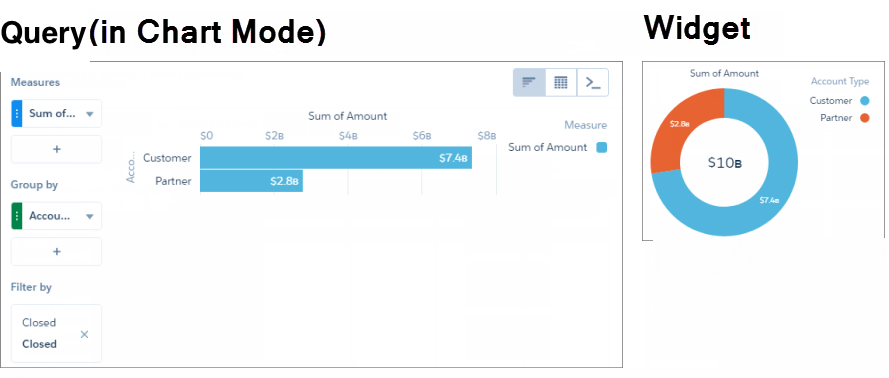
You can use the Chart mode or Table mode of the lens on a single dataset. You can calculate measures, group results by dates and dimensions, and filter records based on dataset fields. Here’s an example of a lens-built query that populates a chart widget.
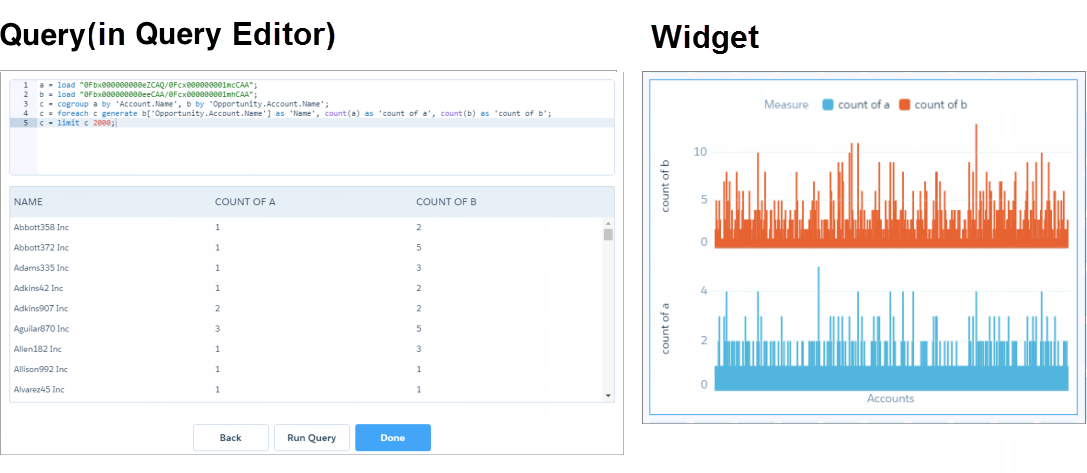
To create customized SAQL or SOQL queries, use the Query mode of the lens. For example, in Query mode, you can create a query based on multiple datasets. The following chart widget shows the results from the SAQL query. For more information about SAQL queries, see the CRM Analytics SAQL Developer Guide.
CRM Analytics creates different query types based on the widget type. Some query types have a limit on the number of results that they can return. For more information about all query types, including those not available in the lens, see the CRM Analytics Dashboard JSON Reference.
Custom Query
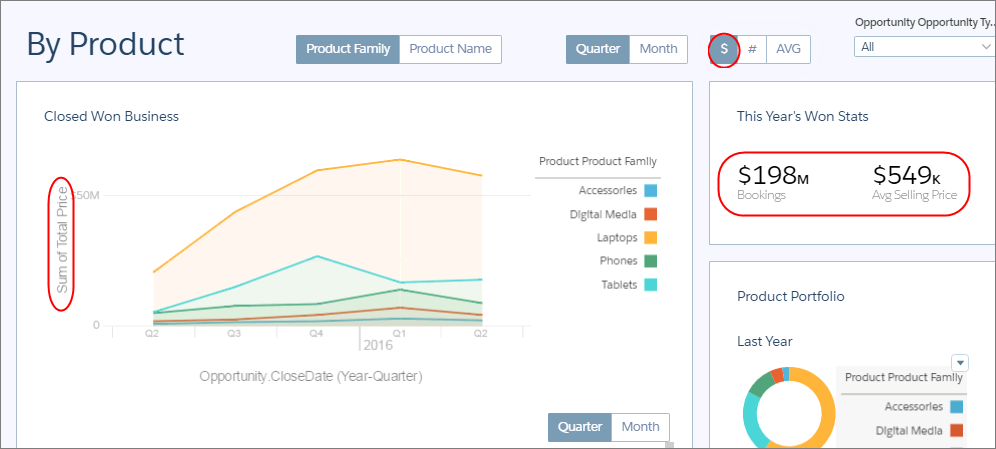
A custom query is more rare. It doesn’t run calculations on your data. Instead, the query provides a static list of user-defined values. For example, a toggle widget can show static values "$," "#" and "AVG." To make the toggle widget interact with other widgets in the dashboard, use data source linking to connect the custom query with other faceted queries. Or bind the static values to the queries of other widgets in your dashboard. For instance, you can bind "$" and "#" to show different measures: "$" to show the value of opportunities, and "#" to show the number of opportunities. In this example, "$" is selected in the toggle widget, and the dashboard shows the value of opportunities.